Configuring the Indexing User
Out-of-the-box, the indexing user field is blank in the Indexing Dashboard. To enable indexing, you must configure a valid indexing user.
If a site administrator is configured as the indexing user, all site data is considered for indexing. In this case, no additional access control rules are required.
 |
Using a site administrator as the indexing user is not recommended for production environments.
|
In on-prem environments, the site administrator is responsible for creating and configuring the indexing user in the Windchill system.
In SaaS environments, the business administrator must set up and configure the indexing user.
With appropriate context-level access controls, the indexing user can include or exclude specific product content from indexing.
 |
Ensure that the following requirements are met for the indexing user:
• Provide both site-level and context-level access to the indexing user.
• If an indexing user is created and configuration is added, but no policy administration rules are defined for the user and no context access is granted, then no data will be indexed.
• Add the indexing user to one of the base licenses through license exclusion group. For more information, see License Exclusion Groups.
• The indexing user belongs to the same organization as the data being indexed (context-specific).
• Update the indexing user’s organization when indexing data from a different organization.
|
Configure System Access Control Policies for the Indexing User
To configure the indexing user, follow these steps:
1. Ensure that you have created an indexing user in Windchill. For information, see Creating an Indexing User.
2. Configure Context-level access controls. These controls define which data is indexed by Azure AI Search.
a. Navigate to > in Windchill.
b. Select All Context. From the table select > > . Set these access controls for the Product contexts whose parts require indexing. The selection of the context is similar to Product or Library context types.
c. Create new access control rules.
The indexing process requires Read and Download permissions for business objects intended for Azure AI Search indexing. In the example below, permissions are granted broadly at the top level using WTObject.
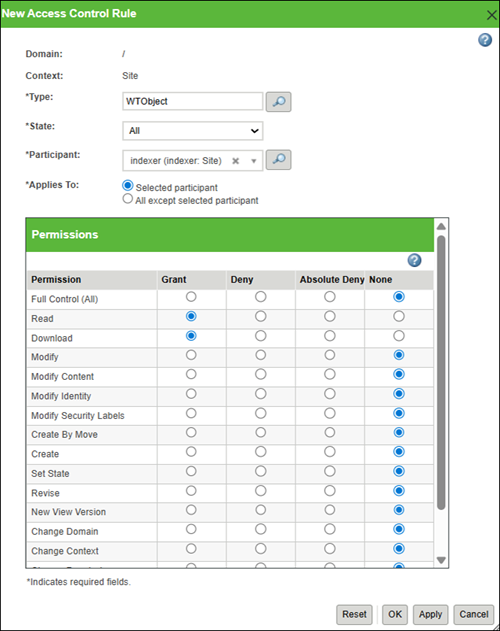
Depending on your requirements, you can configure more granular rules to support indexing only specific object types, as listed in Document Indexing Specifications.
| | When configuring the indexing user, it is recommended to provide access to specific contexts—such as Site, Product, Library, Project, or Organization—for the indexing user. If you want to index only certain data within a specific context, you must ensure that permissions for the object types in that context are properly granted. If access is not restricted, all objects in the Windchill database will be indexed, which may be unnecessary and will significantly increase the time required for indexing. Select what to index with caution because the license uses AI credits. Unnecessary indexing consumes these credits, which could lead to additional costs for purchasing more credits later. Configuring permissions carefully helps control what is indexed and prevents unnecessary resource consumption. Granting access permissions to specific contexts or document types does not automatically initiate indexing. To start indexing, you must select the context to be indexed and allow the required entity types in the Indexing Dashboard of the Windchill AI Assistant. For more information, see Configuring the Indexing Dashboard. |
| | If your organization provides default policies for context access permissions, review them for the indexing user and revoke unnecessary permissions by using the Absolute Deny option. |