Configuring the Indexing Dashboard
This topic is intended for the Windchill System Administrator.
 |
If you have previously indexed vault content using Windchill AI Assistant Plugin version 2026.0.0.21 or earlier, update the plugin and reindex the existing content to ensure compatibility with future plugin versions. For more information, see Reindexing.
|
Use the Indexing Dashboard to configure how the Windchill AI Assistant indexes data from Windchill and synchronizes it with Azure search services.
Before you begin, make sure that the Windchill AI Assistant plugin is connected to the required Azure services. For more information, see Configuring the Windchill AI Assistant Plugin.
After the plugin is connected, complete the following steps to configure indexing and start the indexing process.
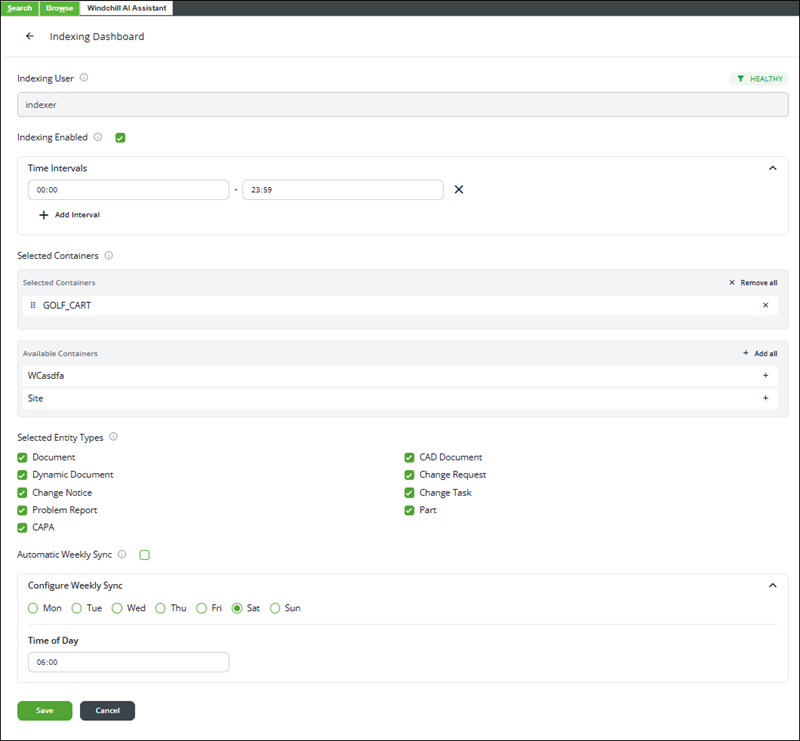
1. Open the Windchill AI Assistant tab, click  and select Indexing Dashboard.
and select Indexing Dashboard.2. Click Edit and specify the Indexing User.
The system indexes only documents that the indexing user can access. For best results, use a dedicated indexing user with access to the relevant products or projects.
For information about creating an indexing user, see Creating an Indexing User.
| | Due to a limitation in this release, you must click Save immediately after changing the indexing user setting to apply the change. To make additional changes, click Edit and specify the remaining details. |
3. Select Indexing Enabled to enable automatic background indexing when documents are added, modified, or removed in Windchill.
4. In the Time Interval section, schedule indexing to control when indexing runs.
◦ Select a time range (for example, 12:00 PM–11:59 PM).
◦ Click  to add additional time intervals.
to add additional time intervals.| | Indexing incurs usage‑based costs that depend on the number and size of indexed documents. When you configure a schedule, indexing runs only during the specified time intervals. If documents are added, modified, or removed outside those intervals, indexing occurs during the next scheduled window. Example: If indexing is scheduled from 11:00 A.M. to 6:00 P.M., any documents added or modified after 6:00 P.M. are indexed during the next scheduled indexing window, starting at 11:00 A.M. the following day. |
5. In the Selected Containers section, select the containers to index:
◦ Click Add to move selected containers from Available Containers to Selected Containers.
to move selected containers from Available Containers to Selected Containers.◦ Click Add all to select all available containers.
to select all available containers.◦ Click Remove  to remove selected container.
to remove selected container.◦ Click Remove all to remove all containers.
to remove all containers.| | Containers that are removed remain available in the index. However, any subsequent changes to files within those containers are not synchronized. To fully remove specific containers from the index, you must also remove the indexing user’s access to those containers using the Policy Administration utility. |
 | Indexing incurs usage‑based costs that depend on the number and size of indexed documents. Containers are processed in priority order. To manage costs and processing time, start by indexing a small number of smaller containers. Indexing large containers can take several days or weeks. |
6. In the Selected Entity Types section, select the entity types to index:
◦ Document
◦ CAD Document
◦ Dynamic Document
◦ Change Request
◦ Change Notice
◦ Change Task
◦ Problem Report
◦ Part
◦ CAPA
7. Select Automatic Weekly Sync to schedule a weekly synchronization between Windchill and the Azure search index. When enabled, the system reconciles the Azure index with the latest changes in Windchill.
a. In Configure Weekly Sync, select a day of the week.
b. Select a time of day (for example, 06:00 AM).
8. Click Save to apply your changes.
9. To synchronize the Azure index manually with all documents in Windchill:
a. Go to Synchronize Index.
b. Click Start.
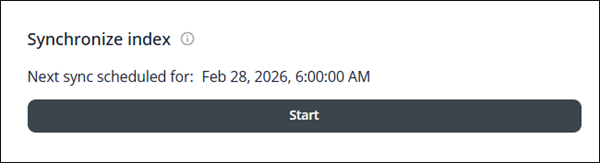
| | After you click Start, the button is temporarily disabled (grayed out) while the system lists content from the Windchill Vault. When the synchronization finishes, the Start button becomes active again. However, this does not indicate that indexing has completed. At this point, all required indexing events have been created and placed in the indexing queue, and indexing continues to run in the background. |
This action indexes all existing documents that the indexing user can access and synchronizes the Azure search index with Windchill.
If you skip this step, only the documents that are added or modified after indexing was enabled are indexed until the Automatic Weekly Sync runs.
Azure Resources Diagnostics
The Azure Resources Diagnostics displays the health status of the Azure services required for the Windchill AI Assistant plugin to operate.
Status indicators show whether each connected Azure service is functioning as expected. Use this information to identify connectivity or service‑health issues that might affect indexing or query results.

Indexer Status
The Indexer Status displays the current status and progress of the indexing process.
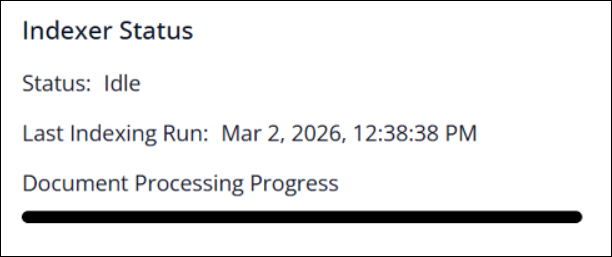
The following table describes the available fields:
Field | Description |
|---|---|
Status | Displays the current status of the indexing process. |
Last Indexing Run | Displays the date and time of the most recent indexing run. |
Document Processing Progress | Displays the progress of document processing. |
Indexing Queue Details
Indexing is incremental and event‑driven, using a queue‑based mechanism. As an administrator, you can inspect the details of this queue and identify indexing failures.
Open the WindchillAIAssistant_QUEUE using the Queue Management utility in Windchill. For more information on working with the Queue Management utility to locate and open this queue, see Working with the Queue Management Utility.
The queue displays one document per row as an event.
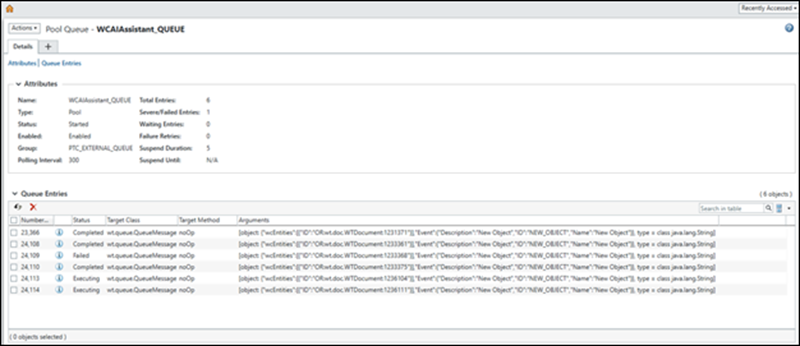
The following table describes the available status codes:
Field | Description |
|---|---|
Ready | A document has been queued for processing. |
Executing | A document is being indexed. |
Completed | Document indexing completed successfully. The contents can now be queried via chat or the summarization function. |
Failed | Document indexing failed. Refer to the Indexing Limits section or Troubleshooting for On-prem Environment. |
Completed entries are automatically removed from the queue after a defined period. Failed entries remain in the queue so that they can be reviewed and investigated. The event details may include messages from the indexing service to help identify the cause of the failure.
| | • The Windchill AI Assistant uses knowledge from indexed documents. Allow the indexing process to be completed before submitting product-related queries. • The plugin indexes all data accessible to the indexing user. For limitations related to the number of documents that can be indexed, see Known Issues for On-prem Environment. • Granting the indexing user access to additional contexts and running indexing may incur costs in your Azure subscription. • If indexing fails, review the table in the Document Indexing Specifications, as indexing an unsupported type can result in a failed indexing event. |