Configuring the Windchill AI Assistant Plugin
This topic is intended for the Windchill System Administrator.
After installing the Windchill AI Assistant plugin, you must configure the plugin using the configuration output generated by the deployment helper script when creating Azure resources for an on‑premises environment.
For more information, see Configuration Output from the Deployment Helper Script section.
Procedure
Follow these steps to configure the Windchill AI Assistant plugin:
1. Navigate to > > .
2. Right-click the Windchill AI Assistant plugin and select Configure Plugin.

The Windchill AI Assistant – Configuration window opens.
3. Provide the required details in the Windchill AI Assistant Configuration window:
a. In the Azure AI Search section, click Edit and specify the following details:
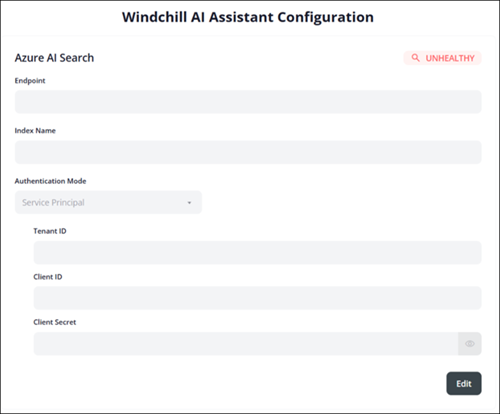
i. Endpoint—Enter the Azure AI Search endpoint from the deployment helper script output.
ii. Index Name—Enter the index name from the deployment helper script output.
iii. Authentication Mode—Select Service Principal from the list, and then enter the Tenant ID, Client ID, and Client Secret from the deployment helper script output.
iv. Click Save to apply the configuration.
b. In the Azure OpenAI section, click Edit and specify the following details:
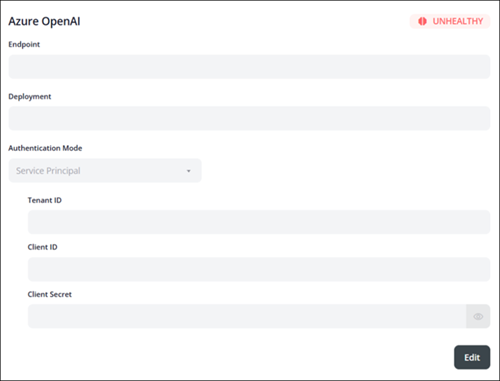
i. Endpoint—Enter the Azure OpenAI endpoint from the deployment helper script output.
ii. Deployment—Enter the deployment name from the deployment helper script output.
iii. Authentication Mode—Select Service Principal from the list, and then enter the Tenant ID, Client ID, and Client Secret from the deployment helper script output.
iv. Click Save to apply the configuration.
c. In the Azure Storage section, click Edit and specify the following details:
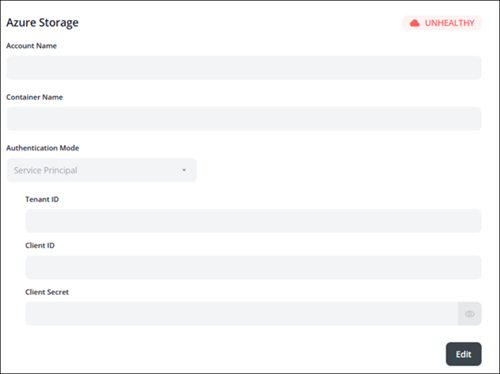
i. Account Name—Enter the Azure storage account name from the deployment helper script output.
ii. Container Name—Enter the storage container name from the deployment helper script output.
iii. Authentication Mode—Select Service Principal from the list, and then enter the Tenant ID, Client ID, and Client Secret from the deployment helper script output.
iv. Click Save to apply the configuration.
4. Close the Windchill AI Assistant Configuration window.
Verify the health indicators after the configuration. If any indicator is not in HEALTHY status, see Troubleshooting for On-prem Environment.
Plugin Certificate Rotation
This topic describes the strategy for managing self-signed certificates used by Windchill plugins. AI plugins rely on self-signed certificates for secure communication. It covers certificate creation, validation, rotation, and integration with Windchill and Apache components to ensure secure communication. The Rotate Certificate action is used to manage these self-signed certificates.
To start the certificate rotation process, click > on the Windchill Plugins page. When you perform the action, the following rotation process takes place:
1. A new certificate is generated with the same names:
◦ certificate.crt (public key)
◦ privateKey.pem (private key)
2. The old certificates are renamed as:
◦ certificate_rotated.crt
◦ privateKey_old.pem
3. The new public key is added to the Apache certificate file.
 | Retain the previous certificates in both the plugin folder and the Apache certificate file. After the certificate rotation, restart the Apache and Windchill services. |

Using the Rotate Certification Action
The Rotate Certificate action is available only on the Windchill Plugins page, as the plugin certificate rotation applies exclusively to the Windchill on-prem environment.
In cluster environments of Windchill on-prem, running this action on any node rotates the certificate across all nodes.
If one of the nodes is down and certificates are rotated from another node, the allClientCerts.crt file must be copied manually from the currently active node to the node that was previously down, before restarting any nodes.
For example, if Node 1 is up and Node 2 is down, and certificates are rotated from Node 1, manually copy the allClientCerts.crt file from Node 1 to Node 2 before starting Node 2. Once the file is copied, then start Node 2.
| | After performing the Rotate Certificate action, copy the AllClientsCerts file from the local Apache folder to the remote Apache folder for a split‑web server. This step must be completed after configuring the Windchill AI Assistant plugin on the above deployment scenario. |
Managing Self-Signed Certificates
The following points outline key considerations for managing self-signed certificates and maintaining functionality after a rotation:
• The Apache and Windchill services must be manually restarted after the certificate rotation.
• Self-signed certificates have a validity period of 6 months.
• Retain old certificates in both the plugin folder and the Apache certificate file.
• Certificate rotation cannot occur unless at least one hour has passed since the previous rotation.
• If a certificate rotation fails for any plugin, the MethodServer log shows the corresponding plugin ID.
• Failure to restart Apache and Windchill after rotation may result in plugins using outdated certificates.
Configuring the Plugin in Windchill Deployment Scenarios
This topic is intended for the Windchill System Administrator.
This section provides detailed instructions for configuring the Windchill AI Assistant plugin in the Windchill deployment scenarios, such as web server setups, and reverse proxy configurations.
Split‑Web Server Configuration
Follow these steps to configure the AI Assistant plugin on Windchill with split-web server configuration:
1. Ensure SSL is configured on remote Apache and Windchill.
2. Install the required plugins from the > page.
3. Restart remote Apache (in case of Windows only).
4. Navigate to a local Apache folder:
HTTPServer_HOME\conf\sslvhostconf.d
5. Copy these files:
◦ allClientCerts.crt
◦ pluginClients.conf
6. Paste these files into remote Apache at:
HTTPServer_HOME\conf\sslvhostconf.d
| | After performing the Rotate Certificate action, replace the allClientCerts.crt file on the remote Apache server, and then restart both the remote Apache service and the Windchill server. For more information on certificate rotation process, see the “Plugin Certificate Rotation” section of this topic. |
7. Edit the pluginClients file to update the path for allClientCerts.crt.
8. Copy WindchillAIAssistant-proxy.conf from plugin install directory and paste into HTTPServer_HOME\conf\conf.d on remote Apache.
9. Open the WindchillAIAssistant-proxy.conf file and replace balancemember localhost with windchill host name and save it.
<Proxy balancer://WindchillAIAssistant_lb/>
BalancerMember http://localhost:9090/Windchill/WCPlugins/wcaiassistant route=WindchillAIAssistant1
ProxySet stickysession=WindchillAIAssistant_sticky
</Proxy>
BalancerMember http://localhost:9090/Windchill/WCPlugins/wcaiassistant route=WindchillAIAssistant1
ProxySet stickysession=WindchillAIAssistant_sticky
</Proxy>
10. Restart split-web server or remote Apache.
11. Navigate to the > page and configure the plugin. Ensure that the configuration is completed successfully.
Reverse Proxy Configuration
Follow these steps to configure the AI Assistant plugin on Windchill with reverse proxy configuration:
1. Ensure SSL is configured on all relevant Apache servers and Windchill.
| | To ensure proper communication, add the reverse proxy IP address and its associated public DNS hostname to the hosts file on the Windchill node: • On Linux /etc/hosts or • On Windows C:\Windows\System32\drivers\etc\hosts |
2. Install the required plugins from the > page.
3. Restart Apache (Windows only, Linux not required).
4. Open the 20-mod_ssl.conf file from local Apache located at: %APACHE_HOME%/conf/conf.d and open httpd.conf file located at %APACHE_HOME%/conf.
5. Search for the string: RewriteCond %{HTTP_HOST}. If this string is found, proceed to steps 5a and 5b. If it is not found, omit steps 5a through 5c and proceed directly to step 6:
a. Add the hostname of the reverse proxy system in this condition:
RewriteCond %{HTTP_HOST} !^(<reverse_proxy_hostname>|<local_Apache>):<port>$ [NC]
For example:
▪ Old: RewriteCond %{HTTP_HOST} !^XYZ.localapache.example.com:22444$ [NC]
▪ New: RewriteCond %{HTTP_HOST} !^(XYZ.proxy.example.com|ABC.localapache.example.com):22444$ [NC]
| | Make sure the locale Apache and reverse proxy Apache are configured to use the same port. |
b. Save the 20-mod_ssl.conf and httpd.conf files.
c. Restart local Apache.
6. Navigate to the > page and configure the plugin. Ensure that the configuration is completed successfully.