Switching User Interface
Change the Service Board interface from Application Settings when your administrator enables dispatcher UI personalization.
|
Prerequisite
|
|---|
|
An administrator has enabled Enable Service Board UI Personalization in Max Designer.
|
Dispatchers can switch between the modern and classic Service Board user interfaces from the Application Settings page.
 |
The Classic user interface retires on November 8, 2026. All features are available in the Service Board Modern interface. We recommend switching to Service Board Modern at your earliest convenience to access the latest features.
|
To switch the UI:
1. Click Application Settings from Service Board.
2. Click the Service Board Classic tab or the Service Board Modern tab.
3. Click the toggle to select the other interface.
Service Board reloads in the selected interface.
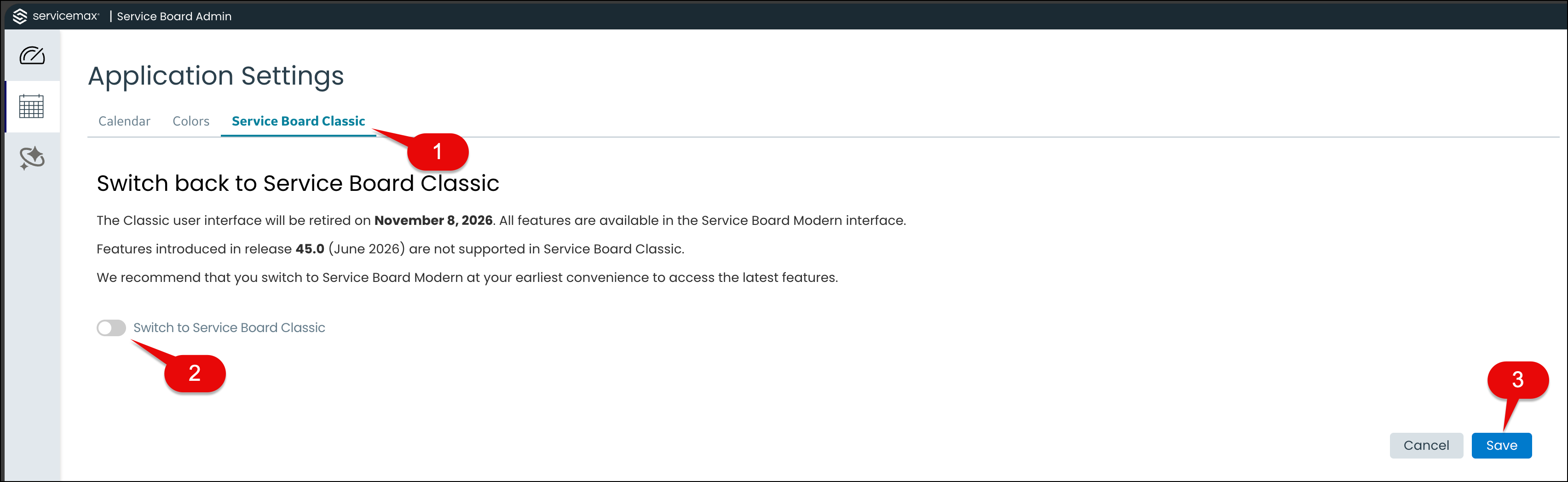
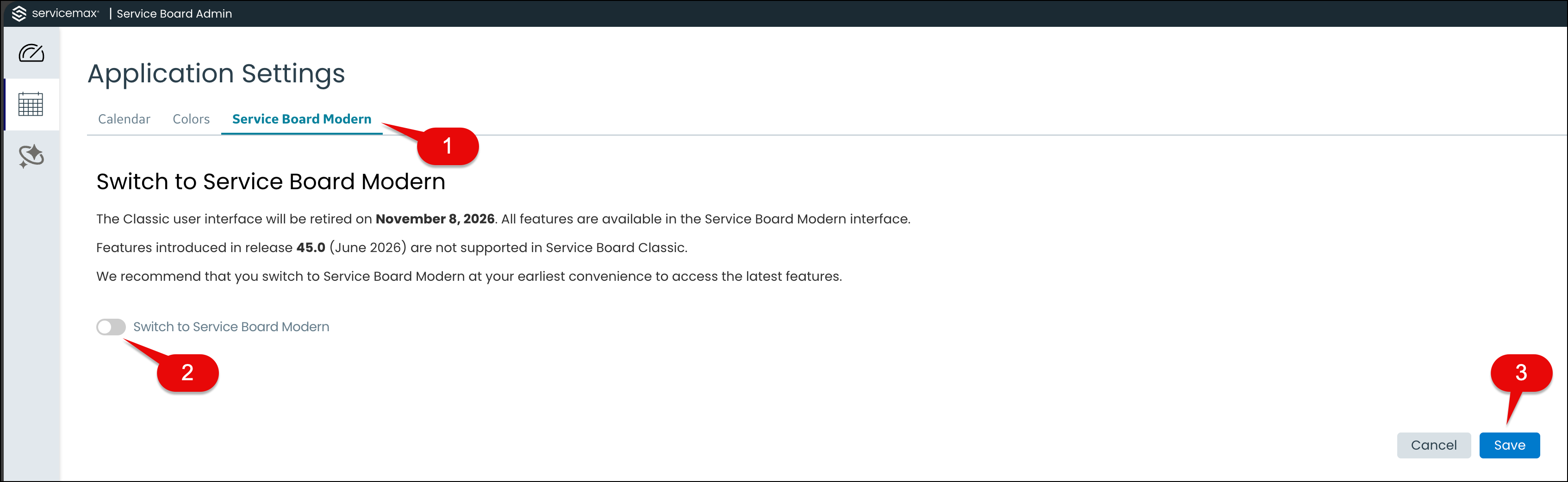
Callout Table
|
Callout Number
|
Description
|
|---|---|
|
1
|
Service Board UI tab. Classic or Modern
|
|
2
|
Toggle to enable the UI
|
|
3
|
Save
|
Related Topics