Configuring Real-Time Sync Email Alerts
You can configure email alerts to notify users when failures occur during Salesforce-to-Service Board real-time sync.
To configure real-time sync email alerts:
1. On the Salesforce Setup page, in the left pane, click > > > , and then in the list view, to the left of Email alert to send emails on real-time sync errors which are logged in Outbound Queue object (Managed), click Edit.
2. On the Setup Email Alerts page, under Edit Email Alert, do one of the following, and then click Save.
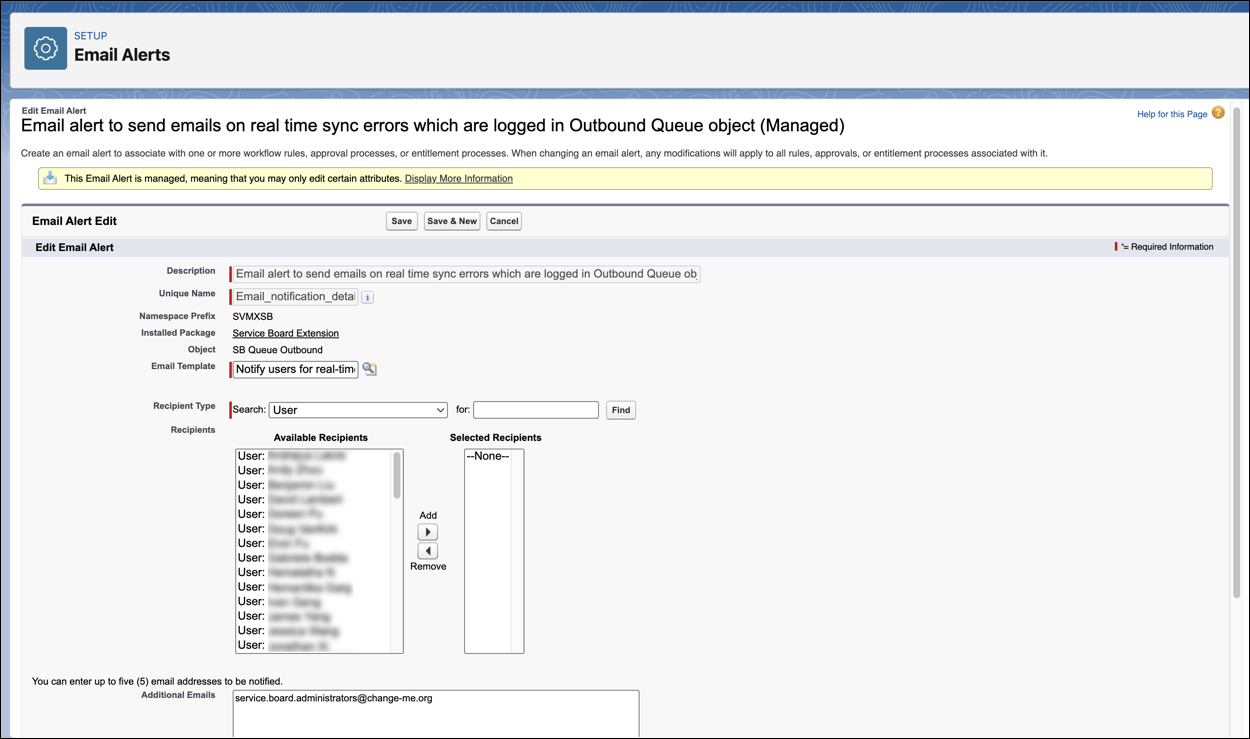
◦ In the Recipients list, select one or more users and click Add.
◦ In the Additional Emails text box, enter one or more user email addresses.
3. On the Setup page, in the left pane, click > > , and then in the list view, click Notify users via email for records which are not synchronized.
4. On the Flow Builder page, in the top right corner, click Activate, and then click Save.