Configuring Lead Time and Lag Time
 |
Current-Day Optimization is a Production Beta feature.
|
Based on your requirements, you can configure a lead time, a lag time, or a combination of both .
Lead Time
To configure lead time for Current-Day Optimization jobs:
1. In Max Designer, clickDeveloper Tools ( ) > , and then in the left pane, search for and click Optimization Setting.
) > , and then in the left pane, search for and click Optimization Setting.2. In the left pane, click Records, and then in the list view, click the Optimization Setting record in which you want to configure lead time.
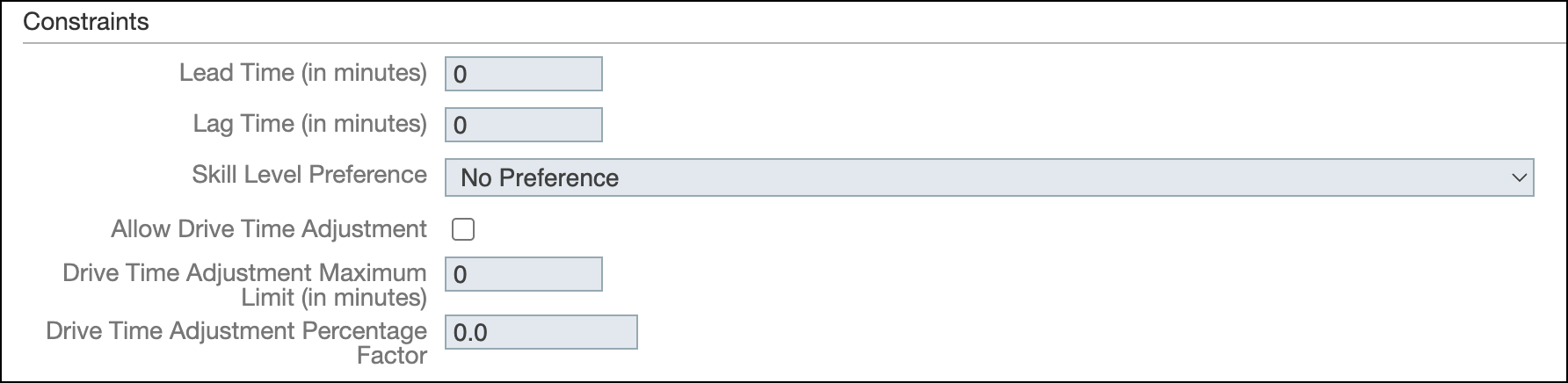
3. On the record page, in the Constraints area, in the Lead Time (in minutes) field, enter the number of minutes you want to define as a lead time window, for example, 60, and then in the top left corner, click Save and Close ( ).
).
).When Lead Time (in minutes) is set to 60, the system locks the schedule for the next 60 minutes at the time the CDO process executes.
During this locked period:
• No new appointments are dispatched.
• No reshuffling occurs for appointments that are already dispatched.
During this time period, because Resources may be en route to Appointments or already have work in progress, the following location fallback rules are automatically applied to determine the most accurate Resource location.
No Appointments Scheduled Today
• If the current Resource location is valid and available, it is used.
• Otherwise, the default location for the Resource is used.
No Appointments Overlapping the Lead Time Window
• The lead time window starts at the time of execution and ends after the configured amount of time passes.
• If there is a previously scheduled Appointment within this window, and a current location is available and valid, it is used.
• If a current location is unavailable, the address of the most recent Appointment or Event is used.
• If no location for the most recent Appointment or Event is available, the default location for the Resource is used.
Appointment Overlaps With the Lead Time Window
• The address of the overlapping Appointment or Event is used.
• If the address of the overlapping Appointment or Event is unavailable, the current Resource location is used.
• If no other location is available, the default location for the Resource is used.
Lag Time
To configure lag time for Current-Day Optimization jobs:
1. In Max Designer, clickDeveloper Tools () > , and then in the left pane, search for and click Optimization Setting.
) > , and then in the left pane, search for and click Optimization Setting.2. In the left pane, click Records, and then in the list view, click the Optimization Setting record in which you want to configure lead time.
3. On the record page, in the Constraints area, in the Lag Time (in minutes) field, enter the number of minutes you want to define as a lag time window, for example, 60, and then in the top left corner, click Save and Close ().
).When Lag Time (in minutes) is set to 60, the system evaluates appointments scheduled within the previous 60 minutes relative to the current time when the CDO process executes. Appointments Eligible for Reshuffle.
Appointments whose scheduled time overlaps with the 60 minutes window can still be adjusted by the optimization engine, subject to other constraints such as Optimization Settings configuration and the Lock Appointment Schedule setting on the related Job.
The following cases qualify for potential reshuffle:
• The appointment starts in the past, but its end time overlaps with the [Now – Lag Time, Now] window.
• The appointment starts within the [Now – Lag Time, Now] window.
• The appointment fully falls within the [Now – Lag Time, Now] window.
Appointments scheduled earlier than 60 minutes in the past are treated as locked:
• No new appointments are scheduled into those past time windows.
• Appointments whose start and end times are both earlier than Now – 60 minutes are locked and cannot be reshuffled.
• Appointments scheduled in future time windows continue to support locking configuration defined in Optimization Settings and on the related Job record.
Reschedule Validation
In addition to start and end time validation, the system checks the Reschedulable flag defined in the Workflow State Parameter for the appointment’s current status. If Reschedulable = false, the appointment is not reshuffled. This validation applies only to appointments that fall within the Lag Time window.
|
|
If Now – Lag Time extends into the previous day, the evaluation window is adjusted to begin at the start of the current day.
|
Combined Configuration
Lead Time and Lag Time together define a controlled optimization time band. This time-window control improves schedule stability during real-time optimization while maintaining operational agility.
• Past Boundary: Appointments scheduled earlier than Now – Lag Time are locked.
• Future Boundary: No new appointments are scheduled within Now + Lead Time.
• Reshuffle Window: Appointments overlapping the defined time band may be adjusted, subject to reschedulable and locking configurations.
Related Topics