Viewing Notes on a Dictionary Item
Open and review a note attached to an Observation, Root Cause, or Solution dictionary item to see prior findings, context, and decisions recorded against that item.
You can view notes to review previously recorded findings, context, or decisions associated with a dictionary item.
To view a note on a dictionary item:
1. Open the relevant Case, Work Order, or Service Request.
2. Select the Investigations tab.
3. From the Installed Product drop down list, select the relevant installed product.
4. In the Observations, Root Causes, or Solutions section, locate the dictionary item.
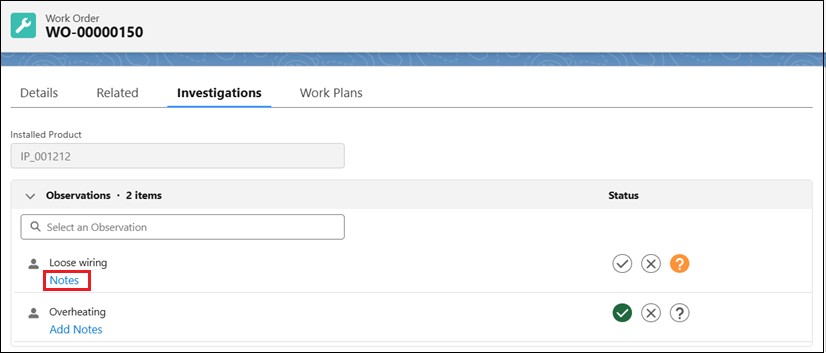
5. Select Notes to open the Notes pop-up window.
 |
Hover over Notes to preview the note without opening the pop-up window. You can view only one note at a time. While a note is open, the Notes and Add Notes links for other dictionary items are unavailable.
|
6. Review the note details.
7. Select Close, or press Esc, to exit the pop-up window.
The note remains associated with the dictionary item and is available for reference across related transactions.
Related Topics