Adding a Note to a Dictionary Item
Attach a note to an Observation, Root Cause, or Solution dictionary item on a Case, Work Order, or Service Request to capture findings, clarifying details, or resolution context that does not fit the structured fields.
You can add notes to a dictionary item to capture important details such as initial findings, observations, or resolution context. Notes help your team understand the history and progress of the investigation.
To add a note to a dictionary item:
1. Open the relevant Case, Work Order, or Service Request.
2. Select the Investigations tab.
3. From the Installed Product drop down list, select the relevant installed product.
4. In the Observations, Root Causes, or Solutions section, select Add Notes for the required dictionary item.
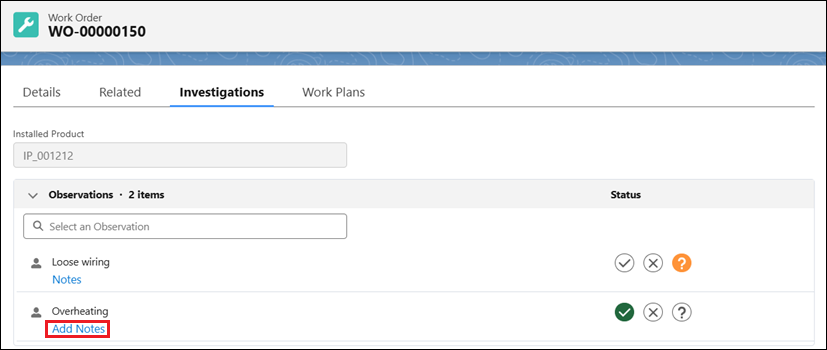
 |
To open the notes popup using the keyboard, tab to the Add Notes link and press Enter.
|
The Notes pop-up window is displayed.
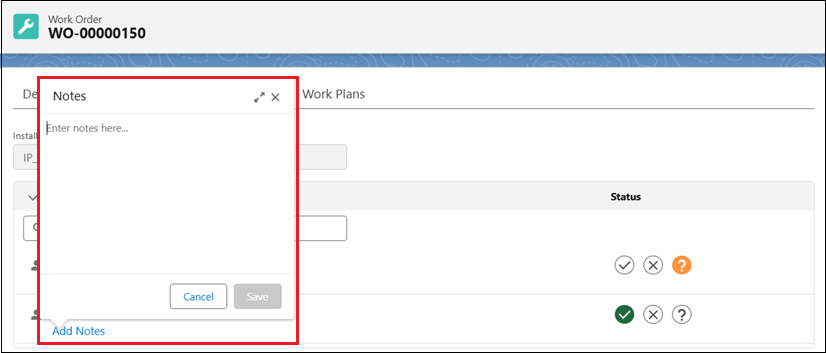
5. Enter your note in the text field.
|
|
You can add a note to only one dictionary item at a time. While you are adding a note, the Notes and Add Notes links for other dictionary items are unavailable.
|
6. To expand the text field, select the Expand icon.
7. To cancel without saving, select Cancel or press Esc.
8. To save your changes, select Save or press:
◦ Cmd+Enter (Mac)
◦ Ctrl+Enter (Windows)
After you save the note:
◦ The note is attached to the Dictionary item.
◦ The Add Notes changes to Notes, indicating that a note exists.
◦ Hover over the indicator to preview your note.
Related Topics