Viewing Child Records
The related records or child lines are available on separate tabs when viewing a record. For each related record, if your administrator has enabled online search, you can use the filter in the search bar to include online results. The list view on the View SFM, Explore, and Lookup Results screens displays labels and the corresponding values for the child records. The labels and the values are displayed in the Label: Value format for every field configured in the child section, Lookup configuration, and SFM search. The labels help you to identify the fields in the list view.
Android and iOS
To view child records:
1. Open a record using a View Process.
2. Tap a related record tab to view the child records.
3. If online search is enabled, use the filter in the search bar to include online results.
Once you enable the option to include online results, the Go App searches the Core server for related records that qualify the search criteria.
 |
When online search is enabled, the search results update dynamically as you modify the search text. Each change triggers a new search, helping you refine results and view the most up-to-date matching records.
|
4. Once online results are returned, tap any result to download the entire record.
|
|
• A message No view process available for the logged-in user is displayed if there is no matching View Process available.
• A message This record does not meet the qualification criteria for this SFM Transaction is displayed if the record does not qualify for the View Process that you selected
|
Salesforce Knowledge Articles: You can view the Salesforce Knowledge Articles associated with the Work Order. You can also view the rich and formatted content in the Knowledge Article.
Windows
To view a header or a child record in the Go App for Windows:
1. Open a record that has child lines.The default SFM View process is displayed with the header tab.
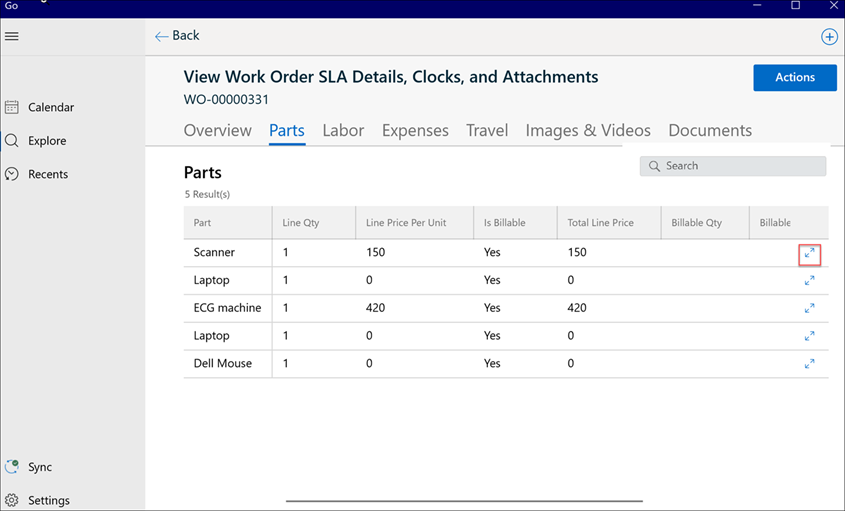
2. Select a child line tab for example, the Parts tab. The child records are displayed as rows. You can use the search option from the top-right corner to filter and search the records from the list.
|
|
When online search is enabled, the search results update dynamically as you modify the search text. Each change triggers a new search, helping you refine results and view the most up-to-date matching records.
|
3. Click the expand icon pinned to the right of a child line row. The child record opens in a modal window.
4. Click View Full Record in the modal window to view the details of the child record. The default view process for the child record is displayed.
|
|
The No View Process Configured error message is displayed if the view process is not configured.
|
5. Go to the Images & Videos tab and click the expand icon pinned to the right of an image or video. The View Photo or Video modal window is displayed with details such as File Name, File Type, File Size, Date Modified, and Description.
6. Go to the Documents tab and click the expand icon pinned to the right of a document. The View Document modal window is displayed with details such as File Name, File Type, File size, Date Modified, and Description.
Salesforce Knowledge Articles: You can view the Salesforce Knowledge Articles associated with the Work Order. You can also view the rich and formatted content in the Knowledge Article.