Updating Technical Attributes from a Task
This topic explains updating technical attributes from a task
As a technician, you can select Technical Attribute as a task and update attributes for a service product.
Perform the following steps to update technical attributes from a task.
Android and iOS
1. Open the Go app with your valid credentials, and then navigate to Appointment Detail > Work Order record.
The Work Order Detail screen is displayed.
2. From the Actions menu, tap the View Service Task option.
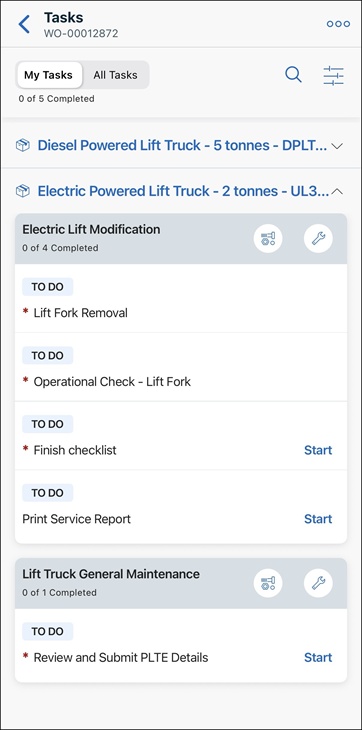
The list of associated tasks is displayed.
 |
By default, My Tasks view is displayed to show the list of tasks that are assigned only to you.
|
3. Tap the technical attribute task whose status is not Completed and it is assigned to you.
The Task Detail screen is displayed.
4. Tap Update Readings.
The technical attribute template is displayed.
|
|
The technical attribute template is displayed with existing values if they are available. Else, an empty template is displayed or it is displayed with any default values.
|
5. Enter the attribute values in the corresponding fields.
|
|
• Lookup in Technical Attributes can be updated from a task. Lookup fields support offline search with search‑as‑you‑type, display results alphabetically. Lookup behavior respects any filtering, default values, and read‑only settings configured in the Technical Attribute template.
• If the Go app cannot find a Technical Attribute template for the task, an alert is displayed with the message Could not find a template to load. Contact your administrator. If the user does not have the required object‑level or field‑level permissions, an alert is displayed with the message No Permissions to perform this task. Contact your administrator. In both cases, the attributes cannot be updated, and the user remains on the same page.
|
6. To update the time spent on the task, tap Time Spent, enter the actual time spent on the task, and tap Update.
It is a mandatory field to create Labor lines.
7. Tap Save.
Technical Attribute records are created for the service product and the task status is changed to Completed.
Windows
1. Open the Go App with your valid credentials, and then navigate to Appointment Detail > Work Order record. The Work Order Detail screen is displayed.
2. From the Actions menu, click the View Service Task option. The list of associated tasks is displayed.
|
|
By default, My Tasks view is displayed to show the list of tasks that are assigned only to you.
|
3. Click the technical attribute task whose status is not Completed and it is assigned to you.
The Task Detail screen is displayed.
4. Click Update Readings.
The technical attribute template is displayed.
|
|
The technical attribute template is displayed with existing values if they are available. Else, an empty template is displayed or it is displayed with any default values.
|
5. Enter the attribute values in the corresponding fields.
|
|
• Lookup in Technical Attributes can be updated from a task. Lookup fields support offline search with search‑as‑you‑type, display results alphabetically. Lookup behavior respects any filtering, default values, and read‑only settings configured in the Technical Attribute template.
• If the Go app cannot find a Technical Attribute template for the task, an alert is displayed with the message Could not find a template to load. Contact your administrator. If the user does not have the required object‑level or field‑level permissions, an alert is displayed with the message No Permissions to perform this task. Contact your administrator. In both cases, the attributes cannot be updated, and the user remains on the same page.
|
6. To update the time spent on the task, click Time Spent, enter the actual time spent on the task, and click Update.
It is a mandatory field to create Labor lines.
7. Click Save.
Technical Attribute records are created for the service product and the task status is changed to Completed.