Searching for Parts by Keywords
You can search for parts from the Product Catalog and My Stock inventories using keywords in the Search box. The search result displays the list of parts matching the keywords. The keywords can match with the following attributes of a part:
• Product Name
• Product Code
To search for parts using keywords, perform the following steps.
1. Navigate to More > Inventory.
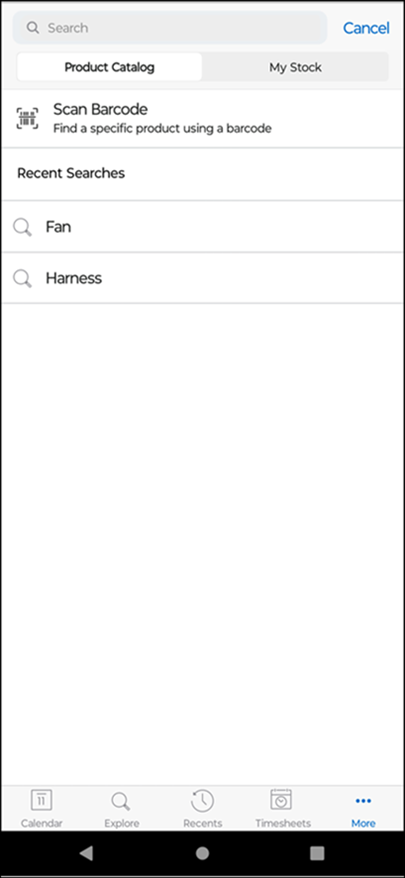
2. Tap the Search box on top of the screen. You can toggle between the Product Catalog and My Stock tabs to search.
 |
• When you search from the Inventory landing screen, the Product Catalog tab is selected by default.
• If you navigate anywhere within Product Catalog from the Inventory landing screen and then tap the Search box, the Product Catalog tab is toggled on.
• If you navigate to My Stock from the Inventory landing screen and then tap the Search box, the My Stock tab is toggled on.
|
3. Enter the keyword related to either Part name, Product Name, or Product Code.Alternatively, tap a keyword from the Recent Searches section.A list of parts matching the keyword is displayed.
|
|
When you toggle between Product Catalog and My Stock, the keyword entered in the Search box applies to the selected inventory.
|
4. Tap a part from the search results to view the details.
|
|
• If the device has internet connectivity, the DOD is performed on the record. The information is available on the part detail screen.
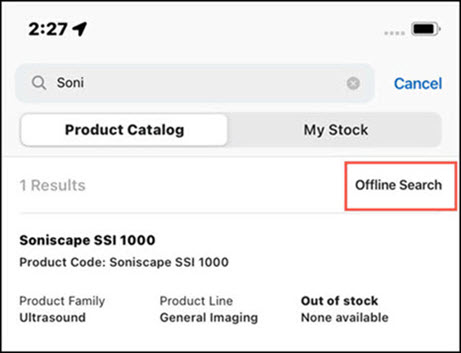
• If the device does not have internet connectivity, the information is displayed with the available downloaded information of the part. The search screen displays a message that this is an offline search.
 |