Completing Multiple Tasks
You can complete multiple simple tasks for a service product at once. This option is available only when there are eligible tasks assigned to you that are not yet completed and have valid labor details, if required. Tasks are grouped by work plan in task list order. Work plans with no qualifying tasks are not shown.
Perform the following steps to complete multiple tasks.
Android and iOS
1. Open the Go app with your valid credentials, and then navigate to Appointment Detail > Work Order record.
The Work Order Detail screen is displayed.
2. From the Actions menu, tap the View Service Task option.
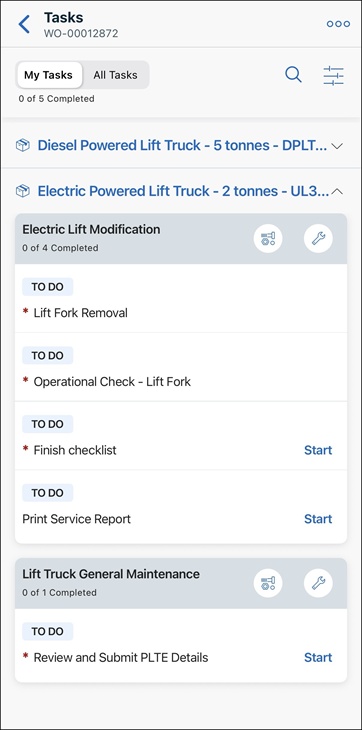
The list of associated tasks is displayed.
 |
By default, My Tasks view is displayed to show the list of tasks that are assigned only to you.
|
3. Tap a service product to view the list of associated tasks.
4. Tap the menu button from the upper-right corner of the screen and tap Complete My Tasks.
The list of eligible tasks is displayed.
5. Select the tasks you need to complete, and tap Complete My Tasks from the lower-right corner of the screen.
A confirmation pop-up is displayed.
6. Tap Mark Complete.
A toast message is displayed with the number of tasks completed. The task list is refreshed, and the system performs a smart sync if the device is connected to the internet.
Windows
1. Open the Go app with your valid credentials, and then navigate to Appointment Detail > Work Order record.
The Work Order Detail screen is displayed.
2. From the Actions menu, click the View Service Tasks option.
The list of associated tasks is displayed.
|
|
By default, My Tasks view is displayed to show the list of tasks assigned to you only.
|
3. Tap a service product to view the list of associated tasks.
4. Click the menu button from the upper-right corner of the screen and click Complete Tasks.
The Complete Tasks window is displayed with the list of eligible tasks.
5. Select the tasks you need to complete and click Complete Selected from the upper-right corner of the window.
A confirmation pop-up is displayed.
6. Click Mark Complete.
A toast message is displayed with the number of tasks completed. The task list is refreshed, and the system performs a smart sync if the device is connected to the internet.