Assigning or Reassigning Tasks to Self
You can assign or reassign a task to yourself when the status of the task is not Complete.
You can assign a task to yourself from the Task Detail view if the task is either unassigned or is assigned to someone else and is not completed. Upon assignment or reassignment, the system updates the Assigned To field to reflect your username and logs this change in the Service Task History. It enables task actions and displays a toast message to confirm success. If reassigning, you can see a confirmation message. The task syncs in real time if you are online and appear immediately in the My Tasks view with updated counters, even if you complete the task. Any assignment conflicts are shown on the Conflict screen, but changes made through SFM or OPDOC are unaffected. Depending on whether the task status changes, the system records details such as the current and previous assignees and statuses in the Service Task History table.
Perform the following steps to assign or reassign tasks to yourself.
Android and iOS
1. Open the Go app with your valid credentials, and then navigate to Appointment Detail > Work Order record.
The Work Order Detail screen is displayed.
2. From the Actions menu, tap the View Service Task option.
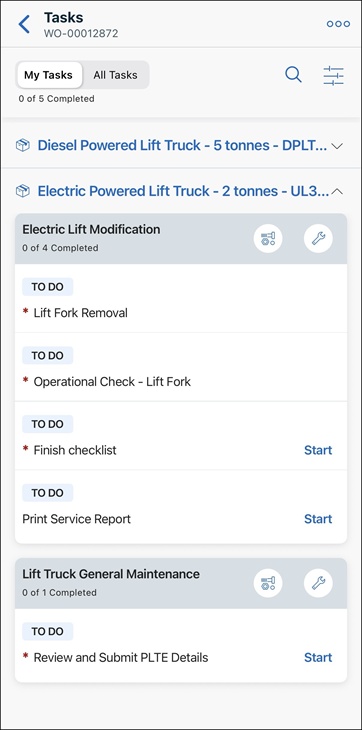
The list of associated tasks is displayed.
 |
By default, My Tasks view is displayed to show the list of tasks that are assigned only to you.
|
3. Tap All to change the task list to display all tasks.
4. Tap a task that is either unassigned or assigned to someone else to open the Task Detail screen.
5. Tap Accept Task.
A toast message is displayed as Task Accepted.
Windows
1. Open the Go app with your valid credentials, and then navigate to Appointment Detail > Work Order record.
The Work Order Detail screen is displayed.
2. From the Actions menu, click the View Service Tasks option.
The list of associated tasks is displayed.
|
|
By default, My Tasks view is displayed to show the list of tasks assigned to you only.
|
3. Click the Show only my tasks toggle to turn it off to display all tasks.
4. Click a task that is either unassigned or assigned to someone else to open the Task Detail screen.
5. Click Accept Task.
The task is assigned to you.