Assigning or Reassigning Multiple Tasks to Self
You can select multiple simple tasks related to a service product and assign them to yourself in bulk. This feature is available for unassigned tasks or tasks assigned to others that are not completed. Tasks are grouped by work plans in the same order as the task list. Work plans without qualifying tasks are not shown.
After assignment, the modal closes and the task list refreshes with updated assignments and statuses. Task history entries capture both new and reassigned tasks, including previous and current assignees. The system performs a smart sync to update task records in real time.
Perform the following steps to assign or reassign multiple tasks to yourself.
Android and iOS
1. Open the Go app with your valid credentials, and then navigate to Appointment Detail > Work Order record. The Work Order Detail screen is displayed.
 |
Go App displays the title and description for a work plan using values from the work plan assignment. If a title or description is not specified on the assignment, Go App displays the corresponding value from the Work Plan Library.
|
2. From the Actions menu, tap the View Service Task option.
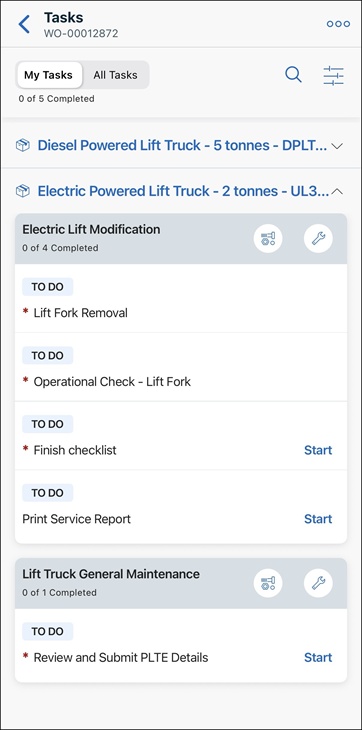
The list of associated tasks is displayed.
|
|
By default, My Tasks view is displayed to show the list of tasks that are assigned only to you.
|
3. Tap a service product to view the list of associated tasks.
4. Tap the menu button from the upper-right corner of the screen and tap Accept Tasks.
The list of eligible tasks is displayed.
5. Select the tasks you need to assign to yourself and tap Accept Tasks from the lower-right corner of the screen.
You can tap Select All to assign all tasks to yourself. After the confirmation, you are redirected to the task list view with the updated assignments.
Windows
1. Open the Go app with your valid credentials, and then navigate to Appointment Detail > Work Order record. The Work Order Detail screen is displayed.
|
|
Go App displays the title and description for a work plan using values from the work plan assignment. If a title or description is not specified on the assignment, Go App displays the corresponding value from the Work Plan Library.
|
2. From the Actions menu, click the View Service Tasks option.
The list of associated tasks is displayed.
|
|
By default, My Tasks view is displayed to show the list of tasks assigned to you only.
|
3. Select a service product from the left navigate pane to view the list of associated tasks.
4. Click the menu button from the upper-right corner of the screen and click Accept Tasks.
The Accept Task window is displayed with the list of eligible tasks.
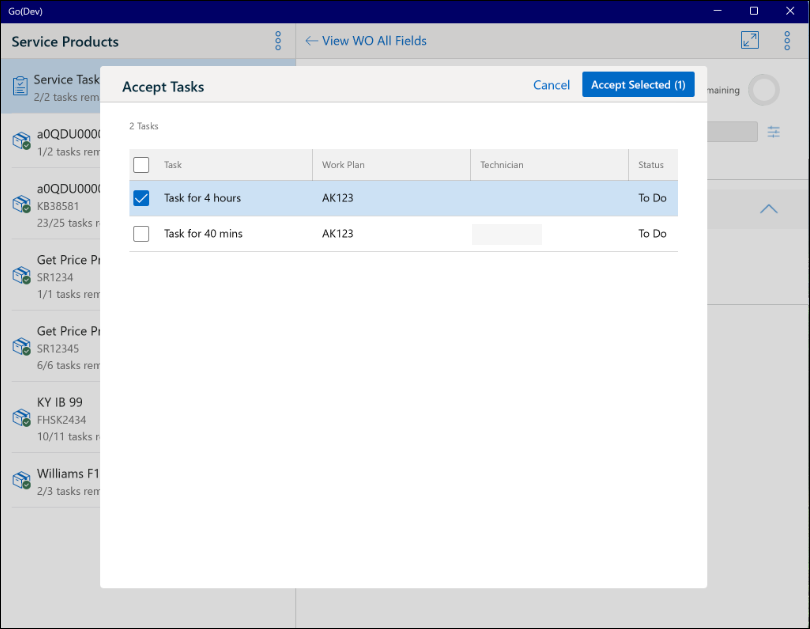
5. Select the tasks you need to assign to yourself, and click the Accept Selected button.
You can click the checkbox above the table to select all tasks in the list. After the confirmation, you are redirected to the task list view with the updated assignments.