Accessing Recommended Tools for Service Tasks
As a technician, you need a clear and dedicated view of the recommended tools when planning work on equipment.
Perform the following steps to view the recommended tools for a task.
1. Open the Go app with your valid credentials, and then navigate to Appointment Detail > Work Order record.
The Work Order Detail screen is displayed.
2. From the Actions menu, tap the View Service Task option.
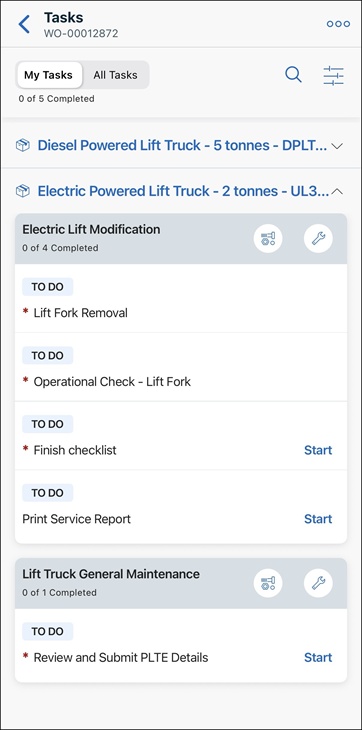
The list of associated tasks is displayed.
 |
By default, My Tasks view is displayed to show the list of tasks that are assigned only to you.
|
3. From the Actions menu, tap the View Service Task option.
The list of associated tasks is displayed.
|
|
By default, My Tasks view is displayed to show the list of tasks that are assigned only to you.
|
4. From the Actions menu, tap the View Service Task option.
The list of associated tasks is displayed.
|
|
By default, My Tasks view is displayed to show the list of tasks that are assigned only to you.
|
5. On the required task, tap the tools icon.
The list of recommended tools configured for the work plan is displayed.
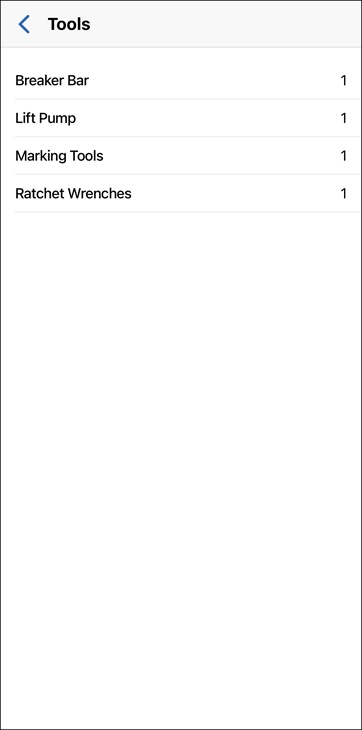
Tools are displayed alphabetically. The list shows the tool name and its quantity.