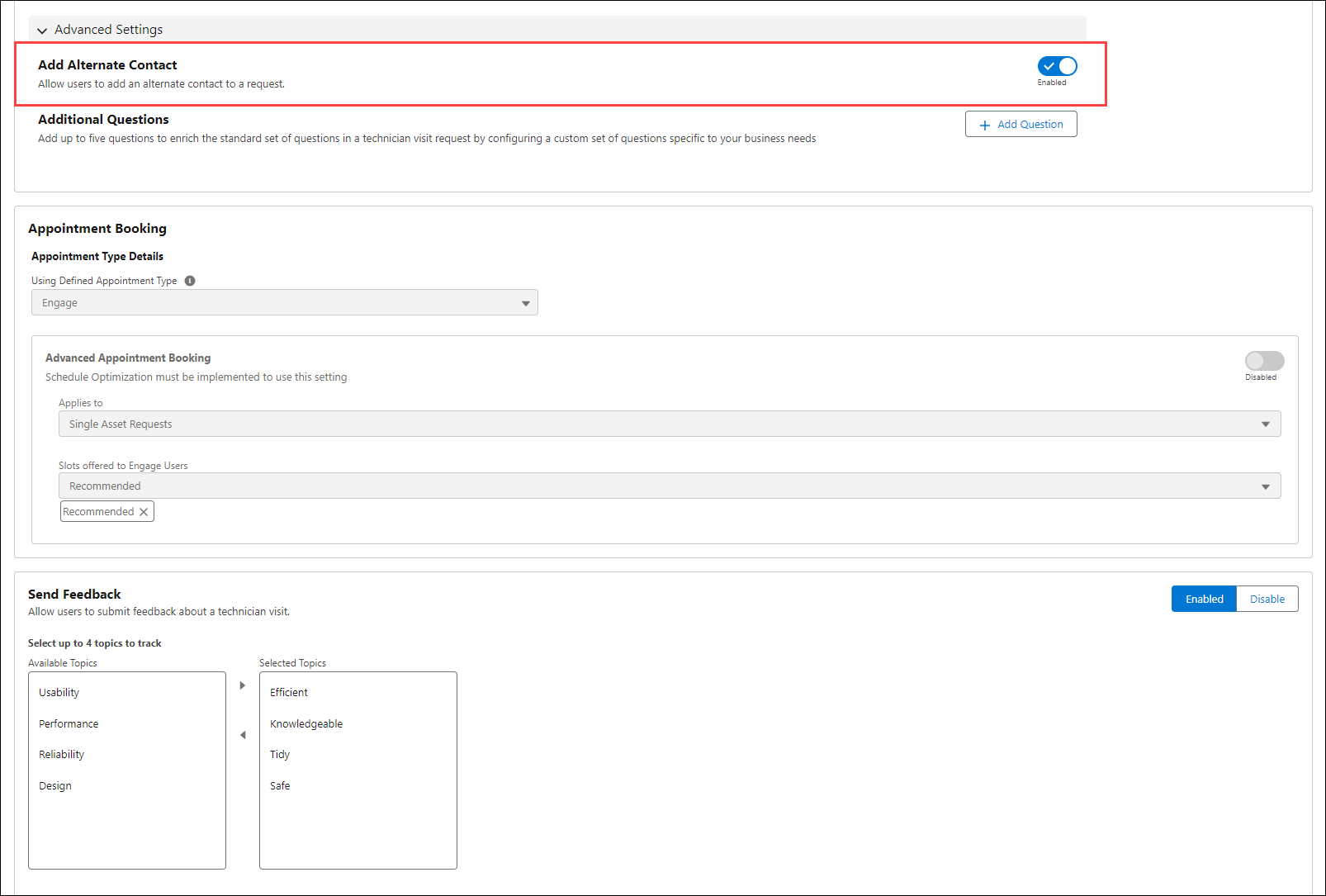
Enabling Add Alternate Contact Option
You can enable or disable the option to capture the alternate contact.
To enable the Add Alternate Contact option:
1. Navigate to > > > .
2. Click the toggle button to enable or disable.
3. Click Save to apply the changes.
 |
To comply with the GDPR (Data Privacy Rules):
• The alternate contact, if enabled and captured for a request, exists when the request is in a Submitted, Open, or In-Progress state.
• When the request is moved to the Completed or Cancelled state, the alternate contact details are deleted permanently.
• You must activate the Engage - Delete Alternate Contact triggered flow. For more information, see Activating Triggered Flow.
|