Uploading a Country’s Data for Depot Qualifier
To configure the geographical attributes for a depot using the Depot Qualifier, you must upload country’s data such as city, state, and zip code into your org. Using the Country Data Manager, you can upload a country’s data into your org.
 |
Out of the Box (OOTB), the following countries’ data are available to upload in your org:
• India
• Brazil
• France
• United States
• Germany
• Japan
• Mexico
• United Kingdom
• Singapore
• Canada
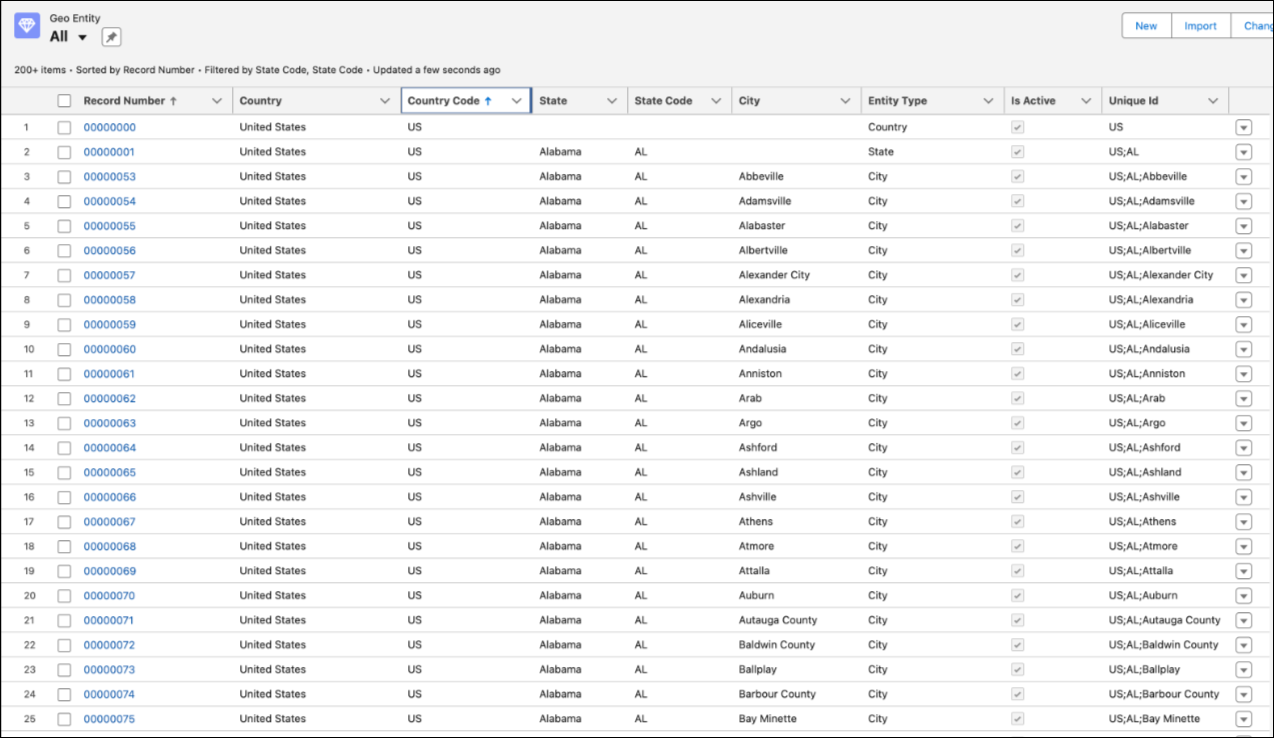
Using Data Loader, you can upload data for other countries. While uploading, you must create separate entries for each country, state, and city, and configure a unique ID for each entry.
|
In the Depot Qualifier, the uploaded countries and their respective cities, states, and zip codes appear as configurable attributes under the Geographical section. The uploaded data is stored as a static resource in the org, and you can view the records in the Geo Entity object.
To upload a country’s data:
1. From the Home page, go to ServiceMax Setup > Depot Service Manager > Country Data Manager.
The Upload Country page is displayed.

2. From the drop-down, select the Country for which you want to upload the details.
3. Click Upload.
A success message is displayed indicating that the country’s data, including country, cities, states, and zip codes is uploaded to the org.
In the Geo Entity object, the individual records are created for each state, city, and zip code of the respective country.