Viewing Entitlement Notes and Entitlement History
After the entitlement is successful, the entitlement notes are captured and an Entitlement History record is created.
To view entitlement notes and entitlement history record for a Work Plan:
1. In the Work Order record, go to the Related tab.
2. Go to the Work Plan Assignments section. The Work Plan records that are entitled are displayed with the associated Entitlement Notes.
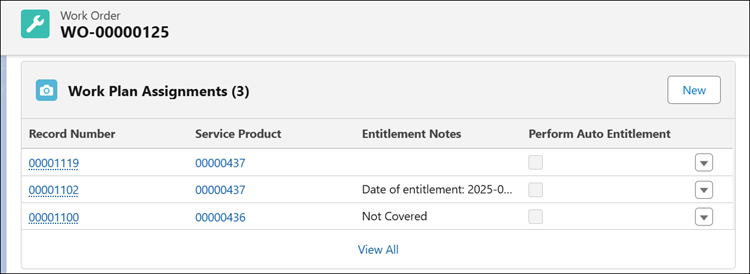
3. Click a Work Plan record.
In the Details section, you can view the Entitlement Notes with relevant entitlement details and Service/Maintenance Contract applied to the Work Plan as shown in the below screenshot:

 |
• If the Skip Auto Assignment option is selected in the Entitlement Rule and multiple service contracts are available for an Installed Product, the Entitlement Notes field displays the message Multiple Found after performing auto entitlement on the work plan. The Is Entitlement Performed checkbox remains unchecked.
• If the Skip Auto Assignment option is selected in the Entitlement Rule and no service contracts are available for an installed product, the system evaluates coverage for the Work Plan in the fixed sequence — Installed Product and Work Plan, Product and Work Plan, and Work Plan only. If no coverage is found at these levels, the Entitlement Notes field displays the message Not Covered after performing auto entitlement on the work plan.
|
4. Go to the Related tab.
5. Go to the Service/Maintenance History to view the Entitlement History record for the Work Plan.
To view entitlement notes and entitlement history record for a Service Product:
1. In the Work Order record, go to the Related tab.
2. Go to the Service Products section. The Service Product records that are entitled are displayed with the associated Entitlement Notes.
3. Click a Service Product record.
In the Details section, you can view the Entitlement Notes with relevant entitlement details and Service Contract applied to the Service Product as shown in the below screenshot:
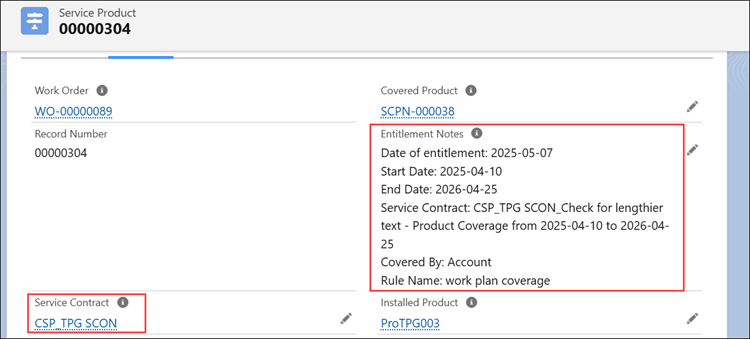
|
|
• If the Skip Auto Assignment option is selected in the Entitlement Rule and multiple service contracts are available for an Installed Product, the Entitlement Notes field displays the message Multiple Found after performing auto entitlement on the service product. The Is Entitlement Performed checkbox remains unchecked.
• If the Skip Auto Assignment option is selected in the Entitlement Rule and no service contracts are available for an installed product, the system checks the selected fallback levels Parent and Top Level component to determine coverage. If no fallback rule is applied or no coverage is found at these levels, the Entitlement Notes field displays the message Not Covered after performing auto entitlement on the service product.
|
4. Go to the Related tab.
5. Go to the Service/Maintenance History to view the Entitlement History record for the Service Product.
|
|
You can also view the Entitlement History from the Interactive Entitlement screen for the service product and work plan. For more information, see Reviewing Entitlement History.
|
Related Topics