Modifying Purpose of Visit for a Milestone Schedule Output Line
In the Milestone Schedule, you can change the Purpose of Visit (Work Plan or Task Template) for Schedule Output lines based on your requirements. By default, the Purpose of Visit defined in the PM Plan Template is applied to schedule outputs. For more information, see Schedule Tab in PM Plan Templates.
 |
• If you change the Work Plan or Task Template in the Default Purpose of Visit on the Plan Details tab of the New Preventive Maintenance Plan wizard, the Purpose of Visit for all schedule outputs is updated with the selected work plan. For more information, see Creating Condition-Based PM Plans.
• If you change the Default Purpose of Visit type from Work Plan to Task Template (or vice versa), the Purpose of Visit in Schedule Outputs is automatically updated with the selected Task Template or Work Plan.
|
1. In the New Preventive Maintenance Plan wizard, go to the Schedules tab. For more information, see Creating Condition-Based PM Plans.
The configured rules are auto-populated based on the PM Plan template and assigned to each coverage line for the Plan.
2. Expand a coverage line to view the associated condition rules and advanced expressions.
3. Click Milestone Schedule.
The Schedule Output pop-up window is displayed with the list of Schedule Output lines generated for a coverage line.
4. To change the Purpose of Visit, click the Edit icon next to a Schedule Output line.
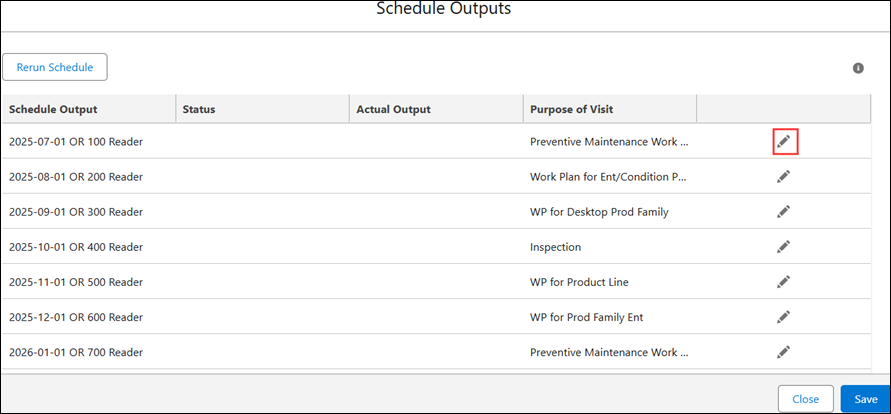
The Select Purpose of Visit pop-up window is displayed.
5. Search and select the required Work Plan or Task Template. If you Change the Purpose of Visit Type, all other Purpose of Visit selections from future Schedule Outputs will be removed.
6. Click Select.
|
|
You cannot modify the Purpose of Visit for Scheduled Outputs after the PM Engine processes them and creates PM Work Orders.
|