Interactive Entitlement Settings Fields
The following table describes the configuration fields available on the Interactive Entitlement Settings page. Administrators can use these fields to control the display and behavior of the Interactive Entitlement interface during entitlement assignment for Service Products and Work Plans.
|
Field
|
Description
|
||
|---|---|---|---|
|
Select Fields for Service Product Title
|
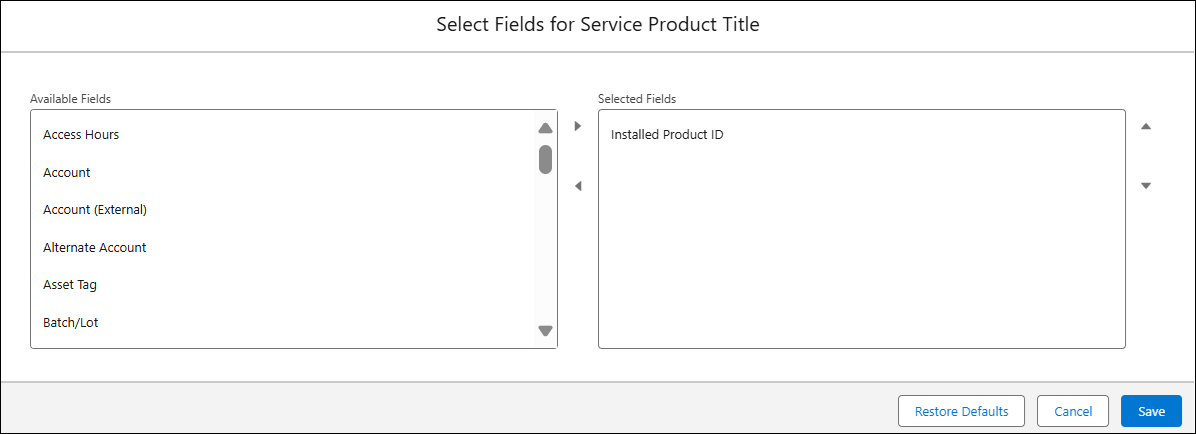
Defines how Service Products are displayed in the entitlement selection panel when assigning entitlement from a Work Order. By default, the Installed Product ID field is used as the display title.
To modify the display, select the Installed Product link to open the Select Fields for Service Product Title pop-up window. The pop-up window lists fields from the Installed Product. Move the required fields into the Selected Fields list and rearrange their order using the up and down arrow controls. The selected fields are combined to form the display title (for example, Installed Product ID – Account). Click Save to apply your changes.
To revert to the system default (Installed Product Name), click Restore Defaults.
|
||
|
Select Service Contract Fields to Display
|
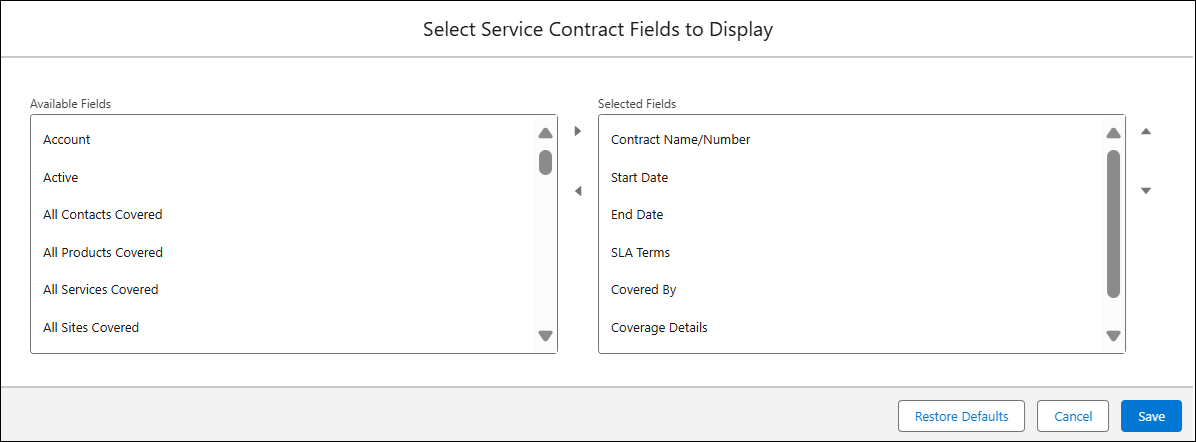
Defines which Service Contract fields are displayed to users during entitlement assignment for Service Products and Work Plans on a Work Order. Click the X Fields Selected (for example, 7 Fields Selected) link to open the Select Service Contract Fields to Display pop-up window. The pop-up window lists fields from the Service Contract. Move the required fields into the Selected Fields list and rearrange their order using the up and down arrow controls. The selected fields appear in the entitlement selection panel when Service Contracts are displayed.
Default selected fields include:
• Contract Name/Number
• Start Date
• End Date
• Covered By (Displays if the record is covered by IB/ Parent IB/ Top level/ Workplan/Account/Contact)
• SLA Terms
• Available Units (Displays how many units are remaining for assignment out of agreed units in the contract. Unlimited is displayed if unlimited coverage is opted. This field applies only to the Covered Work plan under Service Contract.)
• Coverage Details (Displays the coverage breakdown such as Part 10%, Labor 20%, Expense 10%. Not applicable for Service Product covered under service contract.)
After completing your selection, click Save to apply your changes.
To revert to the system default (Installed Product Name), click Restore Defaults.
|
||
|
Select Warranty Fields to Display
|
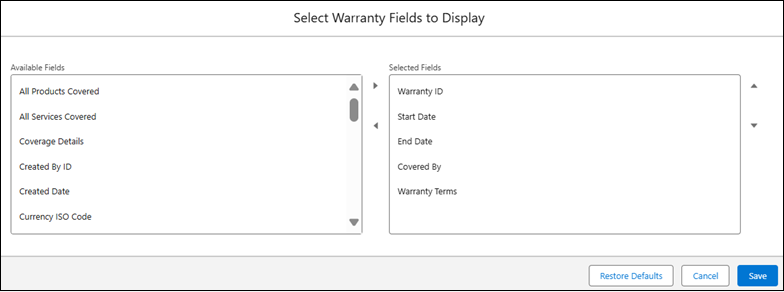
Defines which Warranty fields are displayed to users during entitlement assignment for Service Products and Work Plans on a Work Order. Click the X Fields Selected (for example, 6 Fields Selected) link to open the Select Warranty Fields to Display pop-up window. The pop-up window lists fields from the Product Warranty. Move the required fields into the Selected Fields list and rearrange their order using the up and down arrow controls. The selected fields appear in the entitlement selection panel when Warranty coverage is applicable.
Default selected fields include:
• Warranty ID
• Start Date (Service Product values are taken from the Product Warranty; Work Plan values are taken from the Covered Work Plan)
• End Date (Service Product values are taken from the Product Warranty; Work Plan values are taken from the Covered Work Plan)
• Covered By (Displays the installed product, parent, or top-level installed product depending on warranty structure)
• Warranty Term (Service Template name)
• Coverage Details (Displays the coverage breakdown, such as Parts 10% for 60 Months, Labor 5% for 2 Weeks, Expense 15% for 30 Days.)
After completing your selection, click Save to apply your changes.
To revert to the system default (Installed Product Name), click Restore Defaults.
|
||
|
Allow User to Override Filters at Runtime
|
Specifies whether users can modify the filter criteria when selecting Service Contract or Warranty coverage in the entitlement selection panel while assigning entitlement from a Work Order. When enabled, users can change or remove filters during the entitlement selection process. When disabled, the filter controls are hidden.
The checkbox is selected by default, allowing users to modify filters at runtime.
|
||
|
Hide Work Plans
|
Specifies whether Work Plans are displayed in the entitlement selection panel when assigning entitlement from a Work Order. When this checkbox is selected, Work Plans linked to the Work Order or to its Service Products are not displayed on the Interactive Entitlement screen.
By default, the checkbox is not selected and Work Plans are displayed.
|
||
|
Number of Months Shown in Future and Expired Entitlements
|
Specifies the number of months of upcoming and expired entitlements to display in the entitlement selection panel when assigning entitlement from a Work Order. Enter a numeric value from 1 to 99 to determine how many months of future coverage and expired coverage are displayed.
|

Visual Reference
The following screenshot displays the pop-up window that allows you to select Installed Product fields for the Service Product display title.
The following screenshot displays the pop-up window that allows you to select and arrange Service Contract fields for display during entitlement assignment.
The following screenshot displays the pop-up window that allows you to select and arrange Warranty fields for display during entitlement assignment.