Entitlement Rule Execution Process in 25.1
|
Prerequisite
|
|---|
|
To perform auto-entitlement on Service Products and Work Plans, ensure that the following package flows are enabled :
For more information, see Core Package Flows.
|
This process determines coverage eligibility (entitlement) for Service Products and Work Plans linked to Work Orders or Service Requests.
For the entitlement engine to get triggered and perform entitlement check on Service Products and Work Plans, you must perform the following:
1. Define Entitlement Rules: Create entitlement rules to determine when and how the entitlement coverage must be applied. For more information, see Creating an Entitlement Rule for Work Order.
2. Set Rule Execution Order: Organize rules in the sequence you want them to execute. The rules are executed in top-down approach. The engine stops as soon as coverage is found for Service Products and Work Plans.
3. Enable Auto Entitlement: Set Perform Auto Entitlement as true on the Service Product and Work Plan Assignment record to automate entitlement on Service Products and Work Plans.
 |
• The system automatically sets the Perform Auto Entitlement flag based on the following Auto Assignment Rule settings:
◦ If Perform Entitlement Check When Work Plan is Assigned is enabled, the flag is set to True on the Work Plan Assignment record.
◦ If "Perform Entitlement Check on Service Product if it is not entitled" is enabled, the flag is set to True on the Service Product record.
For more information see, Auto-Assignment Rules.
• On the Work Order, when the Perform Auto Entitlement field is set to true, and the global setting SET001 (Module: Entitlement verification; Submodule: Auto-Entitlement Work Order) is true, the auto-entitlement is performed only on the work order and not on related work plans and service products. The auto-entitlement check on service product and work plan executes only when the global setting SET001 (Module: Entitlement verification; Submodule: Auto-Entitlement Work Order) is false.
|
After configuration, the entitlement engine is triggered. The engine evaluates the rules and eligibility in sequence based on the configurations on the Work Order object. Based on the configuration in the Service Product Entitlement section, the engine evaluates Service Products and their linked Work Plans. Based on the configuration in the Work Plan Entitlement section, the engine evaluates Work Plans added directly to the Work Order.
The engine evaluates the following conditions configured in the rules:
• For Service Product entitlement:
◦ Date Condition: The Installed Product’s or Work Order’s Date field must fall within the Start Date and End Date of the Covered Product or Service Contract.
◦ Account Match: The Installed Product’s or Work Order’s Account must match the Service Contract’s Account.
◦ Location Match: Installed Product’s or Work Order’s location must match the Location on the Service Contract.
• Work Plans linked to Service Products:
◦ Date Condition: The Installed Product’s or Work Order’s Date field must fall within the Start Date and End Date of the Covered Work Plan.
◦ Account Match: The Installed Product’s or Work Order’s Account must match the Service Contract’s Account.
◦ Location Match: Installed Product’s or Work Order’s location must match the Location of the Covered Work Plan.
• Work Plans added directly to Work Order:
◦ Date Condition: The Work Order’s Date field must fall within the Start Date and End Date of the Covered Work Plan or Service Contract.
◦ Account Match: The Work Order’s Account must match the Service Contract’s Account.
◦ Location Match: The Work Order’s location must match the Covered Work Plan’s location.
If the above conditions match for the Service Product and Work Plan entitlement, the engine automatically assigns the relevant Service Contract coverages for users on Service Product or Work Plan. The system stamps entitlement details on the Service Products and Work Plans records. It also creates an Entitlement History record for logging and audit purposes.
Additionally, users can manually check entitlement on Service Products or Work Plans. The engine then displays the eligible Service Contract coverages, and users can select the appropriate one based on their requirements. For more information, see Performing Entitlement Check on Service Products and Performing Entitlement Check on Work Plans.
Viewing Entitlement Notes and Entitlement History
After the entitlement is successful, the entitlement notes are captured and an Entitlement History record is created.
To view entitlement notes and entitlement history record for a Work Plan:
1. In the Work Order record, go to the Related tab.
2. Go to the Work Plan Assignments section. The Work Plan records that are entitled are displayed with the associated Entitlement Notes.
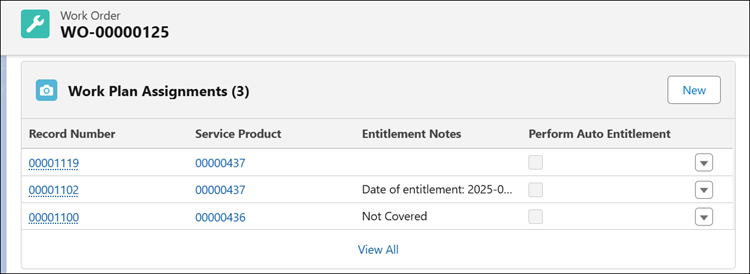
3. Click a Work Plan record.
In the Details section, you can view the Entitlement Notes with relevant entitlement details and Service/Maintenance Contract applied to the Work Plan as shown in the below screenshot:

4. Go to the Related tab.
5. Go to the Service/Maintenance History to view the Entitlement History record for the Work Plan.
To view entitlement notes and entitlement history record for a Service Product:
1. In the Work Order record, go to the Related tab.
2. Go to the Service Products section. The Service Product records that are entitled are displayed with the associated Entitlement Notes.
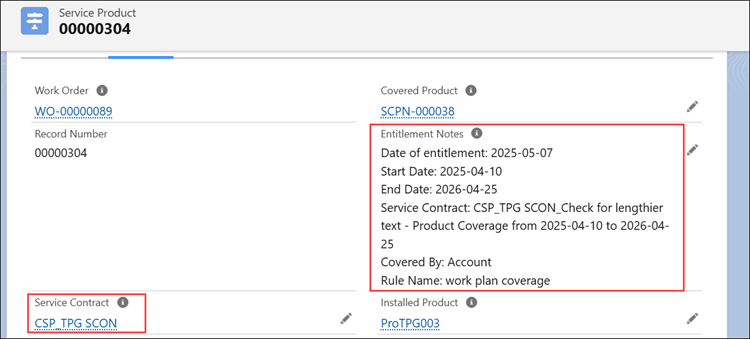
3. Click a Service Product record.
In the Details section, you can view the Entitlement Notes with relevant entitlement details and Service Contract applied to the Service Product as shown in the below screenshot:
4. Go to the Related tab.
5. Go to the Service/Maintenance History to view the Entitlement History record for the Service Product.
Quantity Updates for Covered Work Plans
When a Work Plan is entitled through a Covered Work Plan on a Service Contract, the system updates quantities in the Covered Work Plan as follows:
• Allocated Quantity increases by the Quantity Per Transaction.
• Remaining Quantity is calculated as: Remaining Quantity = Agreed Quantity - Allocated Quantity.
Example: If the Agreed Quantity is 100 and the Quantity Per Transaction is 1, after a successful entitlement, the Allocated Quantity becomes 1 and the Remaining Quantity becomes 99.
When a Work Plan is completed, the system updates the Consumed Quantity on the associated Covered Work Plan according to its unit of measure:
• If the unit is Hours: Consumed Quantity equals the sum of the Actual Duration from all Service Tasks linked to the assigned Work Plan. If Actual Duration is blank, the system uses the Estimated Duration instead.
• If the unit is Count: Consumed Quantity equals the count of unique combinations of Assigned User + Task Start Date from all Service Tasks linked to the Work Plan.
• If no linked tasks are marked complete: The system sets Consumed Quantity equal to the Allocated Quantity.
Pricing Calculation for Work Plan and Service Product Entitlement
After the Work Plan is executed, the Work Detail lines are automatically created. Each Work Detail line references the Service Product and Work Plan assignment. The Code011: Advanced Get Price snippet handles pricing logic for work detail lines and calculates price based on Service Product entitlements. Ensure that the Code011: Advanced Get Price is configured for out-of-the-box (OOTB) Debrief SMFs. For more information, see Advanced Get Price.
When a user invokes Get Price on a Debrief SFM, the engine calculates the total price for the Work Order through Work Detail lines. it checks whether the referenced Service Product is covered under an entitlement and fetches the related service contract information from the Entitlement History. For part and labor lines, pricing is applied according to the details defined in the associated service contract, and billable line price is calculated. For more information, see Initiating Price Calculation.
|
|
If the setting, SET020 (Module: Work Order; Submodule: Create Work Order Lines VF) is false, the Advance Get Price code snippet ignores the Is Entitlement Performed check on the Work Order (WO) and calculates price directly on the work detail line. If SET020 is true, you must perform the entitlement check on the Work Order before price calculation.
|