Deleting Covered Work Plan from a Service/Maintenance Contract
You can delete a covered work plan from a service or maintenance contract when it is no longer valid or required for entitlement. Deleting unnecessary or outdated work plans helps maintain accurate service contract coverage and ensures that entitlement checks reflect only active configurations.
To delete a covered work plan:
1. From the Home page, go to the Service/Maintenance Contracts.
2. Click the Contract record for which you want to add a covered work plan.
3. Select the Related tab and scroll to the Covered Work Plans section.
4. Locate the covered work plan record you want to remove.
5. Click the Action Menu icon next to the record and select Delete.
The Delete Covered Work Plan confirmation message appears, asking if you want to delete the covered work plan.
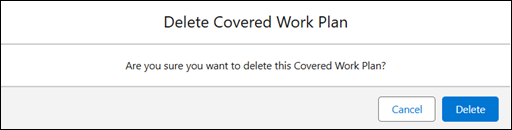
6. Click Delete to confirm the deletion or Cancel to close the message without deleting.