Creating an Entitlement Rule for Work Order in 25.1
You can create an entitlement rule for a Work Order that enables the system to display relevant Service Contract coverage for Work Plans and Service Products. These rules are triggered when a user performs an entitlement check on a Service Product or Work Plan.
|
Prerequisite
|
|---|
|
Ensure that you add covered products and covered work plans to the appropriate Service Contract. Based on this, the entitlement engine retrieves the relevant Service Contract coverage during entitlement check. For more information, see Adding Covered Products and Adding Covered Work Plans.
|
In the entitlement rule, you can:
• Define qualifying criteria to apply the entitlement rule to only qualified Work Orders.
• Define conditions and configure date fields along with either account fields, location fields, or both, for the Work Order or Installed Product object to enable Service Product and Work Plan entitlement.
 |
You must either configure Account or Location match along with Date fields to execute the rule and check coverage.
|
The configuration under the Service Product Entitlement section in the rule enables system to perform entitlement check on the service product and its work plan.
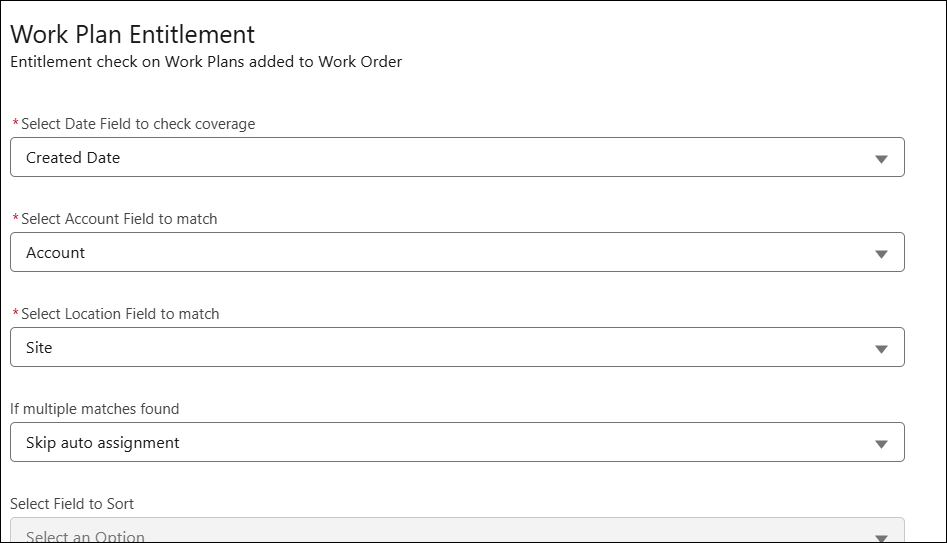
The configuration under the Work Plan Entitlement section in the rule enables system to perform entitlement check on Work Plans that are added directly to the Work Order and not linked to any Service Product.
When Perform Auto Entitlement option is set to true on Service Product or Work Plan assignment records, the engine evaluates the rules in sequence and automatically assrelevantevent service contract to the Service Product or Work Plan.
|
|
The system automatically sets the Perform Auto Entitlement flag based on the following Auto Assignment Rule settings:
• If Perform Entitlement Check When Work Plan is Assigned is enabled, the flag is set to True on the Work Plan Assignment record.
• If "Perform Entitlement Check on Service Product if it is not entitled" is enabled, the flag is set to True on the Service Product record.
For more information see, Auto-Assignment Rules.
|
Additionally, users can manually perform an entitlement check on a Service Product or Work Plan. The engine evaluates the rules in sequence and displays the relevant Service Contract coverages.
For more information, see Entitlement Rule Execution Process
To create an entitlement rule for Work Order:
1. From the Home page, go to ServiceMax Setup > Work Plan Management > Entitlement Rules.
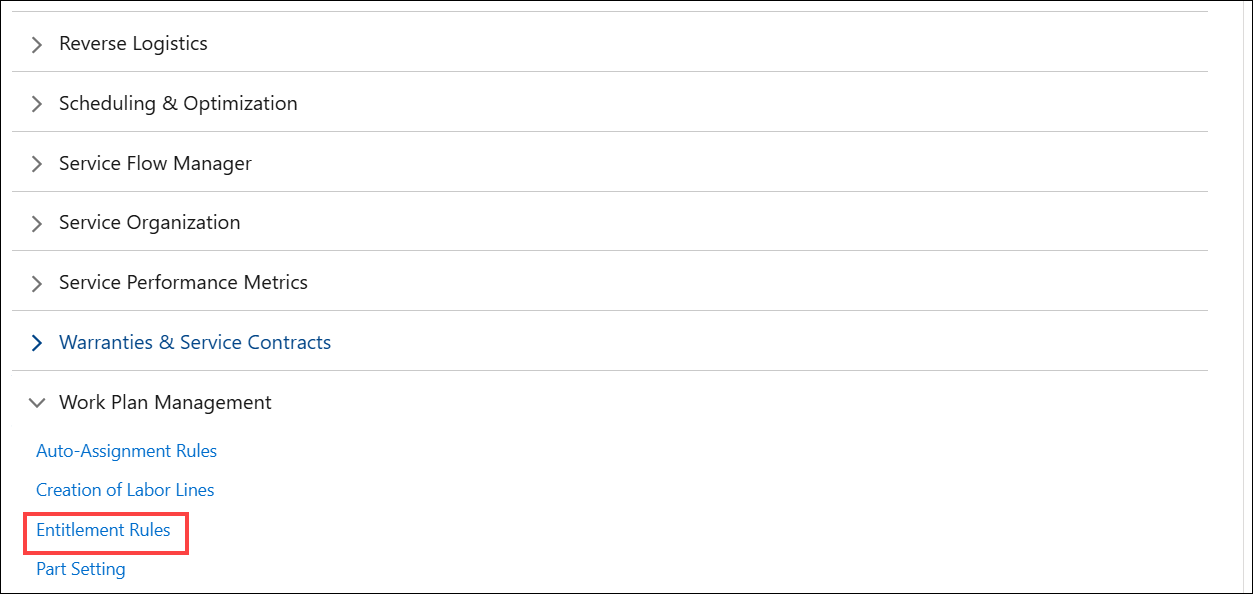
The Entitlement Rules page is displayed.
2. Click Add Rule.
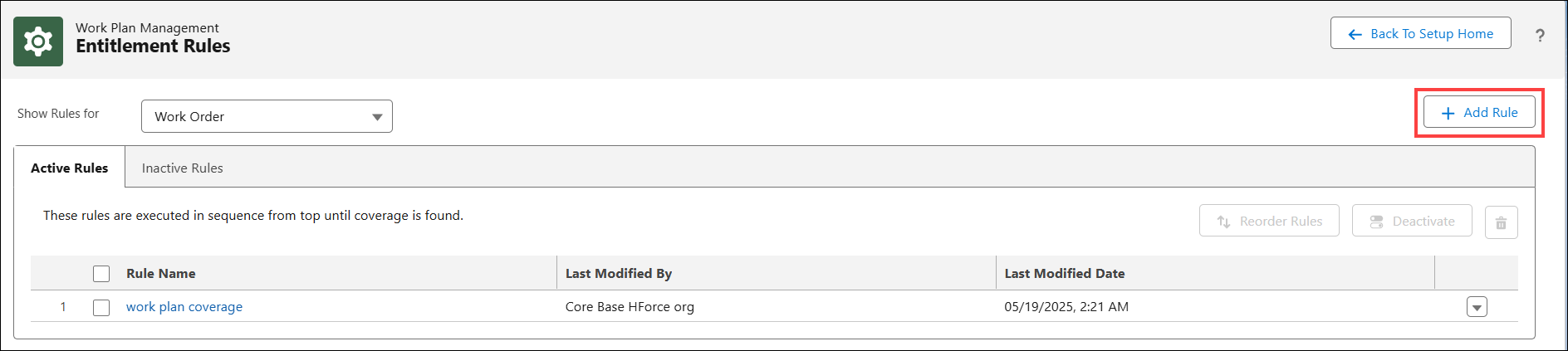
The New Rule for Work Order page is displayed.
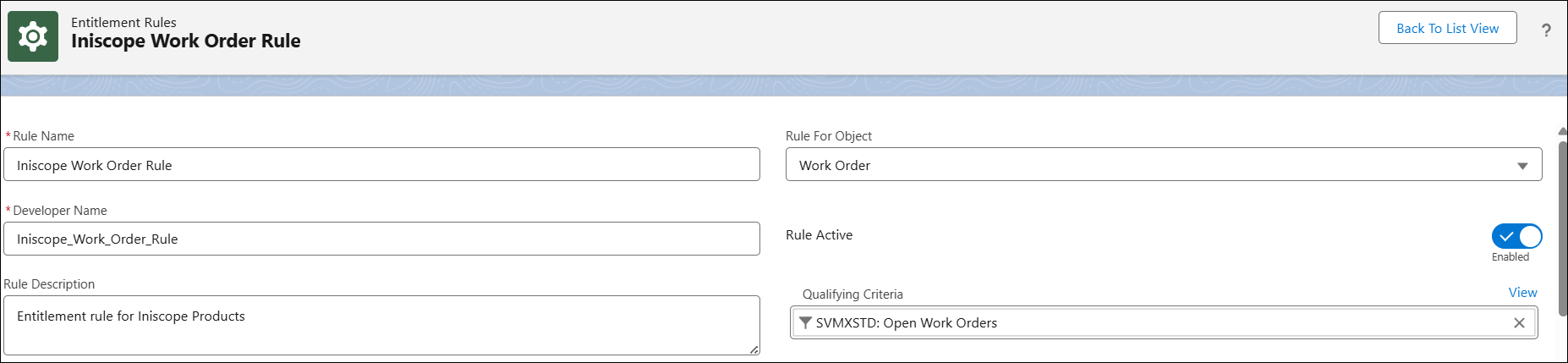
3. Configure the fields as described in the following table:
|
Field
|
Description
|
|---|---|
|
Rule Name
|
Enter a unique rule name.
|
|
Rule for Object
|
Indicates the object to which the rule is applied. By default, Work Order is selected.
|
|
Developer Name
|
The developer name is auto-populated based on the rule name. You can also enter a unique developer name if required.
|
|
Rule Active
|
Enable this checkbox to activate this rule for execution.
|
|
Rule Description
|
Enter a description for the rule.
|
|
Qualifying Criteria
|
Select a criteria from the drop-down to apply this rule only to qualified Work Orders If this field is left blank, the entitlement rule is applied for all work orders when a user performs an entitlement check on an associated work plan or service product.
|
4. In the Settings and Conditions sections, configure the fields as described in the following table:
|
Field
|
Description
|
|---|---|
|
Settings
|
|
|
For entitlement check, consider this
|
Indicates that the entitlement check is performed to identify Service Contract coverage.
|
|
Search based on
|
Indicates that the entitlement search is performed based on the start date and end date of the Covered Product, Covered Work Plan, or Service Contract.
|
|
Conditions
|
|
|
Match Account
|
Select either Match Account, Match Location, or both. Based on your selection, the engine matches the Account field, Location field, or both from the Installed Product or Work Order with the corresponding Account or Covered Location of the Service Contract.
|
|
Match Location
|
|

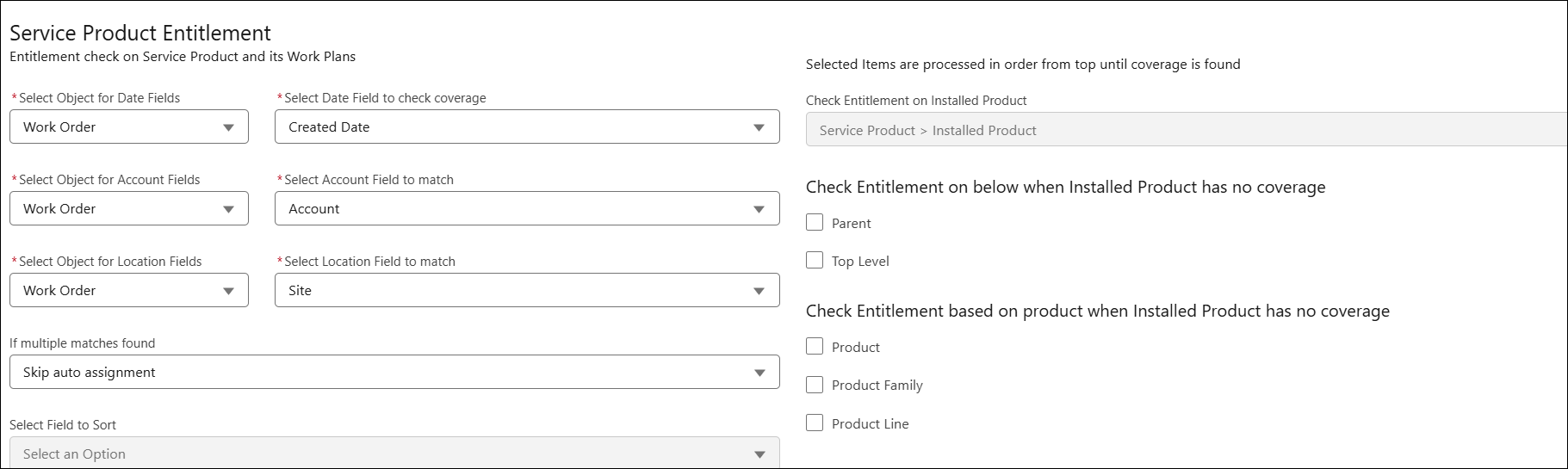
5. In the Service Product Entitlement, configure fields to check coverage and match Account and Location fields as described in the following table:
|
Field
|
Description
|
||
|---|---|---|---|
|
Date Field
Select the required Work Order’s or Installed Product’s Date field to check coverage. Based on the selection, the Date field value is compared with the Start Date and End Date of the Covered Product or Service Contract.
|
|||
|
Select Object for Date Fields
|
Select any of the following:
• Work Order: The Work Order’s Date field is compared with Covered Product’s or Service Contract’s Start Date and End Date.
• Installed Product: The Installed Product’s Date field is compared with Covered Product’s or Service Contract’s Start Date and End Date.
|
||
|
Select Date Field to check coverage
|
Select the required Date field to check coverage. For example, the Schedule Date is configured for Work Order object in the entitlement rule. If the work order’s Schedule Date falls within Covered Product’s or Service Contract’s Start Date and End Date, the Service Contract is considered for entitlement.
|
||
|
Account Field
Select the required Account field of the Work Order or Installed Product to match with the Service Contract’s Account.
|
|||
|
Select Object for Account Fields
|
Select the required object. The Account field from the Work Order or Installed Product is matched with the Account on the Service Contract.
|
||
|
Select Account Field to match
|
Select the required Account field to match with Service Contract’s Account. For example, if the Installed product’s and Service Contract’s Account is Global Hospital, and if the configured date falls within Covered Product’s or Service Contract’s Start Date and End Date, the engine displays the coverage during entitlement check.
|
||
|
Location Field
Select the required Location field of the Work Order or Installed Product to match with the Service Contract’s Covered Location.
|
|||
|
Select Object for Location Fields
|
The Work Order’s or Installed Product’s Location field is matched with Service Contract’s Covered Location.
|
||
|
Select Location Field to match
|
Select the required Location field to match with Service Contract’s Covered Location. For example, if the Installed product’s and Service Contract’s covered location is Bangalore, and if the configured date falls within Covered Product’s or Service Contract’s Start Date and End Date, the engine displays the coverage during entitlement check.
|
||
|
If multiple matches found
|
Select any of the following:
• Skip auto assignment: Select this option to skip the entitlement If multiple matches are found after the entitlement rule execution.
• Apply first match based on sort field: Select this option to apply first match based on the configured sort field. If you select this option configure the Select Field to Sort and Sort Order. If the sort field is Start Date and the sort order is Ascending, the engine evaluates all matching Service Contracts and selects the one with the earliest Start Date as the eligible match.
|
||
6. In the Work Plan Entitlement section, configure fields to check coverage and match Account and Location fields as described in the following table:
|
Field
|
Description
|
||
|---|---|---|---|
|
Select Date Field to check coverage
|
Select the required Date field to check coverage. The Work Order’s Date field is compared with Covered Work Plan’s or Service Contract’s Start Date and End Date. For example, the Schedule Date is configured for Work Order object in the entitlement rule. If the work order’s Schedule Date falls within Covered Work Plan’s or Service Contract’s Start Date and End Date, the Service Contract is considered for entitlement.
|
||
|
Select Account Field to match
|
Select the required Account field to match with Service Contract’s Account. The Work Order’s Account is matched with Service Contract’s Account. For example, if the Work Order’s and Service Contract’s Account is Global Hospital, and if the configured date falls within Covered Work Plan’s or Service Contract’s Start Date and End Date, the engine displays the coverage during entitlement check.
|
||
|
Select Location Field to match
|
Select the required Location field to match with Covered Work Plan’s Location. The Work Order’s Location field is matched with Covered Work Plan’s Location. For example, if the Work Order’s and Covered Work Plan’s location is Bangalore, and if the configured date falls within Covered Product’s or Service Contract’s Start Date and End Date, the engine displays the coverage during entitlement check.
|
||
|
If multiple matches found
|
Select any of the following:
• Skip auto assignment: Select this option to skip the entitlement If multiple matches are found after the entitlement rule execution.
• Apply first match based on sort field: Select this option to apply first match based on the configured sort field. If you select this option configure the Select Field to Sort and Sort Order. If the sort field is Start Date and the sort order is Ascending, the engine evaluates all matching Service Contracts and selects the one with the earliest Start Date as the eligible match.
|
7. In the Check Entitlement on below when Installed Product has no coverage, select either Parent, Top Level, or both.
8. In the Check Entitlement based on product when Installed Product has no coverage, select the required options. It can be either Product, Product Family, Product Line, or all.
9. Click Save.
The engine evaluates coverage in a defined hierarchical sequence. It starts with the installed product. If no coverage is found at this level, it moves up the hierarchy—first to the installed product’s parent, then to the top-level component, followed by the product, product family, and finally the product line.
|
|
The user must select the levels to evaluate in the sequence. The engine evaluates only those selected levels and stops as soon as it finds valid coverage.
|
Related Topics