Creating an Entitlement Rule for Service Contract and Warranty Coverage
You can create an entitlement rule for the Service Request object that enables the system to display relevant logistic work plans based on Service Contract and Warranty coverages. This enables users to view relevant logistic services they are entitled to when submitting a depot service request. The rule is triggered when a user adds a faulty product and checks for coverage during the depot request submission process.
|
Prerequisite
|
|---|
|
• Ensure that you add covered logistic work plans to the appropriate Service Contract. Based on this, the entitlement engine retrieves the relevant Service Contract coverage during entitlement check.
• Ensure that you add covered logistic work plans to the appropriate Product Warranty records. Based on this, the entitlement engine retrieves the relevant Warranty coverage during entitlement check.
|
In the entitlement rule, you can:
• Define qualifying criteria to apply the entitlement rule to only qualified Service Requests.
• Define conditions and configure date fields along with any combination of account, location, and contact fields for the Service Request or Installed Product object to enable Work Plan entitlement to identify service contract coverage.
• Configure Date fields for the Service Request or Installed Product object to enable Work Plan entitlement to identify warranty coverage.
 |
You must configure Date fields along with Account, Location, or Contact match criteria to execute the rule and verify service contract coverage.
|
When users performs coverage check on the Installed Products added while submitting a depot service request, the engine evaluates the rules in sequence and displays the relevant logistic work plans based on the qualified Service Contract and Warranty coverages.
To create an entitlement rule for the Service Request:
1. From the Home page, go to ServiceMax Setup > Work Plan Management > Entitlement Rules.
The Entitlement Rules page is displayed.
2. Click Add Rule.
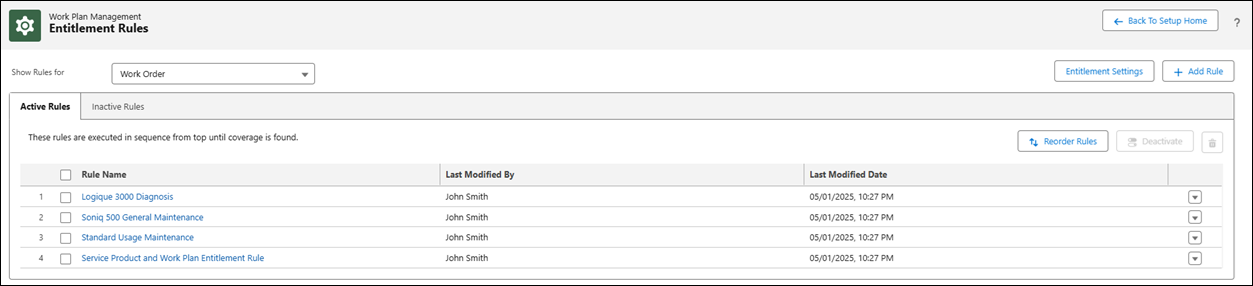
The New Rule page is displayed.
3. In the General section, configure the fields as described in the following table:
|
Field
|
Description
|
||
|---|---|---|---|
|
Rule Name
|
Displays the name of the rule used to identify it uniquely. Enter a unique name for the rule.
|
||
|
Developer Name
|
Displays the developer name, auto-populated based on the rule name. You can also manually enter a unique developer name if required.
|
||
|
Rule Description
|
Displays a brief description of the rule’s purpose. Enter a meaningful description for the rule.
|
||
|
Rule for Object
|
Displays the object to which the rule is applied. By default, Work Order is selected.
Select the Service Request object from the drop-down.
|
||
|
Qualifying Criteria
|
Displays the criteria that determine which Service Requests the rule applies to. Select a criteria from the drop-down to apply this rule only to qualified Service Requests. If this field is left blank, the entitlement rule is applied for all Service Requests when a user performs a coverage check on the Installed Products added during depot service request submission.
|
||
|
Rule Active
|
Displays the activation status of the rule. Enable the checkbox to activate the rule for execution.
|
||
|
Rule Settings
|
|||
|
For entitlement check, consider this
|
Displays the type of coverage to be evaluated during the entitlement check. Select Service Contract and Warranty to evaluate both coverage types during the entitlement check.
|
||
|
Preference when matching Service Contracts and Warranties are found
|
Specifies which coverage type takes precedence when both Service Contract and Warranty matches are found during the entitlement check. From the dropdown, select Service Contract or Warranty to define which coverage the system should apply first when both are available.
|
||
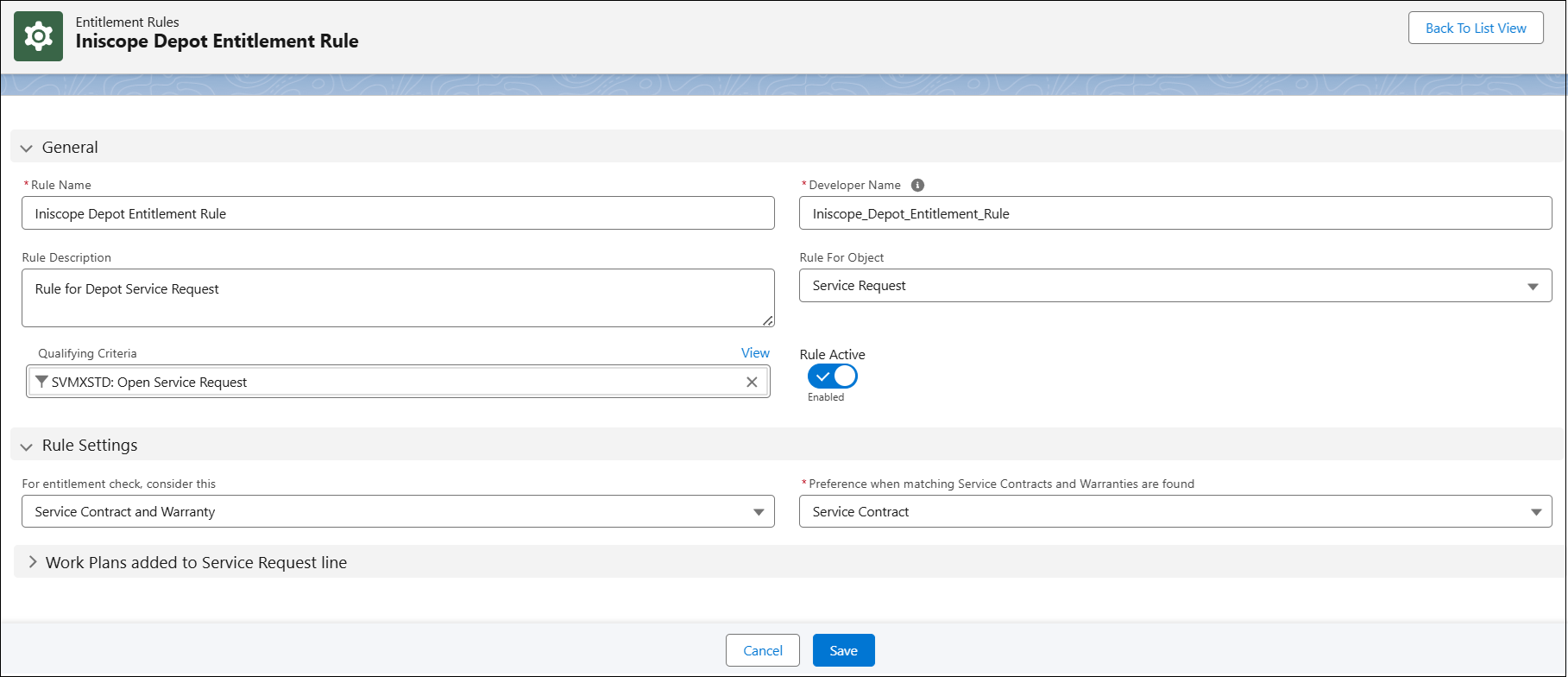
4. The configuration under the Work Plans added to Service Request line section in the rule enables system to perform entitlement check on Work Plans that are added directly to the Service Request line.
For more information about configuring Work Plans added to Service Request line, see Selecting Match Fields to Find Coverage.
5. After configuring the entitlement rule, click Save.
Related Topics