Creating Time-Based PM Plans
You can create a Time-Based PM Plan from the Account, Installed Product, Location, or Service Contract by utilizing the appropriate Time-Based PM Plan Template. A successfully created PM Plan includes PM coverages (the installed products or locations that are covered by the Plan), PM schedule definitions (the Preventive Maintenance frequencies that are mapped from the PM Template), and PM Schedules (the calculated instances of each PM visit, based on the Plan’s start date, any adjustments, and the PM Schedule Definitions)
For plans that are due as per the PM schedule information, PM Scheduler creates Work Orders and Cases as defined in the PM Plan and assigns them to technicians, dispatchers, or queues as configured in the PM Process.
 |
For creating a PM Plan from an Account record:
• If the PM Plan should have the Account’s installed products as coverages, you must leverage a PM Plan Template with the Product Coverage Type.
• If the PM Plan should have the Account’s locations as coverages, you must leverage a PM Plan Template with the Location Coverage Type.
• If the PM Plan should only consider the account itself as coverage, you must leverage a PM Plan Template with the Account Coverage Type.
For Creating a PM Plan from a Location Record:
• If the PM Plan should have the location’s installed products as coverages, you must leverage a PM Plan Template with the Product Coverage Type.
• If the PM Plan should have only the location itself as coverage, you must leverage a PM Plan Template with the Location Coverage Type.
• It is not recommended to leverage a PM Plan Template with the Account coverage type when creating a PM Plan from a Location.
For creating a PM Plan from a Service Contract record:
• If the PM Plan should have the Contract’s covered installed products as coverages, you must leverage a PM Plan Template with the Product Coverage Type.
• If the PM Plan should have the Contract’s covered locations as coverages, you must leverage a PM Plan Template with the Location Coverage Type.
• If the PM Plan should consider the Contract’s associated Account as coverage, you must leverage a PM Plan Template with the Account Coverage Type.
For creating a PM Plan from an Installed Product record, it is recommended to use PM Plan Template with Product coverage type.
|
To create a PM Plan:
1. From the Home page, open any record. The record can be Account, Location, Service Contract, or Installed Product.
2. From the SFM Wizard, launch the Create PM Plan custom action. The New Preventive Maintenance Plan wizard is displayed.
3. In the Plan Details tab of the wizard, select a Time-based PM Plan Template from the drop-down.
The valid fields in the plan details are auto-populated from the selected PM Plan Template. For more information about fields, see Creating Time-Based PM Plan Templates.
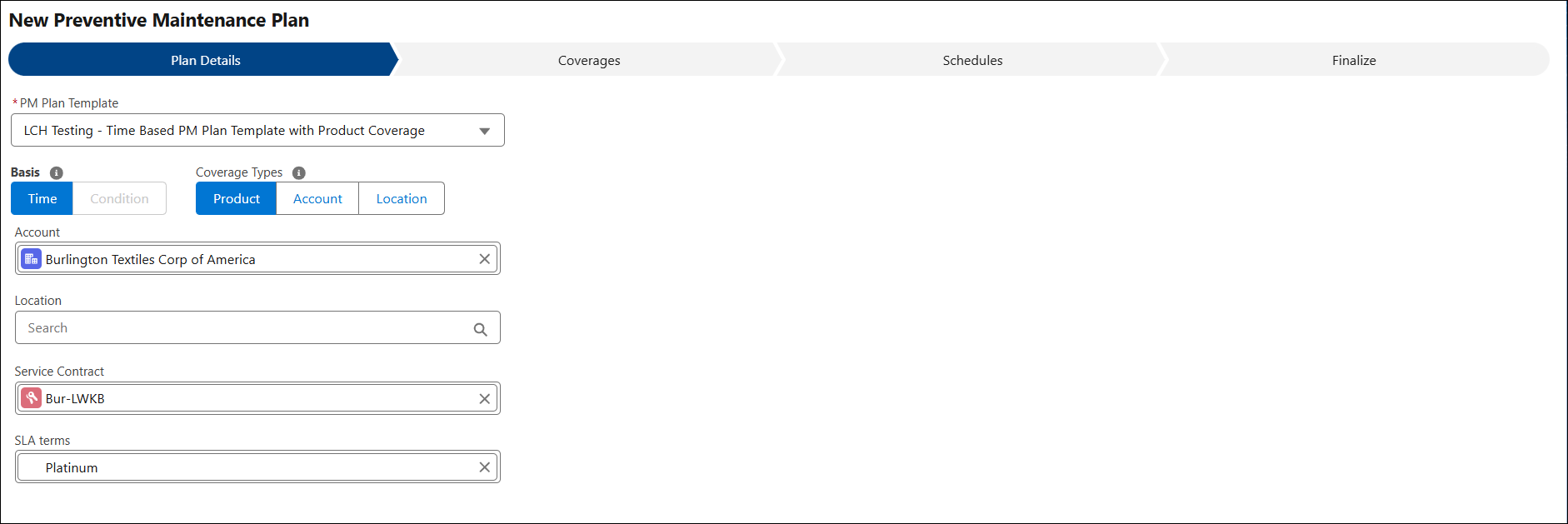
4. Click Next to proceed with the Coverage tab. The coverages are populated based on the source record, the PM Plan Template’s applicable products, and the Template criteria.
To add more coverages, click Add Coverage. For more information, see Adding Coverages.
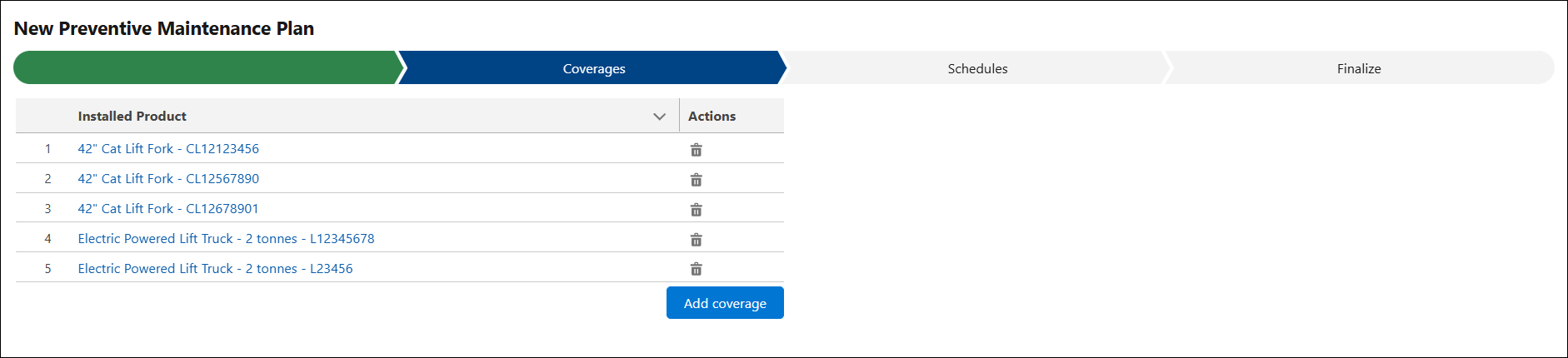
5. Click Next to proceed with the Schedules tab. The configured schedules are auto-populated based on the PM Plan template. You can modify the existing schedule or add new schedule based on your requirements.

6. In the Enable Dynamic Adjustment section, modify the following fields:
|
Field
|
Description
|
|---|---|
|
Enable Dynamic Adjustment
|
Select this checkbox to configure Dynamic Adjustment to reschedule the future PM visits of PM Plans based on the early or delayed PM completion of the current PM Work Order. For more information, see Performing Dynamic Adjustments for PM Plans.
|
|
Work Order Completion Basis
|
Dynamic Adjustment considers a PM Work Order to be complete based on the selected Work Order date or time field.
|
|
Activity Work Order
|
Select First or Last to determine whether Dynamic Adjustment performs adjustments on the first or last update to the Work Order field specified in Work Order Completion Basis. The system tracks activity behavior across multiple Work Orders when generating one Work Order per Installed Product coverage.
|
|
Adjustment Range
|
Specifies the minimum and maximum horizon for Dynamic Adjustment in PM Schedules. If a PM Work Order is completed below the minimum value, no adjustment occurs. If completed above the maximum value, the adjustment is limited to the maximum value.
|
|
Type
|
The Adjustment Type defines how Dynamic Adjustment is applied:
• Actual: Adjusts the next Scheduled On date based on the actual difference between the Work Order Completion Basis date and the Preferred Start date of the last completed Work Order.
• Fixed: Adjusts the next Scheduled On date by a fixed value specified in the Adjustment Value and Adjustment Unit fields.
|
|
Adjustment Value
|
When Adjustment Type is Fixed, this field indicates the fixed adjustment value applied by the dynamic adjustment logic.
|
|
Adjustment Unit
|
When Adjustment Type is Fixed, this field indicates the fixed adjustment unit applied by the dynamic adjustment logic.
|
7. Click Next to proceed with the Finalize tab.
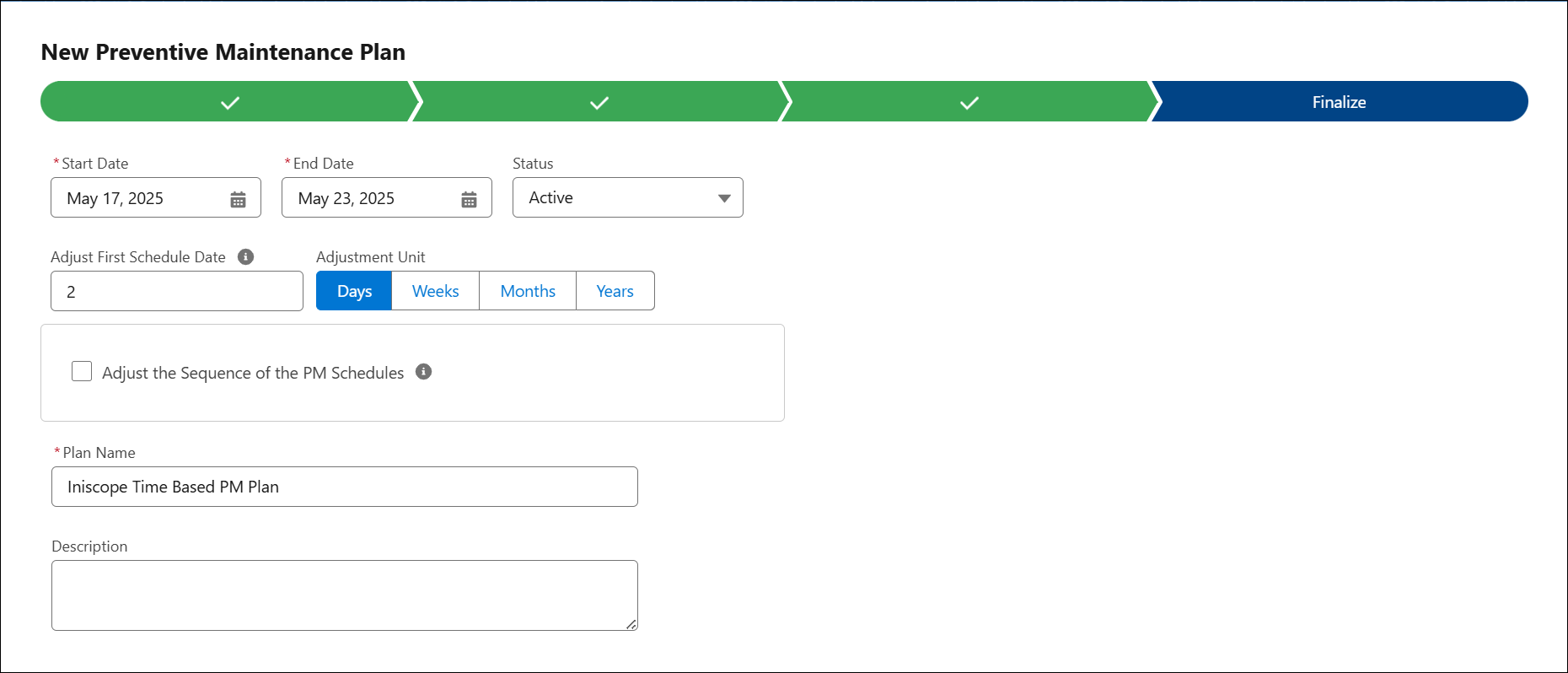
8. Enter the fields as described in the following table:
|
Fields
|
Description
|
|---|---|
|
Start Date
|
The Start Date is auto-populated for the current date. You can modify it based on your requirements.
|
|
End Date
|
Select the End Date of the plan. It should be a future date. The scheduled date should not go beyond the Start and End Date.
|
|
Status
|
Select the required status of the PM Plan. For example, Active.
|
|
Adjusted First Schedule Date
|
Specify the Adjusted First Schedule Date to change the starting PM Scheduled On date as part of the PM Plan creation web service.
When a new PM Plan is created, the web service creates the corresponding PM Schedules for the PM Schedule Definitions equal to or greater than the defined Adjusted Sequence. When the web service creates PM Schedule lines, it starts from the Adjusted Sequence and calculates the Scheduled On date based on the Adjusted First Schedule Date value instead of the PM Plan Start Date.
|
|
Adjustment Unit
|
Select the unit for the Adjusted First Schedule Date. This can be Days, Weeks, Months, or Years.
|
|
Adjust the Sequence of the PM Schedules
In a PM Plan that either uses non-recurring schedules or has all its schedules generated upon creation, you can adjust where the PM Engine will begin the sequence of the PM Schedules. Enable this checkbox to see fields for defining what sequence the PM Schedules should be processed in and when to adjust the PM Plan’s start date.
|
|
|
Adjusted Sequence
|
Enter the Adjusted Sequence to change the starting PM Schedule sequence as part of the PM Plan creation web service.
In a PM Plan with non-recurring Schedules, this field can be used to define the sequence number of which PM schedule should be considered the first milestone of the Plan’s frequency. This is only relevant when one or more of the first PM Schedules need to be skipped.
|
|
Adjusted Start Date
|
Enter the starting date to create PM schedules, provided that the Adjusted Sequence field is populated.
|
|
PM Plan Name
|
Enter a name for the PM Plan.
|
|
Description
|
Enter a description for the PM Plan.
|
9. Click Save. The PM Plan is created with PM Schedule Definition, Coverages, and PM Schedule.
After the PM plan is created and the PM process is set up, the SCON scheduler picks up the PM process, and qualified PM plans to check whether PM work orders are ready to be created. For Time-Based PM Plans, the scheduler checks the schedule and creates PM work orders. If work plans are associated with PM Plans, then the work plan is assigned to the PM Work Order and service products, tasks, and recommended parts are created for either the Work Order or its service products. For more information, see Executing Work Plans from Work Orders
PM Schedule Definition
PM Schedule Definition is created based on associated PM Template's scheduled templates; the definition, the schedule are generated for each of the definitions. In the case of the Time-Based PM Plan, the schedule is calculated based on the first (last) service date + frequency. If the last run date is 12th May 2025, and the frequency is set to monthly, then the next scheduled date will be on 12th June.
Use Case
Creating Time-Based PM Plans with predictable schedules
Role: Planner
A planner at Iniscope International creates a Time-Based PM Plan for monthly and quarterly maintenance of Soniscape microscopes and lasers deployed at research facilities and hospitals. The planner reviews applicable products and finalizes schedules so work orders are generated in advance for covered installed products. This matters because planners can reserve capacity early, technicians avoid last-minute assignments, and customers receive maintenance before compliance deadlines.