Configuring Additional Display Columns in the Interactive Entitlement UI
You can configure additional fields as columns on the Select Entitlement page for Warranty and Service Contract records. This enables users to view appropriate details and select the most suitable coverage during entitlement selection.
By default, the following standard fields are displayed for each associated warranty and service contract when you perform an Interactive Entitlement by clicking Check Entitlement SFM from a Work Order:
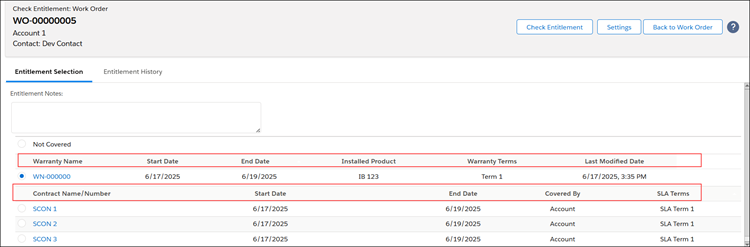
For more information, see Performing Interactive Entitlement.
To add fields as display columns, you must add fields to the packaged Field Sets for the Product Warranty and Service/Maintenance Contract objects in the Salesforce Setup. For example, if the Contract Name holds only a number and is not useful in identifying the correct contract, add a custom field as an additional display column to show the actual name of the contract.
After configuring fields, you can further customize columns on the Select Entitlement page to view only specific details based on your requirements.
To configure additional fields as display columns for Product Warranty or Service/Maintenance Contract objects:
1. In Salesforce Setup, go to Object Manager.
2. Open the Product Warranty or Service/Maintenance Contract Object.
3. In the left pane, go to the Field Sets and click EVER Warranty Fields or EVER SCON Fields for Product Warranty or Service/Maintenance Contract respectively.
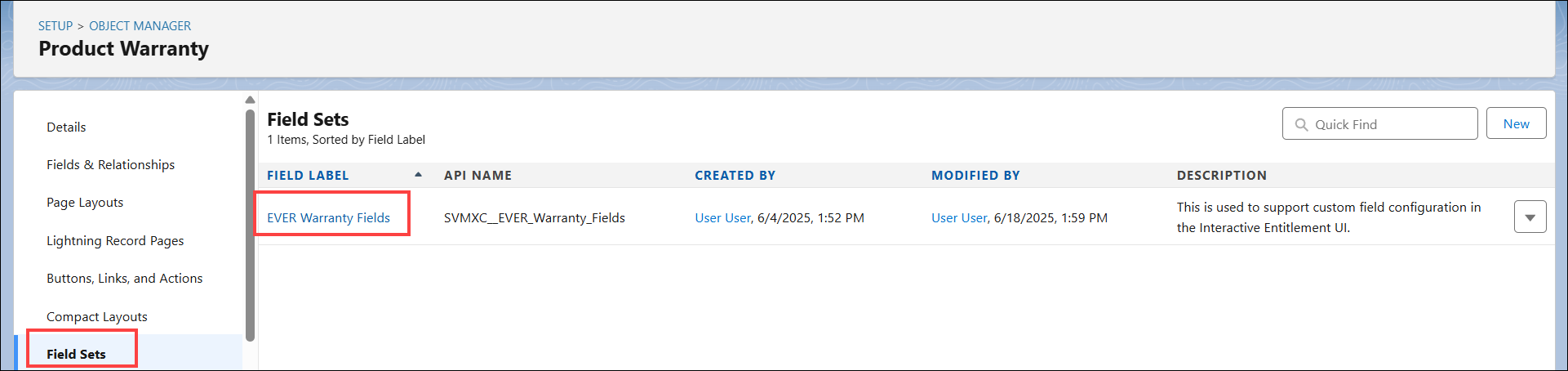
The Field Set is displayed with the list of existing fields added In the Field Set.
4. From the Available for the Field Set, drag and drop the required fields into In the Field Set.
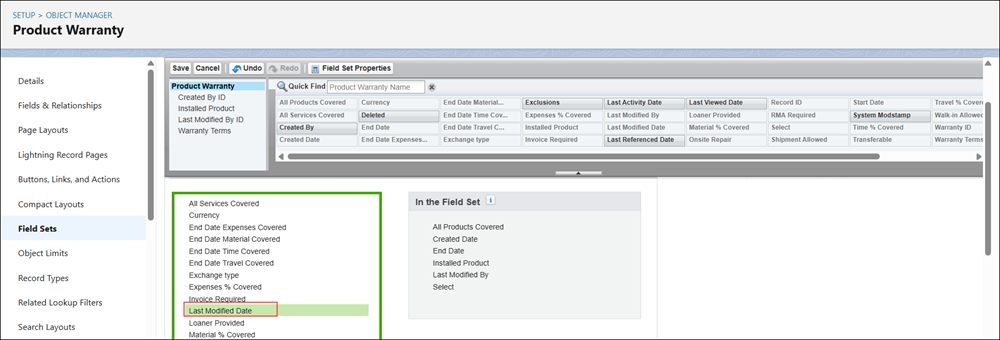
Alternatively, you can drag and drop fields from the header into In the Field Set.
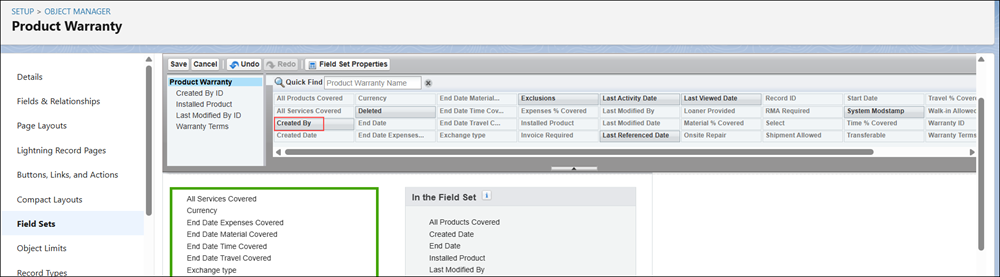
5. Click Save.
The fields added to the Field Sets appear as additional columns in the Select Entitlement page.
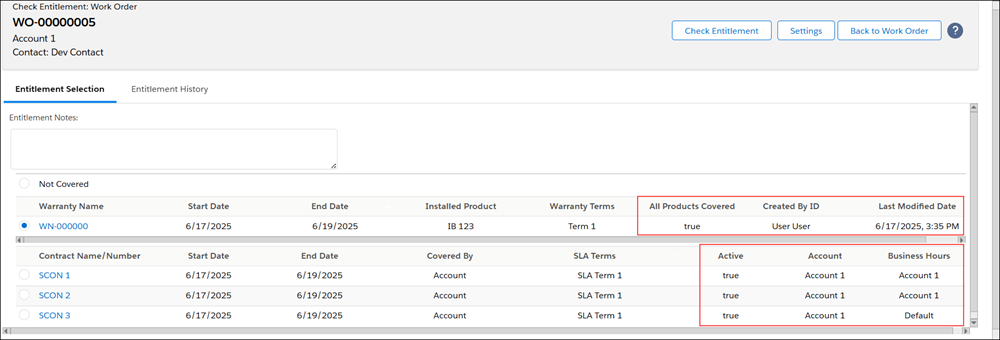
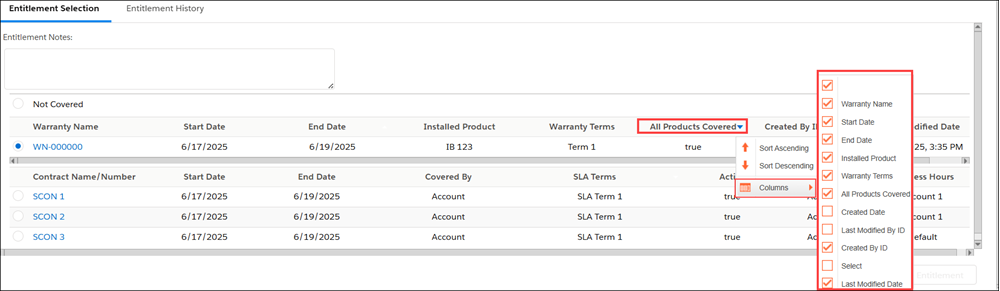
To view all fields configured for Service Contract or Warranty sections, click the drop-down icon on any column header and select Columns.
You can select or deselect fields to customize the columns displayed in the view. For more information, see Performing Interactive Entitlement
 |
• You cannot add fields of data types such as Long Text Area, Rich Text Area, and Encrypted Text as columns.
• Text Area fields, such as Description, will display only limited information in the UI.
• The page displays up to 12 fields as columns. Any additional configured fields are hidden under the Columns option in the column header. You can customize the visible columns based on your requirements.
• User preferences (such as selected or deselected columns) are stored in cache per user and retained upon returning to the page.
• You can resize columns for a better view.
|