Signature Capture
Signature capture allows you to embed customer’s signature in the Service Report generated from the web browser if configured by your admin. For more information on how to configure signatures, see Signatures. This feature helps validate the completion of work and provides documented proof of customer approval.
To generate service report PDF:
1. From the Home page, Open a Work Order record.
2. Click Generate Service Report from Work Order SFM. The service report is generated on the web browser.
3. Click the Click here to sign link. The signature capture pop-up window is displayed with the title same as the label of the signature in the Output Document template. For example, Customer Signature. If the label is not provided, the title is displayed as Signature.
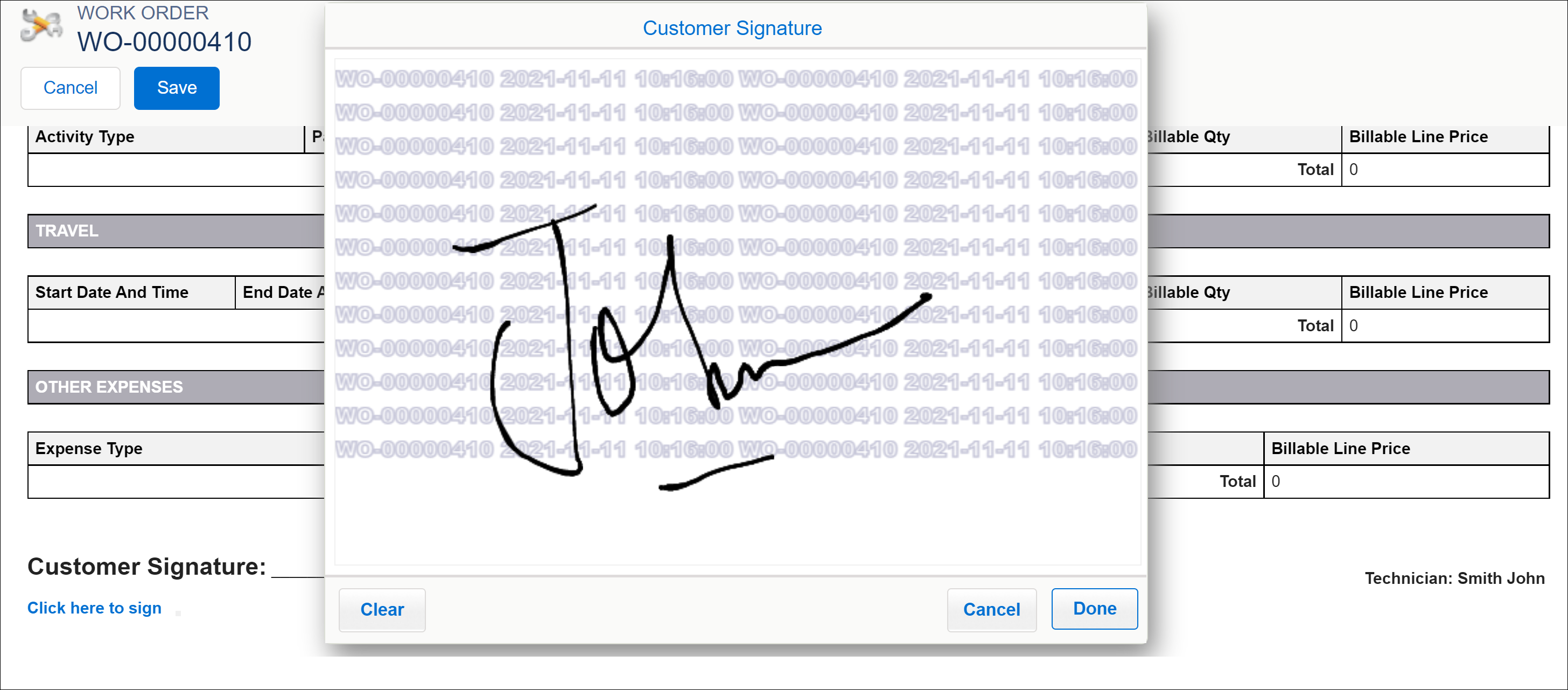
4. Enter your signature using a mouse or touchscreen. You can use the following options:
◦ Click Clear to erase the signature.
◦ Click Cancel to come back to the service report.
◦ Click Done to finish capturing the signature.
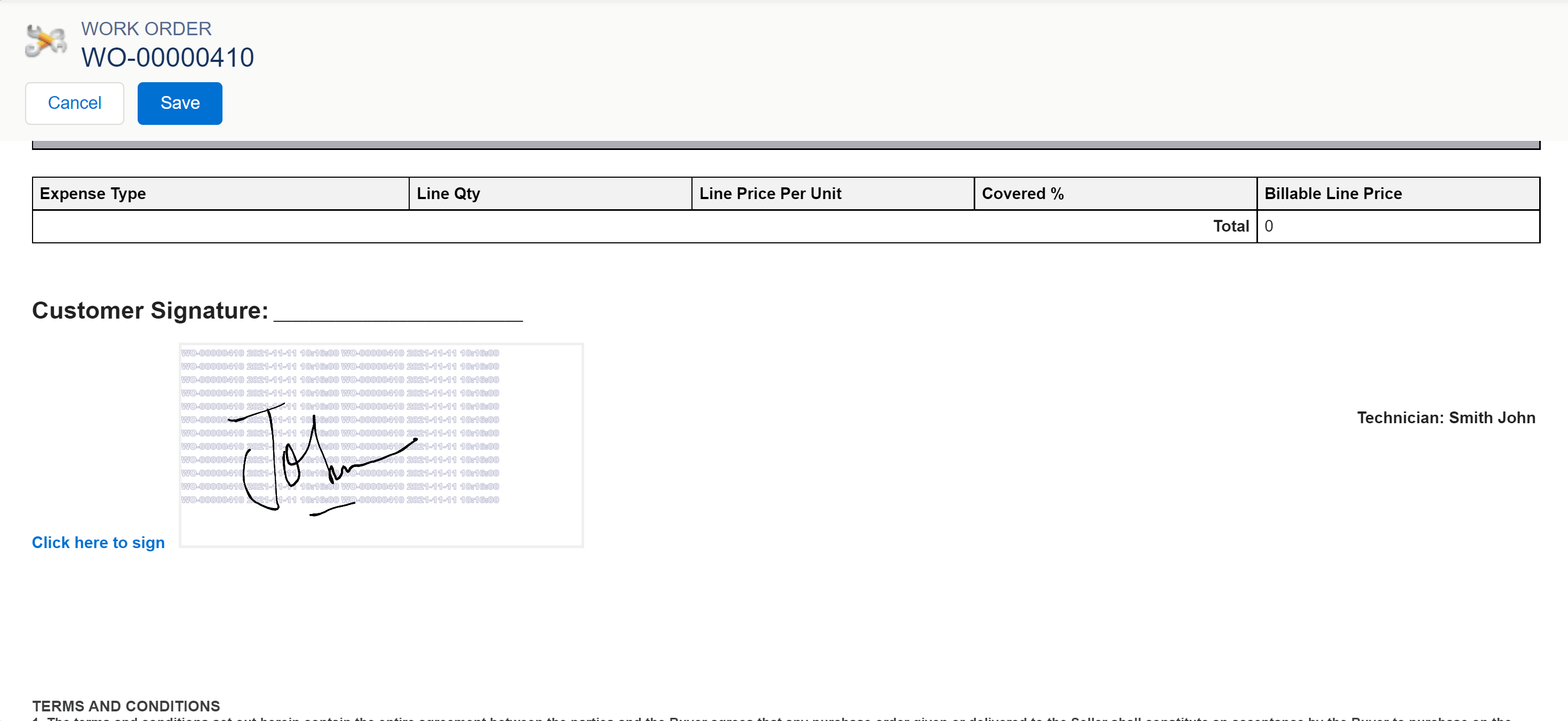
5. Click Save to generate the online service report into PDF. The PDF is attached to the Work Order under the Files section. The Signature capture puts a watermark behind the signature. The watermark comprises the record name followed by the date-time stamp when the signature was captured. For example, WO-000001 10/12/2020 04:50 PM.
 |
The watermark behind the signature cannot be removed.
|
Related Topics