Adding Service Offering
You can define the service offerings included in a service plan by specifying one or more of the offered service types, with allowed units, applicable SLA terms, and covered discounts. This helps determine which services are available under the plan and the extent of discounts applied across parts, labor, expense, and travel costs for that service. You can also configure work plan offerings to associate specific work plans with the service plan, define their units, quantities, and coverage details for more precise service management. For more information, see Adding Work Plan Offerings.
To add a service offering:
1. Go to ServiceMax Setup > Warranties & Service Contracts > Service Plans.
The Service Plans page is displayed. By default, the Service Plans page displays only recently viewed service plans.
 |
Alternatively, access the Service Plans page by clicking the App Launcher, typing Service Plans in the search bar, and selecting it from the results.
|
2. To view all service plans, click All Service Plans from the list view dropdown.
3. In the Service Plan Name column, select the required service plan name.
The selected Service Plan record page is displayed.
4. In the Service Flow Wizard, under the Service Plan Pricing section, select Service Offering.
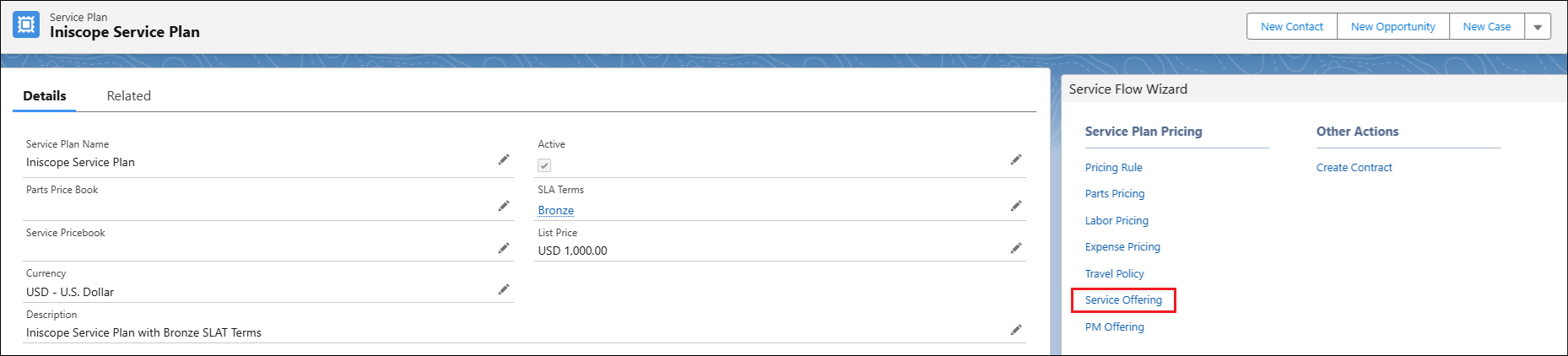
The Edit Service Offering wizard is displayed.
In the Service Plan section, the Service Plan Name and SLA Terms fields are pre-populated based on the selected service plan. You can modify these values if needed and the Service Plan record will be updated accordingly.
5. In the Lines section, under the Service Offering tab, click Add Service Offering.
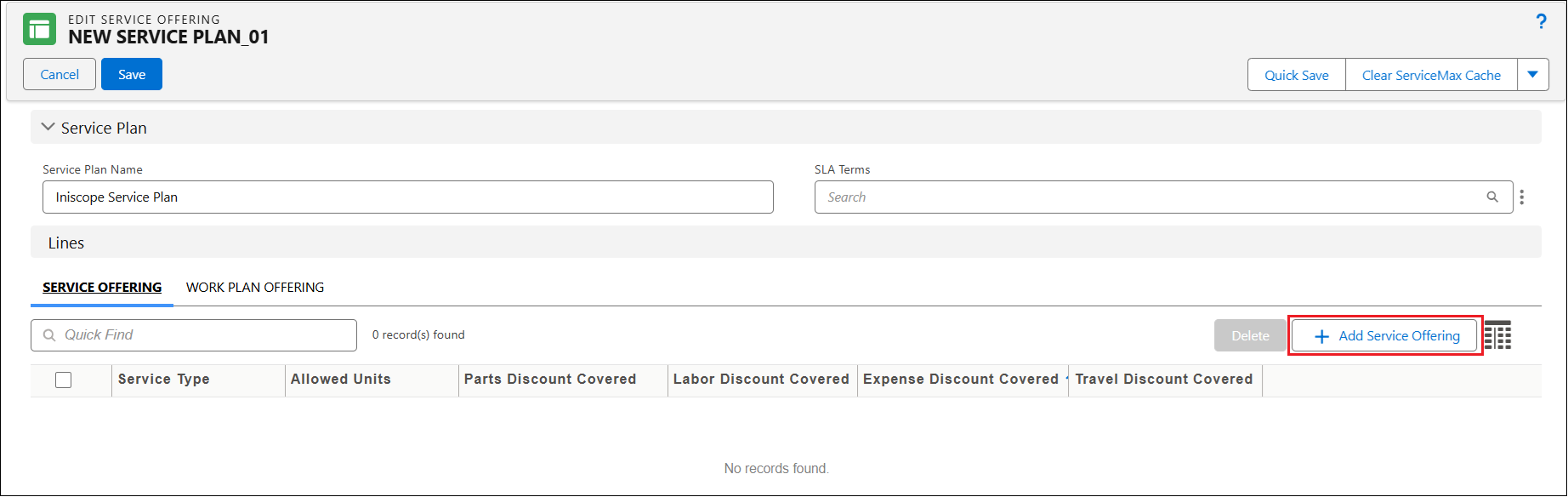
The Service Type Lookup window is opened.
|
|
You can only view the recently viewed service name in the Results section.
|
6. In the Quick Find text box, search for the required service name, and then click Search.
|
|
Ensure that the service exists. For more information, see Creating a New Available Service.
|
7. Select the required service name, and then click Add.
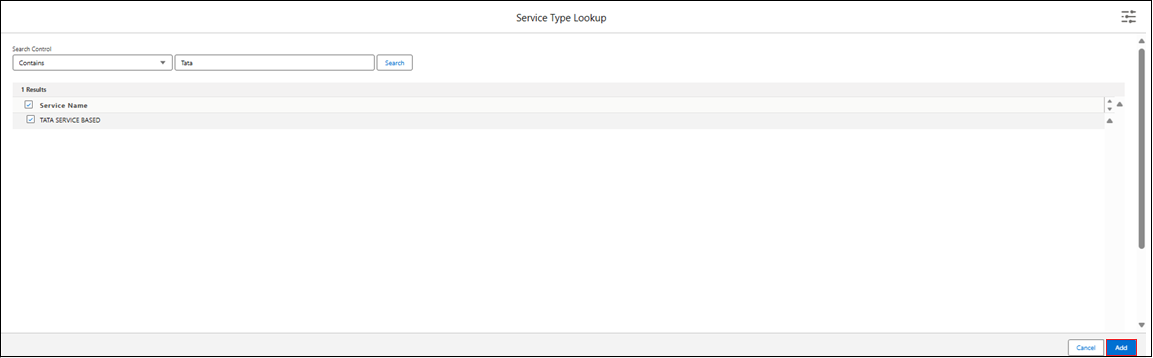
A new row is created in the Service Offering tab.
8. Provide the details for the fields as described in the following table.
|
Field
|
Description
|
|---|---|
|
Service Type
|
Displays the type of service (for example, Installation, Repair, or Preventive Maintenance) included in the service plan. Select the appropriate service type.
|
|
Allowed Units
|
Displays the number of service units allowed for the selected service type. Enter the permitted number of units according to the plan’s terms.
|
|
Parts Discount Covered
|
Displays the percentage of parts discount covered under the service offering. Enter the discount percentage applicable for parts.
|
|
Labor Discount Covered
|
Displays the percentage of labor discount covered under the service offering. Enter the discount percentage applicable for labor charges.
|
|
Expense Discount Covered
|
Displays the percentage of expense discount covered under the service offering. Enter the discount percentage applicable for expenses.
|
|
Travel Discount Covered
|
Displays the percentage of travel discount covered under the service offering. Enter the discount percentage applicable for travel costs.
|
|
|
To add a new row for service offering, select the Add Pricing Rule button and add a service type. Alternatively, in the Service Offering tab, select the down arrow icon next to an existing service offering record, and then select Clone. A new row is created, and you can modify the details as needed.
|
9. To save the changes and to stay on the Edit Service Offering page, click Quick Save.
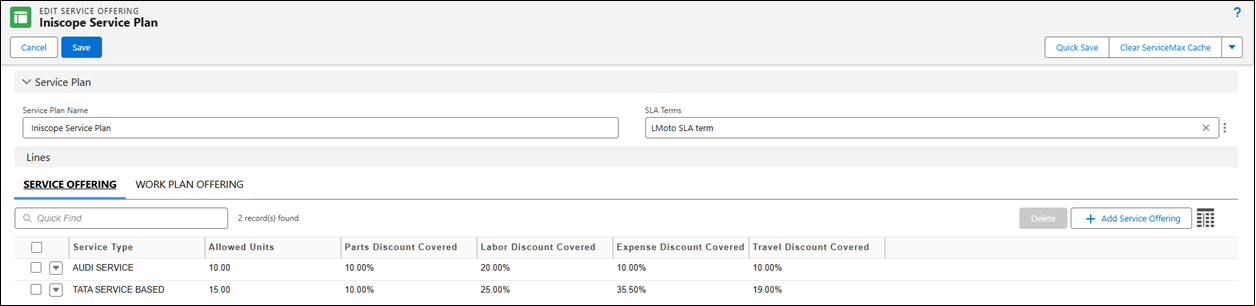
10. To save the changes and navigate back to the Details tab, click Save.
In the Related tab of the Service Plan record page, under Service Offerings related list, you can view all service offerings for the selected service plan.