Adding Labor
You can add labor entries to a Service Pricebook to define standard labor rates for different service activities. Each labor entry specifies the applicable activity type, unit, and rate, ensuring that labor pricing is consistent and accurate during Work Order and Debrief transactions.
To add labor to a Service Pricebook:
1. Click the App Launcher, type Service Pricebooks in the search bar, and select it from results.
2. Open the required Service Pricebook record.
The selected Service Pricebook page is displayed.
3. In the Details tab, under the Service Flow Wizard section, select Edit Service Pricebook.
The Edit Service Pricebook page is displayed, showing the Pricebook Name and Description fields. You can update these details as needed.
4. In the Lines section, select the Labor tab to view and manage labor entries associated with the Service Pricebook.
5. Click Add Labor.
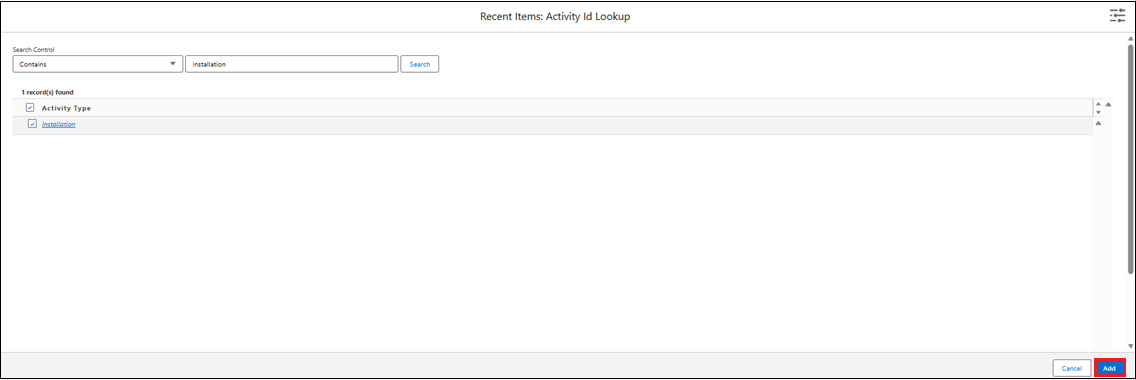
The Activity ID Lookup pop-up window is displayed, listing available activities.
6. In the Activity ID Lookup pop-up window, use the Search Control and Quick Find fields to locate the desired activity (for example, Installation).
 |
You can only view the recently viewed activity type in the Results section.
|
7. Select the check box next to the required activity type, and then click Add.
A new row is created in the Labor tab.
8. Provide the details for the fields as described in the following table.
|
Field
|
Description
|
||
|---|---|---|---|
|
Activity ID
|
Represents the unique identifier of the activity type (for example, Installation, Repair, or Inspection) associated with the labor entry. It determines which service activity the rate applies to. Click the Lookup icon and select the required activity from the list.
|
||
|
Activity Product
|
Specifies the product or service linked to the labor entry. This ensures that pricing is applied correctly to the relevant activity. Select the appropriate product or service from the lookup field.
|
||
|
Unit
|
Defines how the labor price is calculated in the Service Pricebook. You can price labor based on time or as a fixed charge. Choose Per Hour to calculate labor price based on time, or Flat Rate to apply a fixed amount per activity.
|
||
|
Regular Rate
|
Indicates the standard rate to be applied for the selected activity and unit type. This rate determines the base labor price before any contract-based discounts or adjustments. Enter the applicable rate (for example, 500.00).
|
|
|
To add a new row for labor, select the Add Labor button and add a activity type. Alternatively, in the Labor tab, select the down arrow icon next to an existing labor record, and then select Clone. A new row is created, and you can modify the details as needed.
|
9. To save the changes and to stay on the Edit Service Price Book page, click Quick Save.
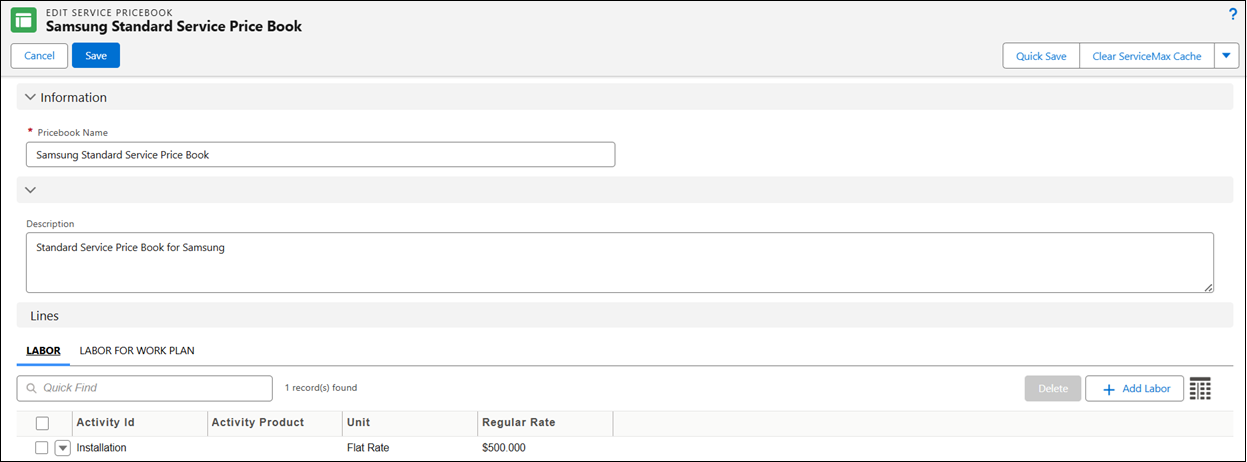
The labor entry is saved and displayed in the Labor list under the Service Pricebook. Labor entries defined in the Service Pricebook are used during price calculation for Work Orders and Debrief transactions. These entries ensure consistent labor billing in accordance with the defined Service Contract or organizational pricing policies.
10. To save the changes and navigate back to the Details tab, click Save.