Adding Labor for Work Plan
You can add labor entries for Work Plans in a Service Pricebook to define standard rates for work plan–based service activities. These rates determine how labor prices are applied when Work Plans are executed during service transactions.
To add labor for a Work Plan in a Service Pricebook:
1. Click the App Launcher, type Service Pricebooks in the search bar, and select it from results.
2. Open the required Service Pricebook record.
The selected Service Pricebook page is displayed.
3. In the Details tab, under the Service Flow Wizard section, select Edit Service Pricebook.
The Edit Service Pricebook page is displayed, showing the Pricebook Name and Description fields. You can update these details as needed.
4. In the Lines section, select the Labor for Work Plan tab to view and manage labor entries defined for specific work plans within the Service Pricebook.
5. Click Add Labor for Work Plan.
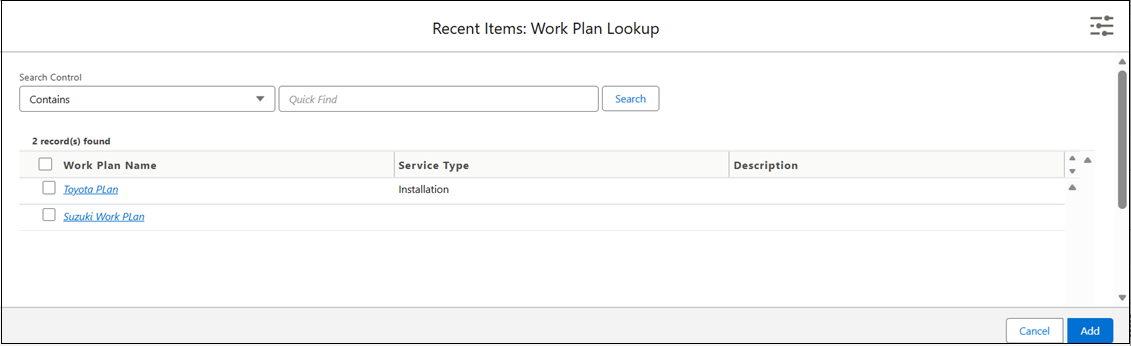
The Work Plan Lookup pop-up window is displayed, listing available work plans.
6. In the Work Plan Lookup pop-up window, use the Search Control and Quick Find fields to locate the desired work plan.
The results are displayed with three columns:
◦ Work Plan Name: Displays the name of the available work plan.
◦ Service Type: Indicates the type of service (for example, Preventive Maintenance or Installation).
◦ Description: Provides details about the work plan.
 |
You can only view the recently viewed work plan in the Results section.
|
7. Select the check box next to the required work plan, and then click Add.
A new row is created in the Labor for Work Plan tab.
8. Provide the details for the fields as described in the following table.
|
Field
|
Description
|
|---|---|
|
Work Plan
|
Represents the specific work plan (for example, Preventive Maintenance or Installation) to which the labor rate applies. It defines the scope of work and associated service tasks. Click the Lookup icon, search for the required work plan, and select it from the results.
|
|
Product
|
Adding a product indicates that the Labor price is defined for the Work Plan and product combination. This field is optional.
|
|
Unit
|
Defines how the labor price for the work plan is calculated. Labor can be priced based on time or as a fixed rate per work plan. Choose Per Hour for time-based billing or Flat Rate for a fixed charge per work plan.
|
|
Regular Rate
|
Indicates the standard labor price applicable for the selected work plan and unit type. This value forms the base rate before discounts or adjustments. Enter the applicable labor rate (for example, 750.00).
|
|
|
• To add a new row for labor for work plan, select the Add Labor for Work Plan button and add a new work plan. Alternatively, in the Labor for Work Plan tab, select the down arrow icon next to an existing labor for work plan record, and then select Clone. A new row is created, and you can modify the details as needed.
• If you can view the Labor for Work Plan tab but not the fields to define Work Plan pricing, click the ServiceMax Clear Cache button. This is a one-time action required after upgrading to version 25.2.
|
9. To save the changes and to stay on the Labor for Work Plan tab, click Quick Save.
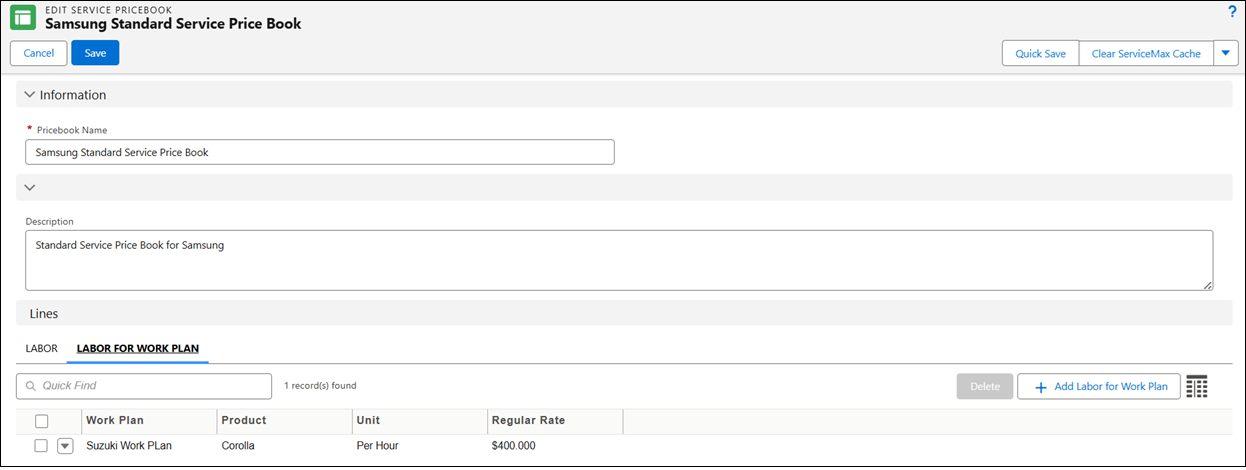
The labor entry for the work plan is saved and displayed in the Labor for Work Plan list under the Service Pricebook.
Labor for Work Plan entries defined in the Service Pricebook ensure accurate and consistent labor pricing when Work Plans are executed in Work Orders or Debriefs.
10. To save the changes and navigate back to the Details tab, click Save.