Adding a Condition Rule in 25.1
1. In the Schedules tab, click Add Rule.
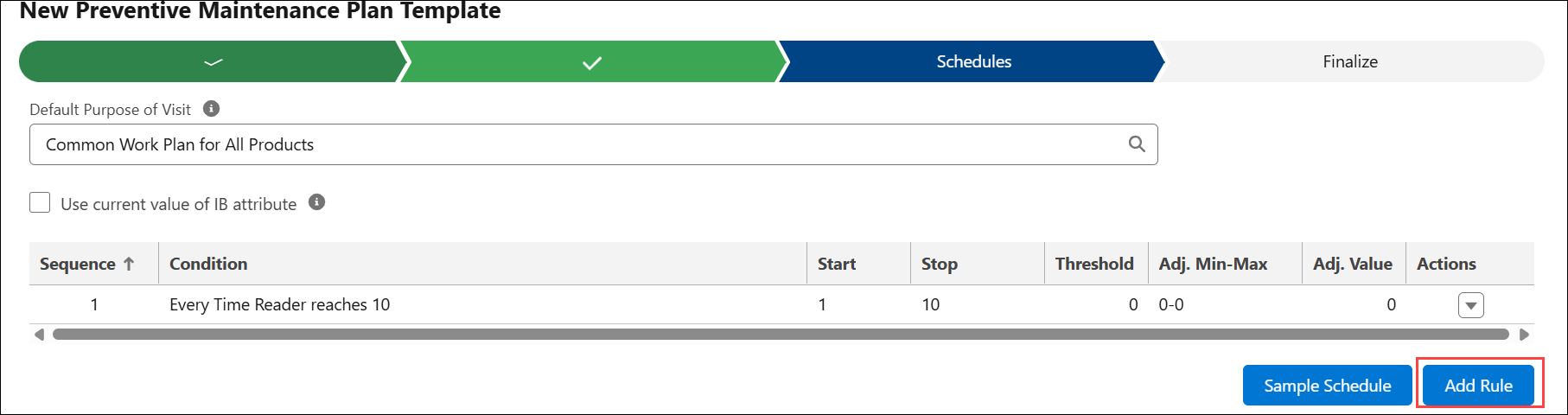
The Condition Rule pop-up window is displayed.
2. In the Attribute section, select an attribute for which you want to apply the condition. This can be the technical attributes of the Product defined in the applicable products stage, an install based attribute (a field on the installed product object) or a Date attribute. The value you choose here determines the condition details on the right-hand side of the modal.. If you have an extensive list of attributes, you can filter or search for attributes based on keywords.
 |
Attributes vary based on the condition type selected in the Criteria tab. If the PM Plan Template has a condition type of Usage/Frequency, the attribute options include Technical Attributes, IB Attributes, and Date Attributes. If the PM Plan Template has a condition type of Criteria/Comparison, the attribute options include only Technical Attributes and IB Attributes.
|
3. In the Condition section, define a condition using the following fields:
|
Field
|
Description
|
|---|---|
|
Operator
|
When the Template’s condition type is Usage/Frequency ,
If the value chosen in the 'Attribute' cell is a field on the Installed Base object or a technical attribute, you can choose Every or Every decrement as an operator. If one of the Date attributes is chosen, you can choose the operator as Every. Every indicates a progressive or incremental counter. Every decrement indicates a decreasing counter. This is a mandatory field.
When the Template’s condition type is Criteria/Comparison,
You can enter equals, greater than, or less than in the operator field.
|
|
Value
|
Enter the frequency or count of a specific aspect of the product. This field works in cooperation with the attribute and operator to determine the milestone parameters of your condition.
For example, if you want to perform preventive maintenance for a printer every six months or every 10,000 printouts, whichever comes faster, in this case, create two rules rows and select 6 and 10,000 as frequency.
|
|
Start
|
Enter a date or a number based on the attribute you chose. If you select the Use the current value of the IB attribute option, the current value of the IB is considered Start At a value of the IB attribute. This influences the schedules that get generated.
This is considered the starting point for calculation of the condition’s milestone. The Work Order generated for this condition is based on this starting value.
|
|
Stop
|
Enter the date or a number at which the system stops creating the PM work orders. For example, if you want to configure the rule to stop creating the PM work orders at 40,000 counts, enter 40,000. If a date-based attribute is chosen, enter the date.
|
|
Threshold %
|
Indicate a percentage of the condition’s frequency value. It will be used by the PM Engine to generate a Work Order in advance of the condition’s milestone, based on the corresponding percentage value. If left blank, 100% is assumed. This field is only available for Technical and IB Attributes.
|
|
Adjustment Section
|
Configure Dynamic Adjustment to reschedule the future PM visit based on the early or delayed PM completion of the current PM Work Order.
|
|
Adjustment Type
|
The Adjustment type determines how dynamic adjustment is applied. If the type is Actual, the next condition milestone is adjusted by calculating the difference in the attribute value from the expected Work Order completion and its actual completion. If the type is Fixed, the next condition milestone is adjusted by a fixed value indicated in the Adjustment Value fields.
|
|
Adjustment Range
|
The minimum and maximum horizon that Dynamic Adjustment will consider when applying adjustments to PM Schedules generated from this condition rule. If a PM Work Order is completed at a value less than the minimum, no dynamic adjustment will occur. If a PM Work Order is completed at a value greater than the maximum, the maximum value of adjustment will occur.
|
|
|
The Threshold % field is valid only for numbers.
|