Adding Recommended Parts to a Work Plan in 25.2
You can add from one or more recommended parts to the work plan based on the associated service product and work type, during your service.
To add parts for work plan on a work order:
1. In a Work Order record, navigate to the Work Plans tab.
2. Expand the work plan for which you need to manage parts.
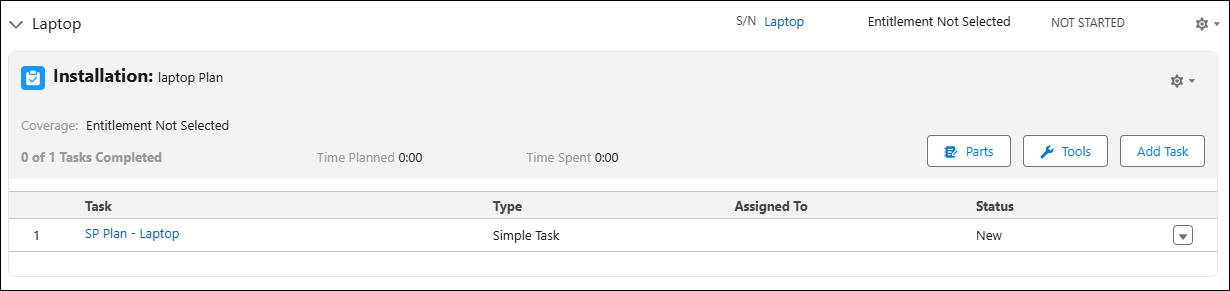
3. Click Parts.
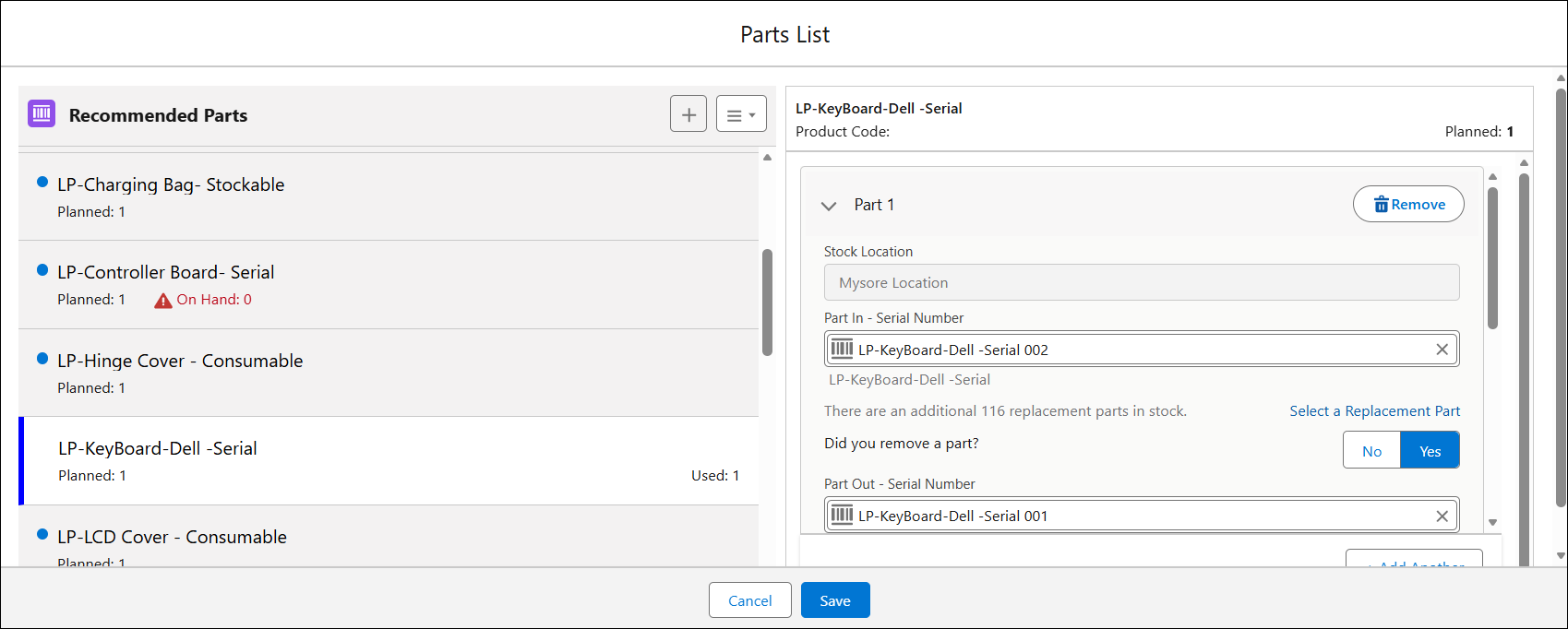
The Parts List window is displayed, with all the recommended parts for the work plan.
 |
The list of recommended parts is displayed with the following details:
• planned quantity required for the service product
• used or consumed quantity from the inventory. This quantity is displayed to the secondary technician after the primary technician has consumed for the same work order.
• a red flag if the planned quantity is more than the available quantity in the inventory for a stockable part and serialized part. The available quantity is referred to as On Hand quantity.
|
4. Click the Add button from the top of the recommended parts list. The configured list of parts is displayed.
|
|
• When a general service task is associated with a work plan, but not with a service product, you can consume only the stockable and consumable parts from the recommended parts list. Serialized parts are restricted for this scenario.
• When a general service task is associated with a work plan but not with a service product, you cannot consume parts as the recommended list is blank. You need to add stockable and consumable parts to the recommended parts list from the Add Part catalog to consume parts. Serialized parts are restricted for this scenario.
|
5. Select a part from the Add Parts list. The part is added to the recommended parts list.
6. Optionally, you can update the planned and consumed quantities in the Planned and Quantity Used fields if you are the primary technician. Secondary technicians can view these fields as read-only and cannot edit. However, secondary technicians can add new parts from the Add Parts list and edit the planned quantity as per their needs.
7. Click Save. A confirmation banner is displayed after successful validation of the parts processing.
|
|
When you update part information for service tasks, the part consumption process flow is triggered as per the configurations set in Part Usage Configuration. This feature helps ensure accurate consumption and tracking of parts.
|