Enabling Auto-Assignment of Work Plans for Service Products
You can enable the automatic assignment of work plans to a Service Product either during creation or whenever the Service Product or related Work Order meets specific criteria.
When the Perform Auto Assignment field on the Service Product is set to true, the work plan auto-assignment engine runs to identify the appropriate rule and assigns the relevant work plan(s) based on the match criteria defined in the rule. For more information on configuring rules, see Creating an Auto-Assignment Rules for Service Product.
The auto-assignment of work plans to a Service product can be initiated in any of the following ways:
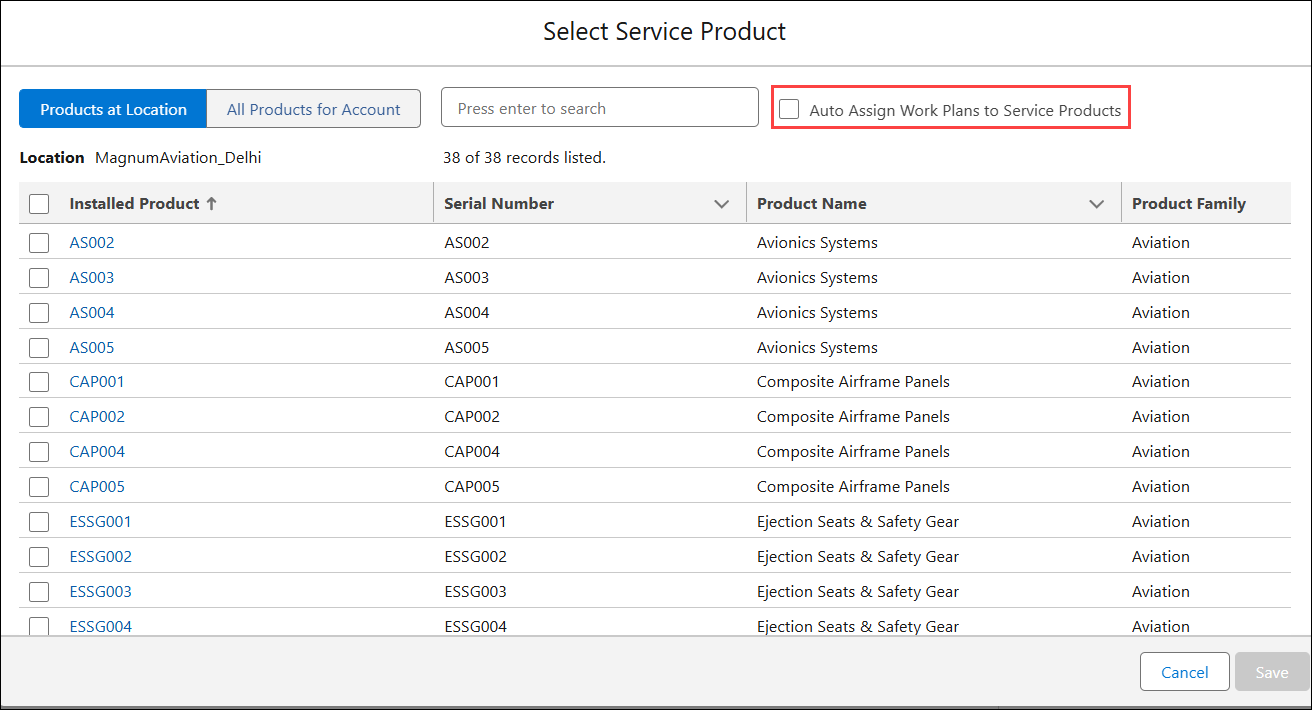
• Select the Auto Assign Work Plans to Service Products option when adding Service Product(s) to a Work Order using the Select Service Product screen.
A success toast message confirms that the assignment process has started. A visual indicator appears next to each Service Product until the auto-assignment is complete.
• Select the —1Perform Auto Assignment field when editing the Service Product record. Save the record to trigger the auto-assignment.
• Configure a Flow or trigger to set the Perform Auto Assignment field to true when a Service Product or Work Order meets defined criteria—either at creation or during an update.
To enable auto-assignment of work plan for a Service Product:
1. From the Home page, open a work order.
2. Click the Service Products & Tasks tab.
3. Click Add Service Product to add a service product to the work order.
The Select Service Product modal window is displayed.
4. Select the service product to add to the work order. For more information, see Adding Service Products to Work Order.
5. Select the Auto Assign Work Plans to Service Products checkbox.
6. Click Save.
You can view the progress of auto-assignment using the visual indicator as shown in the following screenshot:
