Configuring the Field Set for the Revise Task Modal
Administrators can add a custom status field with a Picklist data type to a field set on the Service Task object. This field appears in the Revise Task modal when users revise a task within a Work Plan.
To display the custom field in the Revise Task modal, set the API name of the field set to ReviseFields.
Field service users can then view and update the field value while revising a task, even after the task is marked as Complete. For example, Supervisor wants to review and set additional status on the task that is marked as complete by service engineer. For more information, see Managing Service Tasks in a Work Plan
 |
ServiceMax does not package the ReviseFields field set. You must create it in your org with the exact API name, ReviseFields.
|
Prerequisites
• You must create a custom picklist field on the Service Task object that you want to display in the Revise Task modal. For example, Supervisor Status.
• You must have permission to manage field sets on the Service Task object.
To configure the Field Set:
1. From Setup, go to Object Manager, and then open the Service Task object.
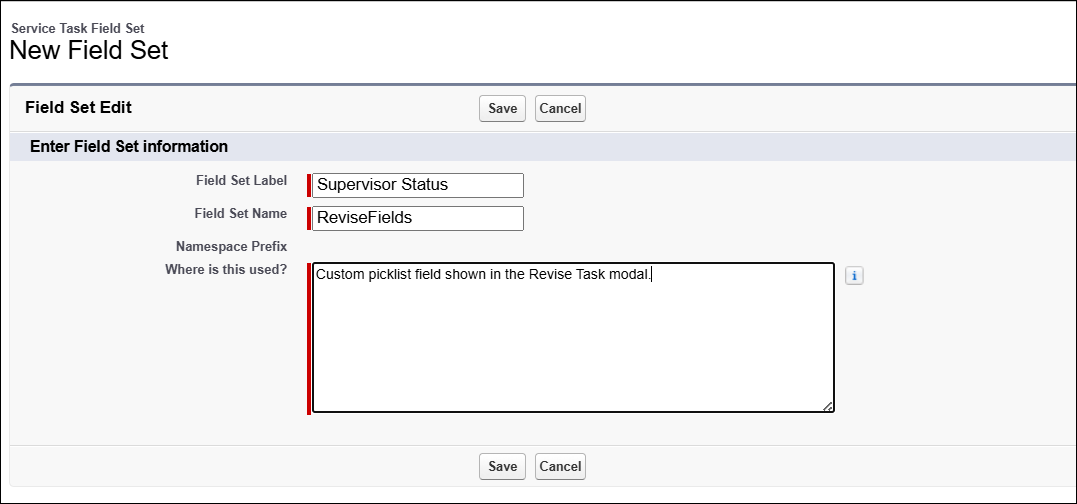
2. Click Field Sets, and then click New.
3. Enter the following values:
|
Field
|
Value
|
||
|---|---|---|---|
|
Field Set Label
|
Enter the label that identifies the field set in your org.
|
||
|
Field Set Name
|
Enter the API name, ReviseFields. The API name must match this value exactly. The system looks up the field set by this name.
|
||
|
Where is this used?
|
Describe the purpose. For example, "Custom picklist field shown in the Revise Task modal."
|
4. Click Save.
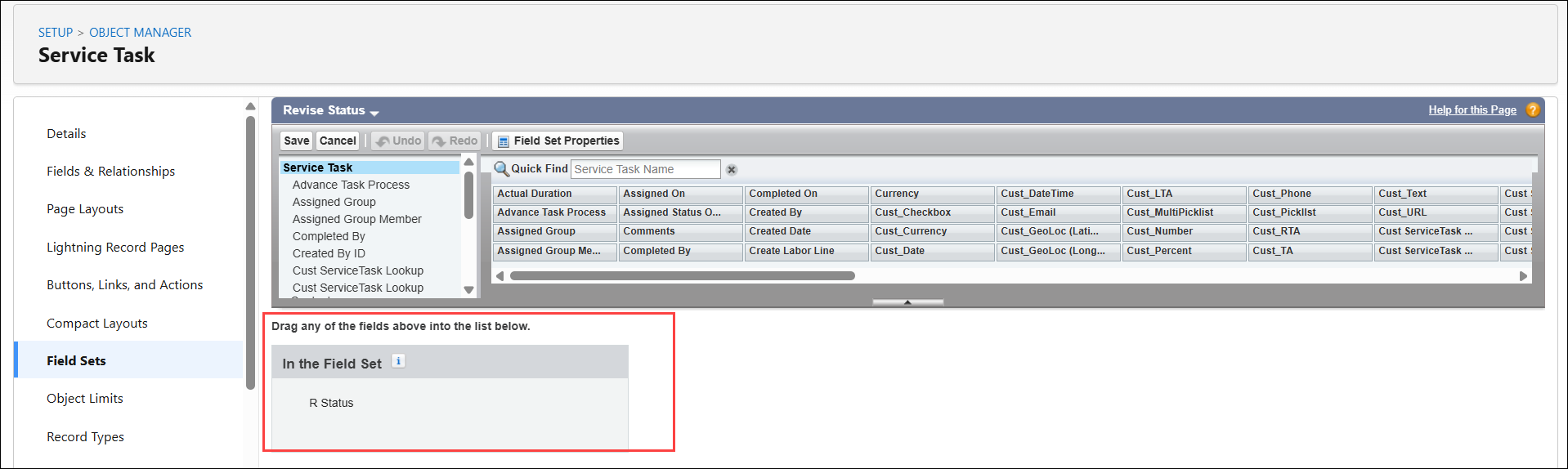
5. On the Field Set page, drag the custom picklist field you want to display into the In the Field Set area.
|
|
Ensure that it is the first field. ServiceMax reads only the first field from the field set.
|
6. Click Save.
The custom field added in the field set appears in the Revise Task modal. For more information, see Managing Service Tasks in a Work Plan.
Related topics