Adding SFM Task to the Work Plan in 25.1
You can add an SFM type of task to the work plan. This type of task invokes an SFM and enables the technician to update details on SFM form when executing task during runtime.
To add an SFM task to the work plan:
1. Navigate to the Work Plan Library list view.
The existing work plans are listed.
2. Open the work plan to which you want to add the SFM task.
3. Click Add Task.

The Add Task pop-up window is displayed.
4. On the top-right, click Linked Activity link.

The Select Link Task Type is displayed.
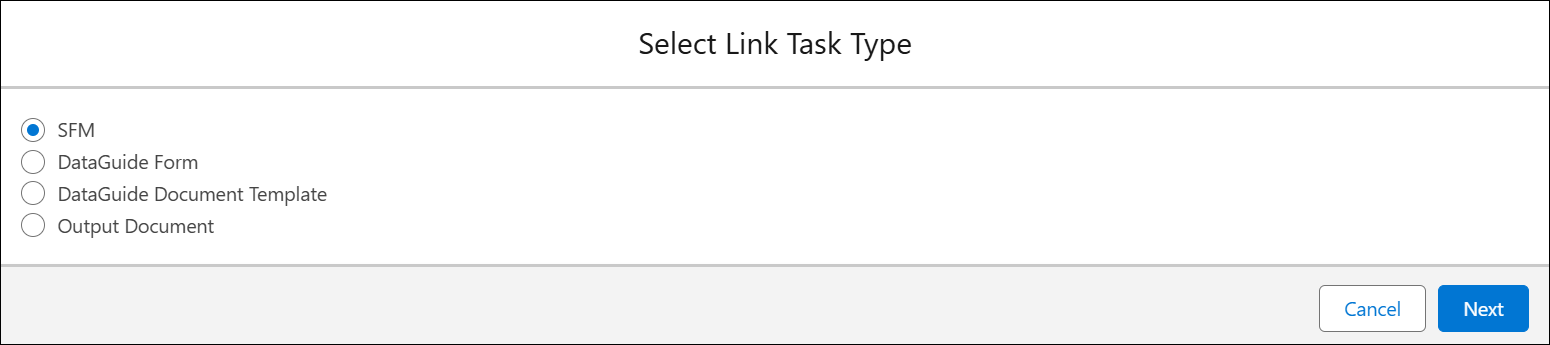
5. Select SFM and click Next.
 |
All the existing SFMs with either Source object or the Target object as one of the following objects are listed:
• Work Order
• Installed Product
• Location
• Account
Location and Account values are obtained from the Work Order record.
|
6. Select the SFM you want to add for the task.
7. Click Update.
The SFM is linked to the task.
8. In the Details tab, enter the details as described in the following table.
|
Fields
|
Description
|
||
|---|---|---|---|
|
Fields with * are mandatory.
|
|||
|
Task Name*
|
Enter a name for the Simple task.
|
||
|
Status Options
|
Select the statuses the task can transition into.
There are status options such as New, In Progress, and Complete, which are selected by default.
|
||
|
Estimated Duration
|
Enter estimated time to complete the task.
|
||
|
Estimated Time Unit
|
Select the unit of time for the Estimated Duration field value from the dropdown list.
|
||
|
Mandatory Task
|
Select this checkbox if you want this task to be completed mandatorily as a part of the completion of work plan.
|
||
|
Create labor line on work order when status is changed to complete
|
Select this checkbox to generate labor lines based on the information captured in the service task. Labor lines are generated when the service engineer marks the task as complete. These labor lines are the Work Detail Lines of the type Labor, which include details about the service tasks and the time spent by technicians to complete them.
|
||
|
Details
|
Add instructions that you want to provide to the service engineer executing the task. You can add photos, bullets, numbered list, and so on.
|
||
9. In the Instructions tab, add instructions that you want to provide to the service engineer executing the task. You can add photos, email addresses, bullets, numbered list, and so on.
10. In the Reference Files section, add any attachments for the task as required.
To add an attachment, click Upload Files and upload the file.
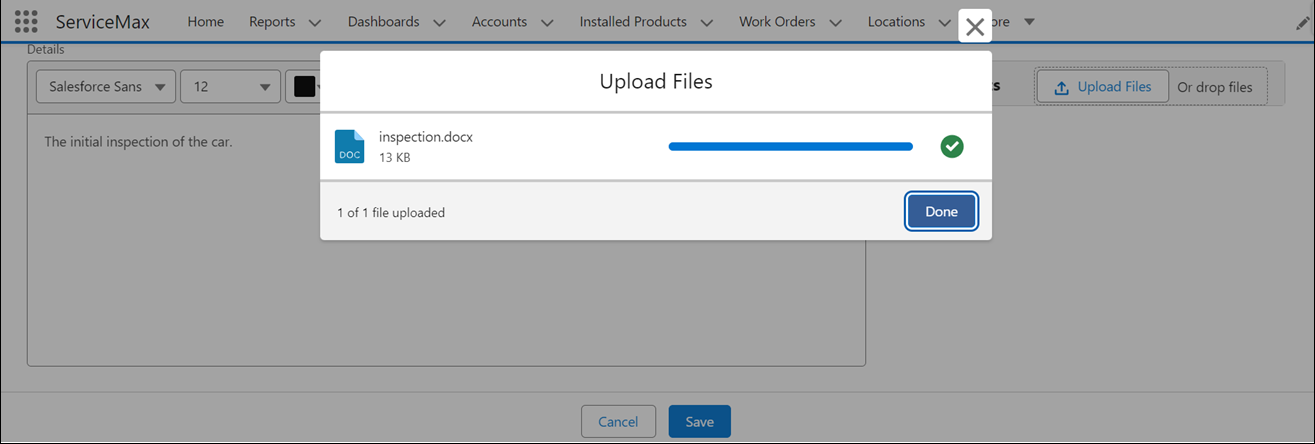
OR
Drop the file you want to attach in the Reference Files section.
|
|
• You can add multiple files. However, the total size of the attached files must not exceed 800 MB.
• All the supported file types with Salesforce are supported.
|
11. Click Save to save the SFM task.