Adding Objects and Fields as Data Sources
You can select the ServiceMax objects and fields that ServiceMax AI can read. These selections define the core data AI uses to answer user questions. You must add the objects and fields first before you apply filters, add references, or write instructions.
To add objects and fields as data sources, perform the following steps.
1. Go to > > .
The ServiceMax AI Console is launched.
 |
You can also log in to the ServiceMax AI console directly at https://console.servicemax.io/ai with your Salesforce org credentials.
|
2. Go to > .
The ServiceMax Data Sources page is displayed.
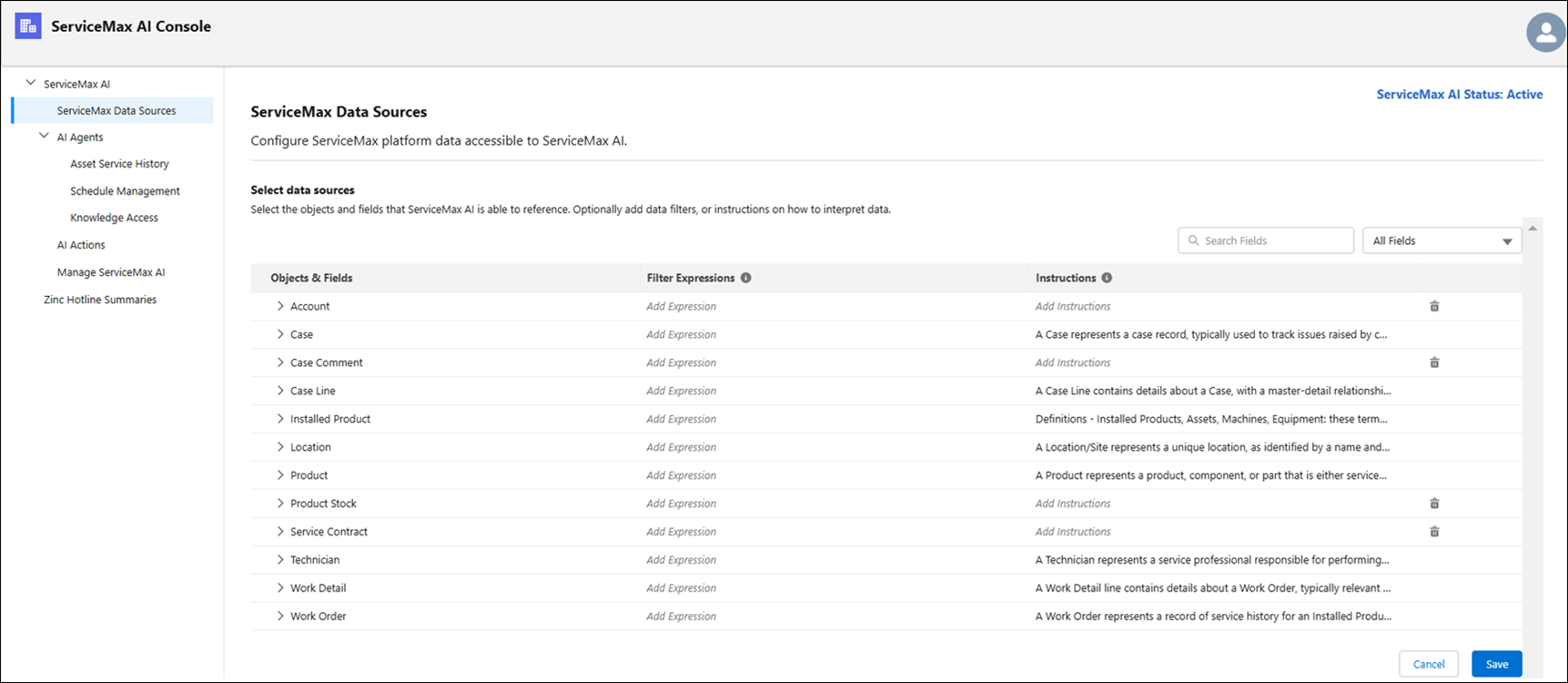
3. Expand an object, and then select the checkbox for each field you want to include.
|
|
If you select a lookup field, the system also adds the referenced object as a data source
|
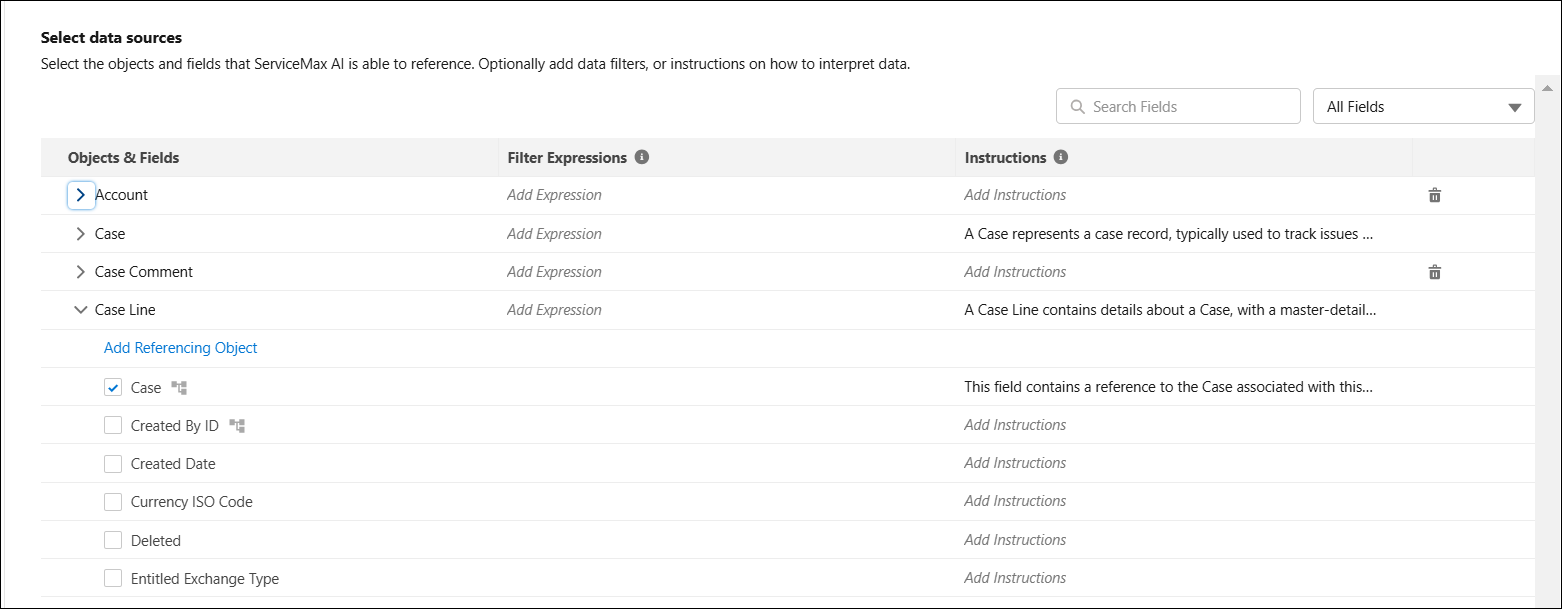
4. Select the expression to filter the criteria.
For example, you can select the case records only for closed cases. Then, ServiceMax AI only accesses case records with Closed status.
5. Add a referenced object to an object as the data source.
For example, you can add the Checklist object, which is referenced from the Installed Product object.
6. Add notes or instructions for ServiceMax AI.
|
|
You can add notes or instructions to provide context to ServiceMax AI about the field or the object.
|
7. Click Save to save the data sources selection.
Related Topics