Adding Notes and Instructions
You can use instructions to explain how AI should interpret your data, fields, and business terms. Clear instructions improve answer accuracy and consistency. You must add objects and fields first before you can add instructions.
 |
The instructions provide ServiceMax AI with information and context about the objects, fields, and the data records.
• Provide instructions about how to interpret the data. For example, when a user asks ‘when a work order happened?’ ServiceMax AI must provide the date and time based on start date and end date fields of the work order.
• Provide instructions to give context for customer-specific scenarios. For example, technicians might informally refer to critical work orders as code red work orders.
• Provide context for terms and words user might use, such as short-forms and abbreviation of terms. For example, users might refer to the location named Good Samaritan Hospital as GSH.
• Ensure that instructions are easy to interpret and are not very lengthy.
|
To add instructions for an object or field, perform the following steps.
1. Go to > > .
The ServiceMax AI Console is launched.
|
|
You can also log in to the ServiceMax AI console directly at https://console.servicemax.io/ai with your Salesforce org credentials.
|
2. Go to > .
The ServiceMax Data Sources page is displayed.
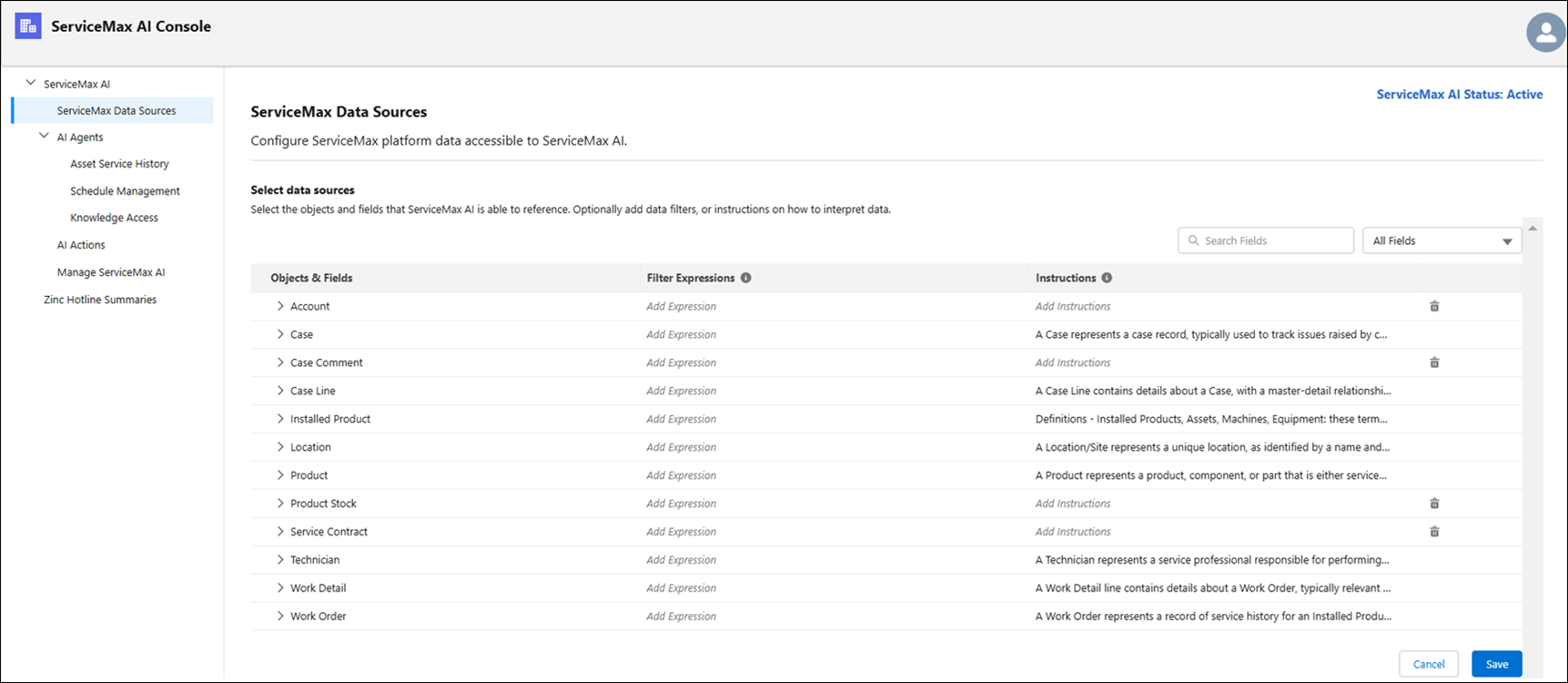
3. Expand the objects and select the fields as data sources by selecting the checkbox next to the field names.
|
|
When you select a lookup field as the data source, the referencing object is also added as the data source. Lookup fields are displayed with an icon next to the field name, so that you can identify the type of field.
|
4. Select the expression to filter the criteria.
5. Add a referenced object to an object as the data source.
6. Click the Editicon in the Instructions column in the object/field row.
The Edit Notes for ServiceMax AI window is displayed.
7. Add the relevant instructions. You can provide the required information about the field or the object.
|
|
You can use up to 1000 characters to add the instructions.
|
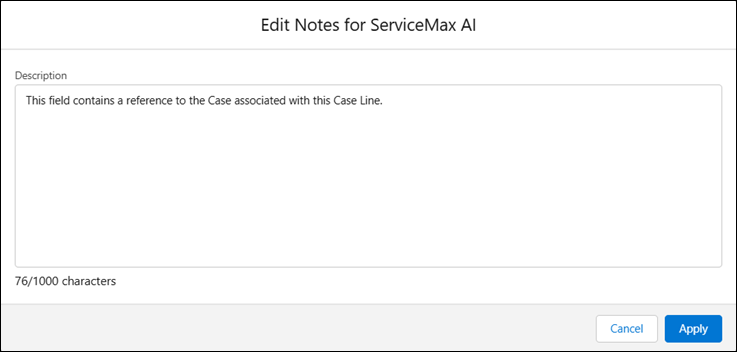
8. Click Apply to save the instructions.
9. Click Save to save the data sources selection.
Related Topics