Navigating the Product BOM and Controlling Part Visibility
Browse the product Bill of Materials tree, search for parts, toggle component visibility, and manage the tree view using the Structure tab in the 3D Product Explorer.
The Structure tab in the 3D Product Explorer displays a hierarchical tree view of the product's Bill of Materials (BOM). You can expand and collapse sub-assemblies to navigate the full product structure, from top-level assemblies to individual parts. Each node in the tree includes a green checkbox that controls whether the corresponding component is visible on the 3D canvas. A search field at the top of the panel allows you to quickly locate a specific component by name or keyword without manually expanding the entire hierarchy.
|
Prerequisites
|
|---|
|
• You must be logged in to the PTC Orbit application.
• You must have access to the AI Hub module.
|
Perform the following steps to use the Structure tab in the 3D Product Explorer.
1. Navigate to AI Hub from the left navigation menu.
The AI Hub chat interface displays with a text input field.
2. Open a product in the 3D Product Explorer from the AI Hub chat.
The 3D model renders on the canvas with the parts panel on the right.
3. Click the Structure tab on the right-side panel. The product BOM tree is displayed, with the product name at the top level and sub-assemblies nested beneath it.
4. Click the expand arrow (>) next to a sub-assembly to reveal its child components. For example, expanding chassis_system_assy.asm reveals main_chassis_module.asm underneath.
5. Continue expanding nested sub-assemblies to drill down through multiple levels of the product hierarchy. Click the collapse arrow on an expanded node to collapse it back to its parent level.
6. To search for a specific part, click inside the Search field at the top of the Structure panel and type the part name or keyword.
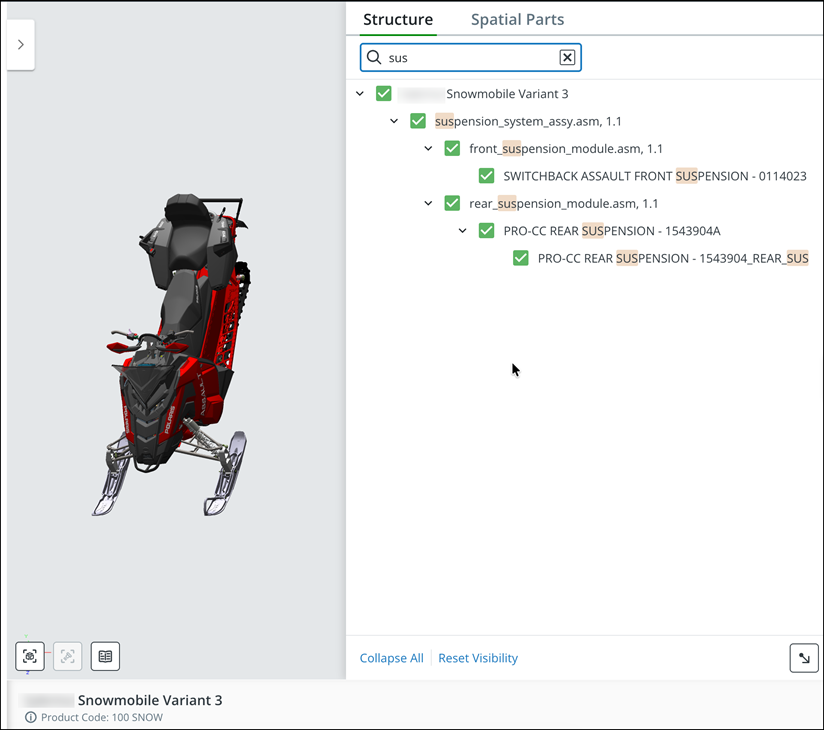
The tree updates to display only matching components. Click on a search result to select the part and highlight it on the 3D canvas. Clear the search field to return to the full BOM tree view.
7. To hide a part or sub-assembly from the 3D canvas, uncheck the green checkbox next to the component in the BOM tree.
The corresponding component is removed from the 3D canvas. This is useful for isolating specific components for closer inspection, such as hiding the body system to reveal internal components like the engine or chassis. To make the part visible again, re-check the checkbox.
8. To collapse all expanded nodes back to their top-level state, click Collapse All at the bottom of the Structure panel.
All expanded nodes in the BOM tree are collapsed, displaying only the root product node and its immediate child sub-assemblies.
9. To restore all hidden parts to their default visible state, click Reset Visibility at the bottom of the Structure panel, next to Collapse All.
All parts are restored to their default visible state on the 3D canvas, and all checkboxes in the BOM tree are re-checked.
The product BOM tree displays the selected node and its child components. Parts appear or disappear on the 3D canvas based on the checkbox selection, allowing you to isolate components for visual inspection.
What To Do Next