Identifying Spatially Linked Components for a Selected Part
View spatially linked components for a selected part, search and select parts in the Spatial Parts Index, toggle bounding box visualization, and close the index when finished.
The Spatial Parts tab in the 3D Product Explorer enables you to view all parts that are spatially adjacent to or physically connected with a selected component. This is useful for identifying nearby fasteners, brackets, and related components during maintenance or assembly planning. You can search the index, select parts to highlight them on the 3D canvas, and toggle a bounding box to visualize the spatial extent of a component.
|
Prerequisites
|
|---|
|
• You must be logged in to the PTC Orbit application.
• You must have access to the AI Hub module.
|
Perform the following steps to use the Spatial Parts tab in the 3D Product Explorer.
1. Navigate to AI Hub from the left navigation menu.
The AI Hub chat interface displays with a text input field.
2. Open a product in the 3D Product Explorer from the AI Hub chat.
The 3D model renders on the canvas with the parts panel on the right.
3. Click the Spatial Parts tab on the right-side panel. The Spatial Parts landing page is displayed with the message Select a part to view its spatially linked components.
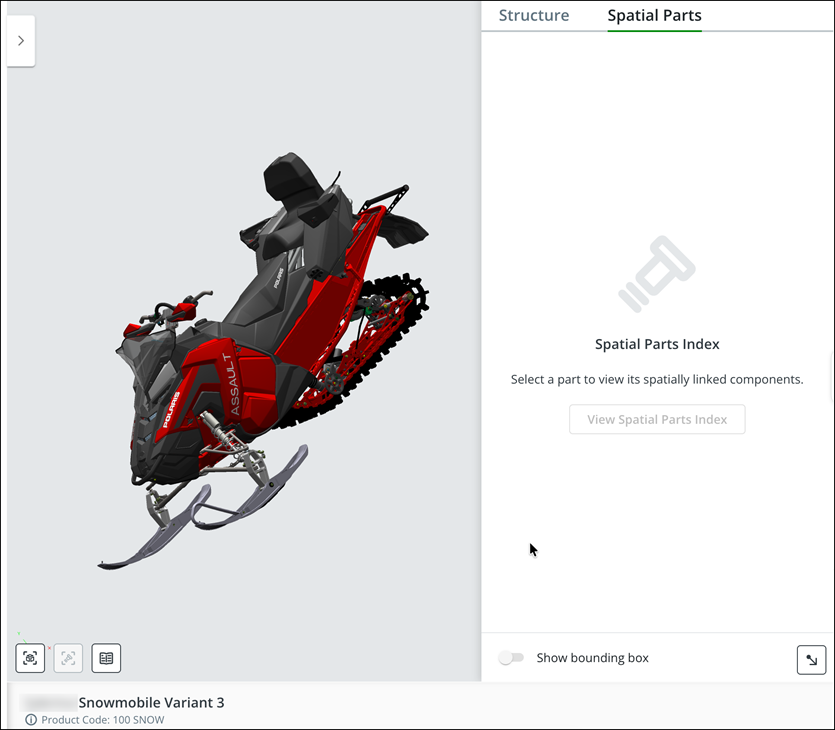
4. Select a part by clicking on it in the 3D canvas or from the Structure tab.
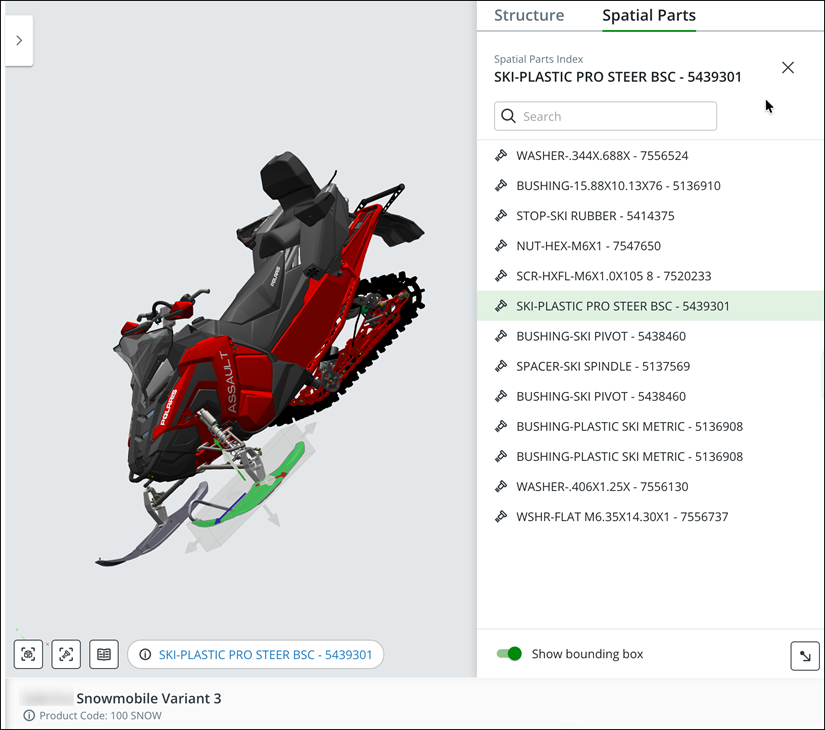
5. Click View Spatial Parts Index. The Spatial Parts Index panel is displayed, showing the selected part name and a list of all spatially linked components with their part names and numbers.
 |
Each part in the list includes a spatial link icon next to it, indicating its spatial relationship to the selected component.
|
6. To search for a specific part within the index, click inside the Search field at the top of the Spatial Parts Index panel and type the part name, number, or keyword.
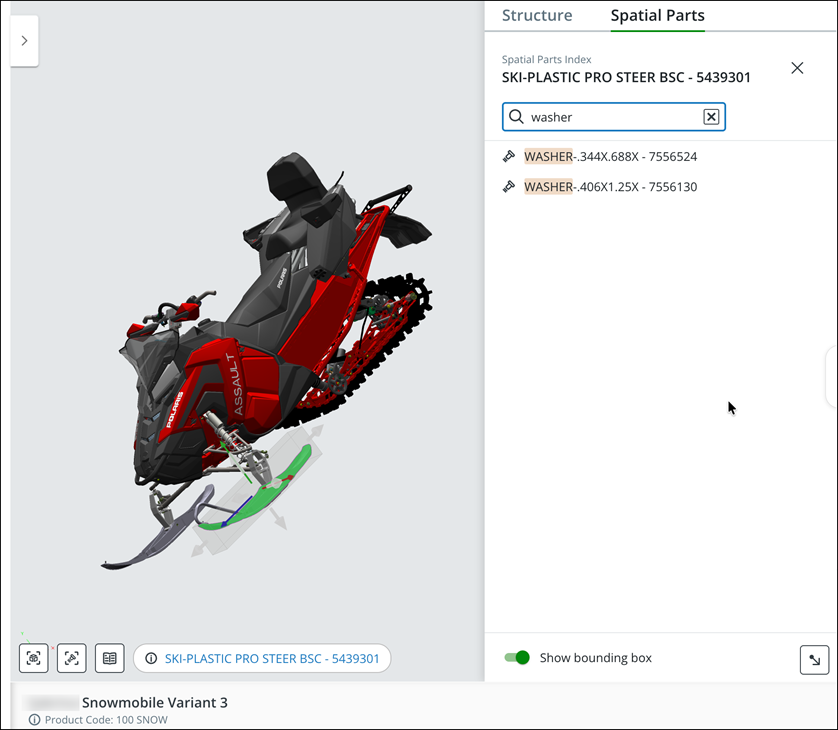
The list updates to display only matching components. Clear the search field to return to the full Spatial Parts Index list.
7. Click on a part in the list to select it. The selected part is highlighted in green in the list and also highlighted on the 3D canvas.
Click on a different part in the list to change the selection.
8. To display a bounding box around the selected part on the 3D canvas, click the Show bounding box toggle at the bottom of the Spatial Parts panel. Green indicates the toggle is enabled.
A bounding box is displayed around the selected part, providing a visual indicator of the component's spatial boundaries. Click the toggle again to disable the bounding box. You can also change the size of the bounding box after you enter Spatial Parts.
9. When you are finished reviewing the spatially linked components, click the X (Clear Spatial Parts Index) button at the top-right corner of the Spatial Parts Index panel.
The Spatial Parts Index is closed, and the panel returns to the initial landing screen.
The Spatial Parts Index displays all components that are spatially adjacent to the selected part, enabling you to identify related parts for maintenance, assembly, or troubleshooting purposes. Parts can be searched, selected, and visually highlighted on the 3D canvas.
What To Do Next