Using Global Search
Search for records using the header search box, view results, and save or manage your search history.
You can use the search box available in the header section of the PTC Orbit application to find required record details.
1. Open the PTC Orbit application.
2. Click the search box on the top of the page.
The recent search items and your saved searches are displayed.

 |
You can click See all in the Saved Searches section to view the list of saved search history. The See all option is available if you have more than three saved searches.
|
3. In the search box, enter your query, and press Enter. For example, enter list all open work orders.
The list of search results appears on the result page.
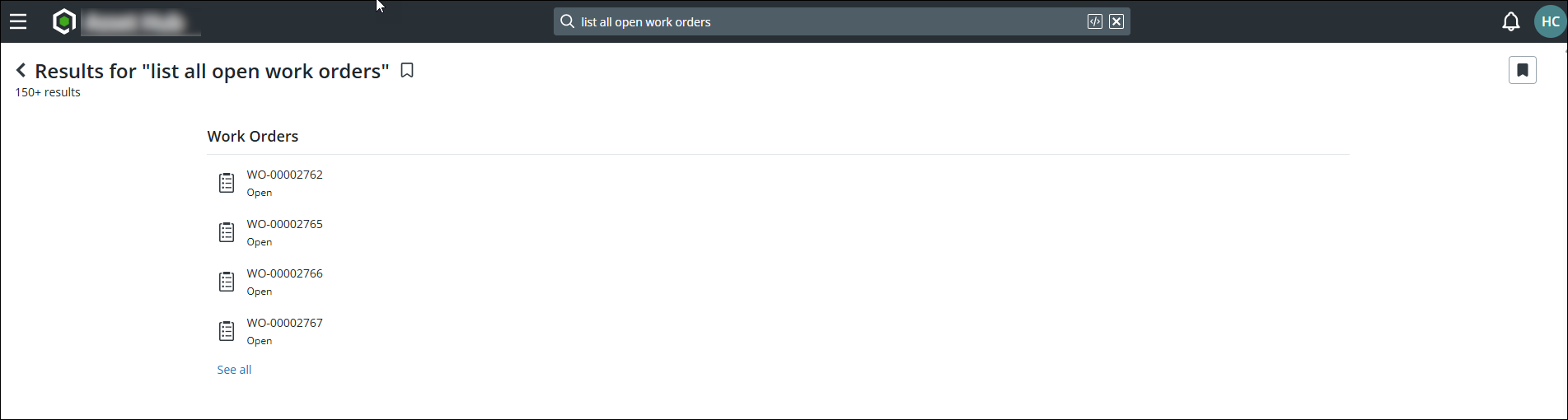
If the search query affects multiple objects, then the search result page displays all objects related to the search query in multiple cards.
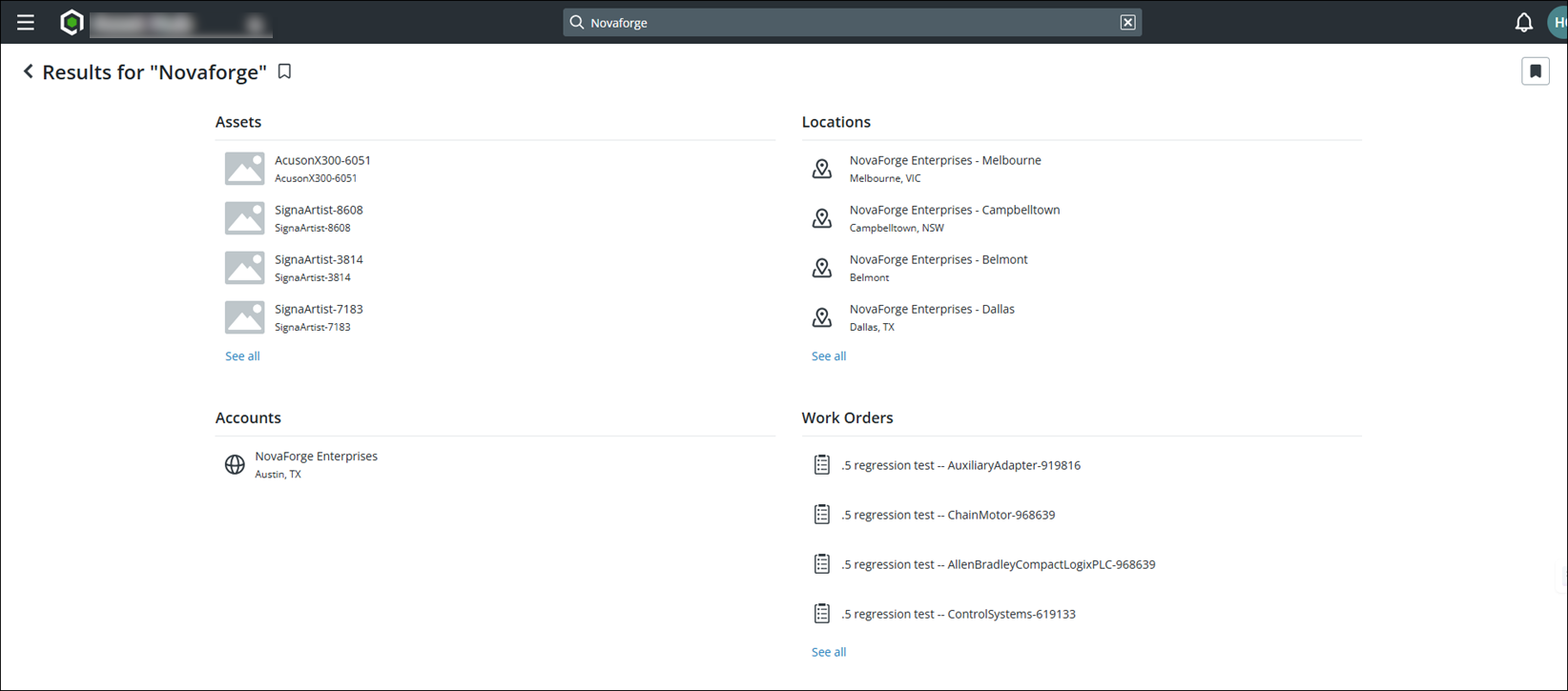
4. Click a record to view its details.
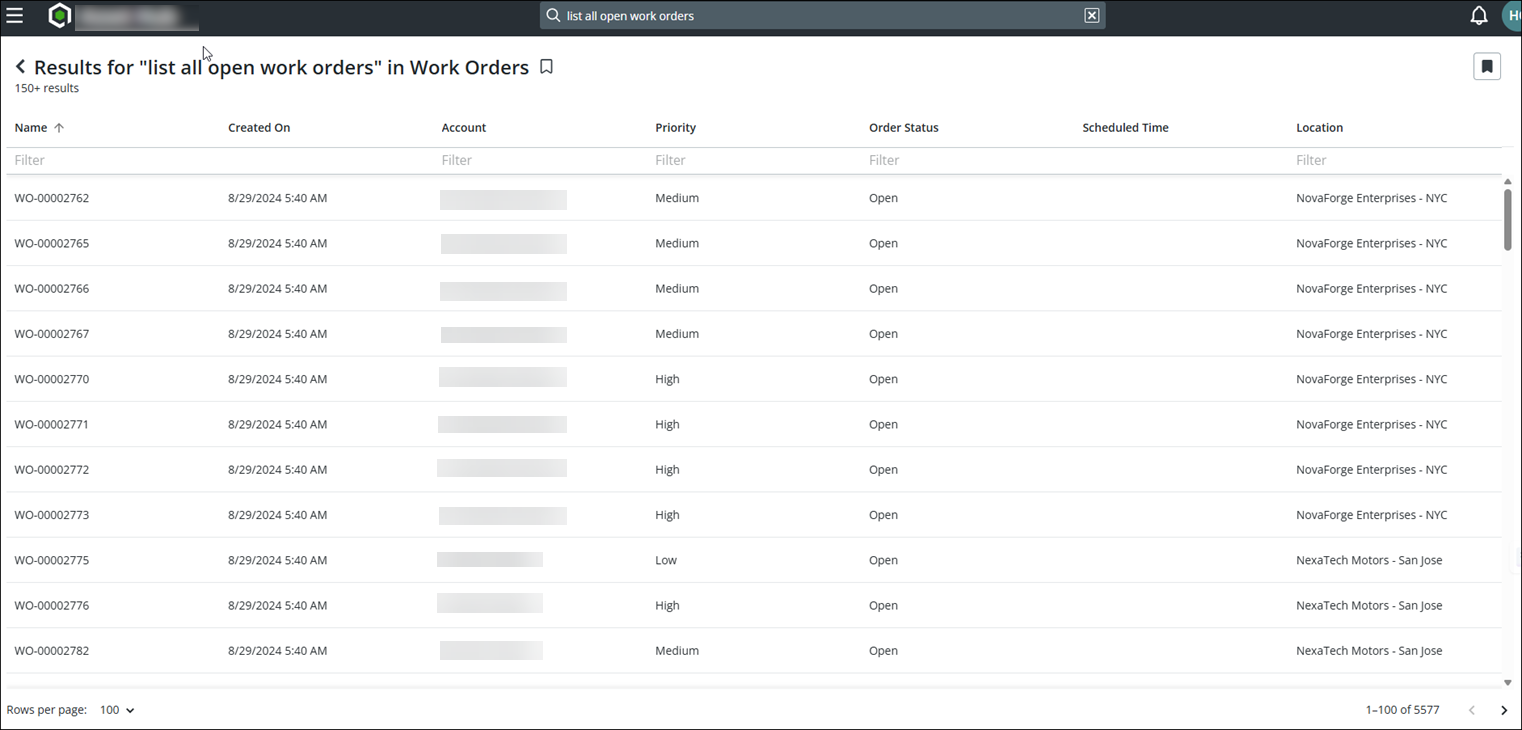
5. Click See all to view the result in a list view.
|
|
The columns are variable based on the search output.
|
6. Click the  icon next to the search query to save the search in your search history.
icon next to the search query to save the search in your search history.|
|
You can save an entire search result page with all the card views if the search query affects multiple objects. You can also save individual list items by clicking See all in a specific card view.
|
7. Click the  icon on the right-hand side of the page to view the list of saved search history.
icon on the right-hand side of the page to view the list of saved search history.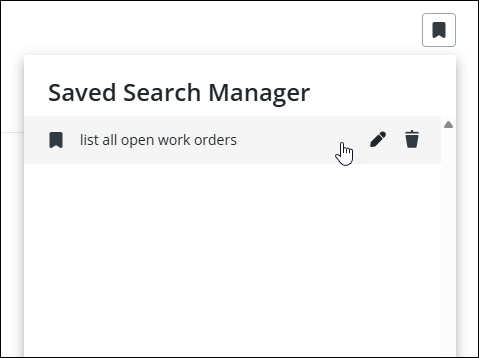
|
|
A See all option is available if there are more saved searches. You can click See all to view the list of all saved searches.
|
8. To rename a saved search, keep your cursor on the search item and click the  icon.
icon.
icon.9. To remove a saved search, keep your cursor on the search item and click the  icon.
icon.
icon.10. To reload a saved search, click the search item from your search history.
What To Do Next