Navigating Through AI Hub
Navigate to the AI Canvas in AI Hub to input queries, generate charts, and manage your conversation history.
The AI Hub is designed to streamline the process of creating charts using AI, providing you with an intuitive web interface as part of the PTC Orbit platform. You can access the AI Canvas, where you can input queries and generate visualizations directly from your data. The navigation flow guides users from the main PTC Orbit dashboard into the AI Canvas, where you can interact with the chat window, view generated charts, and manage your chart history. The interface supports easy switching between recent chats, favorites, and the canvas view, ensuring a seamless experience as you explore and visualize your data with AI assistance.
Perform the following steps to navigate through AI Hub.
1. Log in to PTC Orbit and click the  icon to launch the navigation pane.
icon to launch the navigation pane.2. Click AI Hub. The AI Hub new conversation page is displayed.
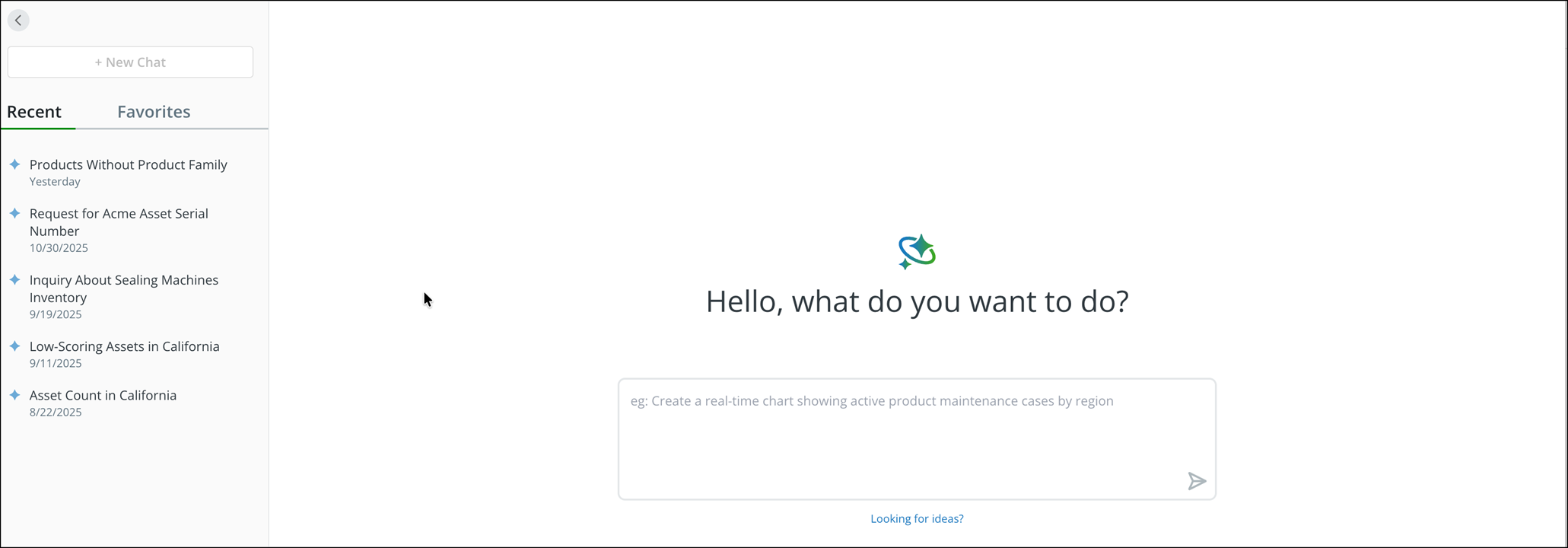
3. To start a new chat, enter your query in the query box and press Enter.
The response is displayed after a quick analysis. Based on the response, you can refine your query for better result.
 |
You can enter up to 4000 characters in a query.
|
4. To open any of your recent chats from history, click a conversation from the Recent tab on the left navigation.
The previous conversation is loaded on the chat screen.
|
|
The Recent tab shows the last 50 conversations in the list with the conversation’s title and date.
|
5. To open a chat from your favorites list, from the left navigation, click the Favorites tab, and then click the conversation.
The conversation is loaded on the chat screen.
|
|
You can add up to a maximum of 10 conversations to your favorite list. You can remove one to add another if you want to add any conversation when there are already 10 in the list.
|
6. To start a new chat during an ongoing conversation, click the New Chat button on the left navigation.
7. To explore ideas, click the Looking for ideas link at the bottom of the query box.
A predefined query is triggered to the AI and a response is displayed on the chat screen with a list of ideas you can explore.
8. To collapse or expand the left navigation, click the arrow on the left navigation.
What To Do Next