Generating Charts using Prompts
Enter natural-language prompts in the AI Canvas to generate charts automatically from your PTC Orbit data.
In PTC Orbit’s AI Hub, you can generate charts simply by entering prompts into the canvas. This feature streamlines the process of visualizing data, allowing you to describe the chart you need in natural language and have the AI create it automatically. The intuitive flow is designed to make chart creation quick and accessible, eliminating the need for manual configuration and enabling you to focus on insights rather than setup.
You can generate up to five charts with a single chat. The following types of charts are supported by AI Hub:
• Pie chart
• Donut chart
• Line chart
• Multi-series line chart
• Column chart
• Stacked column chart
• Bar chart
• Grouped bar chart
Perform the following steps to generate charts using queries.
1. Log in to PTC Orbit and click the  icon to launch the navigation pane.
icon to launch the navigation pane.2. Click AI Hub. The AI Hub new conversation page is displayed.
3. Enter your query on creating a chart for a specific data. For example, you can enter a query create a pie chart showing the number of assets in each geo location.
The requested chart is generated and displayed in the canvas view. The chart is displayed with the title, data captured date and time, and the total number of records plotted on the chart.
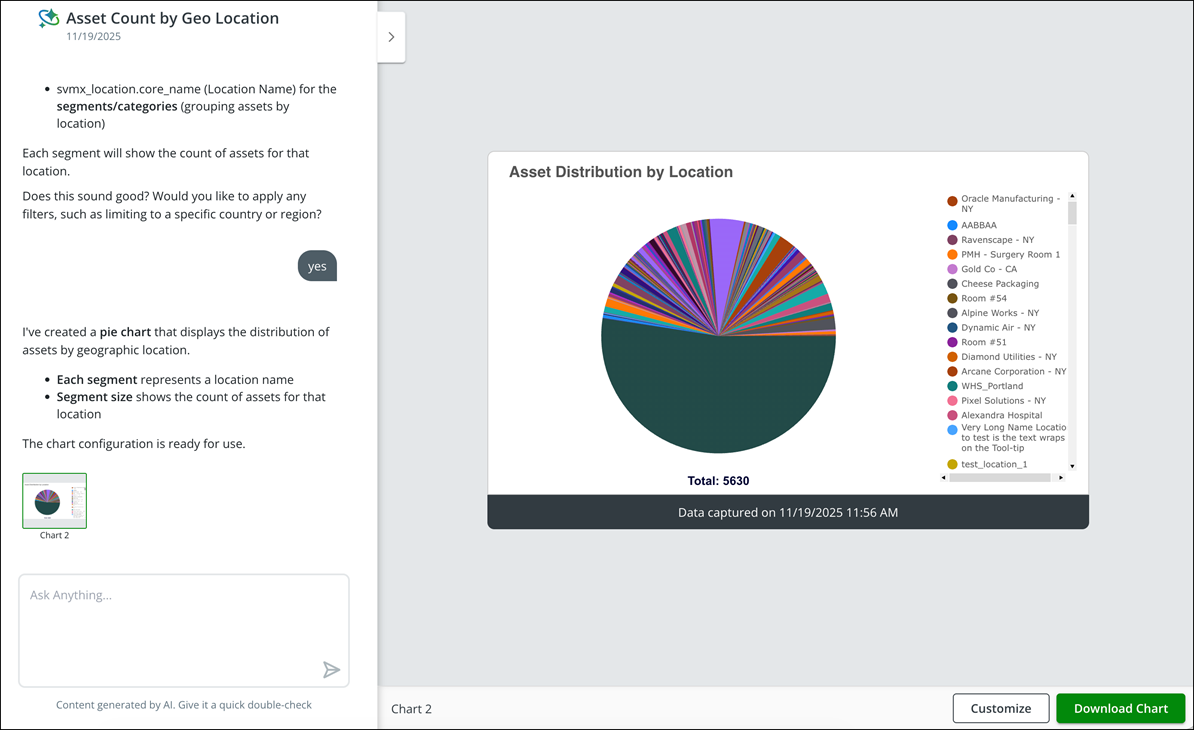
4. To refine the chart, modify your query or enter follow up instructions to generate more refined charts.
5. Click each chart to be displayed in the canvas view if there are multiple charts generated in your conversation.
Each chart is labeled with a number based on their chronological order. For example, if there are three charts generated in your conversation, they are labeled as Chart 1, Chart 2, and Chart 3, where Chart 1 is being the first chart generated in the chat.
6. To collapse or expand the canvas view, click the arrow on the conversation view.
7. To download a chart, click Download Chart, and then select the file format, whether PNG, JPEG, or PDF.
The chart is downloaded to your local storage and a confirmation banner is displayed on the screen.
What To Do Next