Creating Asset Record
Add a new asset record to PTC Orbit with details such as product, serial number, location, and criticality.
PTC Orbit enables you to add a new asset to the system. This page allows you to input essential asset details, ensuring accurate tracking and management. You can specify the location of the asset, provide details such as the product, model, serial number, and relevant dates, and assign an asset name and tags for easy identification. There is also an option to mark the asset as critical for prioritization in monitoring and maintenance. The page is structured to ensure the data entered is complete and aligned with the organization’s asset management needs.
1. Log in to PTC Orbit and click the  icon to launch the navigation pane.
icon to launch the navigation pane.2. Click Assets. The Asset List View page is displayed.
3. From the Create button, click Create Asset. The Add Asset page is displayed.
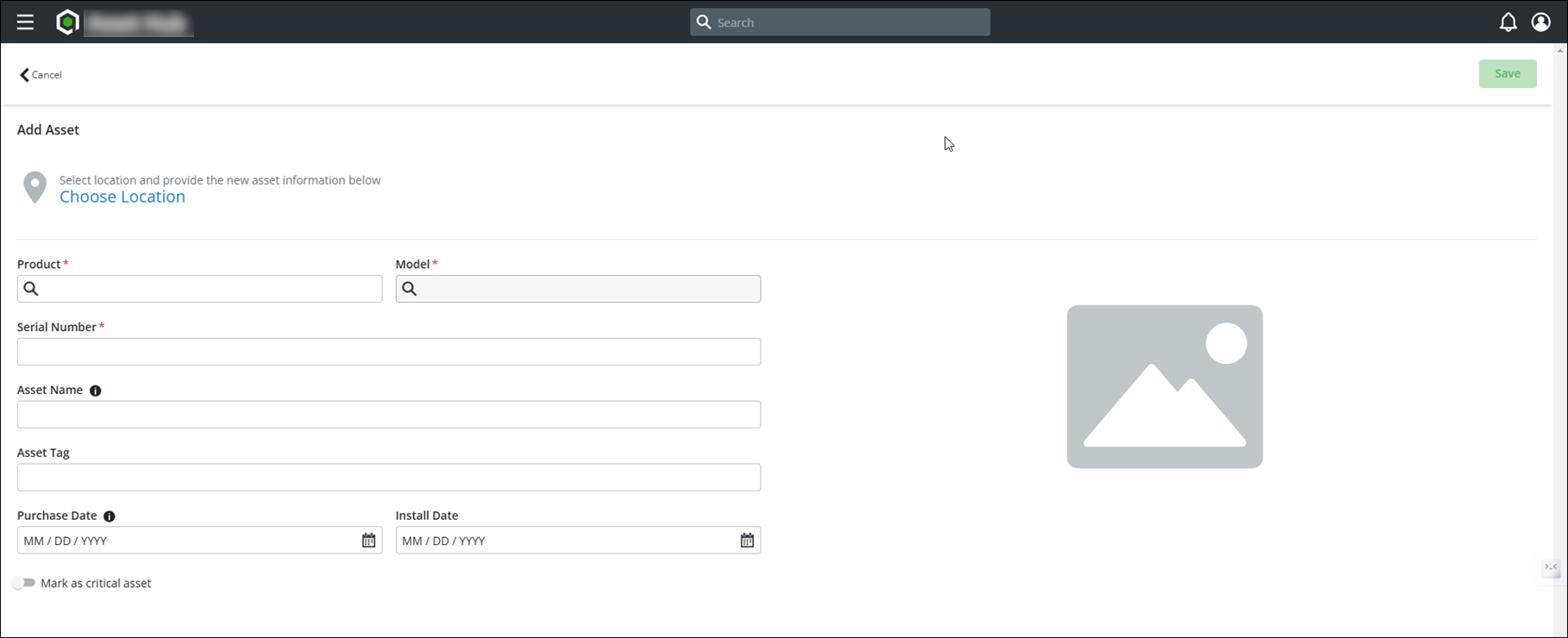
4. Click Choose Location and assign a physical or operational location to the asset.
 |
You can search for a location with a search keyword.
|
5. Click the Product field to search and select a product for the asset.
6. Click the Model field to search and select a model for the asset.
7. Enter a serial number for the asset.
8. Enter a custom name for the asset for identification.
|
|
If no name is mentioned for the asset, a default name is generated when you save the asset.
|
9. Add an asset tag for categorization or additional context.
10. Specify the purchase date and install date using the provided date pickers.
11. Toggle the Mark as critical asset switch to mark the asset as critical if it requires special attention.
12. Review the details and click Save to add the asset to the PTC Orbit database.
A confirmation message is displayed after successful validation.
What To Do Next