Interacting with the 3D Model on the Canvas
Rotate, zoom, pan, and select parts on the 3D canvas to visually inspect the product from any angle. Use the toolbar buttons to reset the zoom level or focus on a selected component.
The 3D canvas in the 3D Product Explorer displays a fully rendered 3D model of the selected product. You can rotate, zoom, and pan the model to visually inspect the product from any angle. Clicking on a part in the 3D model highlights it and selects it, synchronizing the selection with the parts panel on the right. The bottom-left toolbar provides additional controls to reset the zoom level or focus on a selected component.
|
Prerequisites
|
|---|
|
• You must be logged in to the PTC Orbit application.
• You must have access to the AI Hub module.
|
Perform the following steps to interact with the 3D model on the canvas.
1. Navigate to AI Hub from the left navigation menu.
The AI Hub chat interface displays with a text input field.
2. Enter a prompt that signals visualization intent. Examples:
◦ Show me the Galaxy VL UPS 200 in 3D
◦ I want to see the asset with serial # 10495892
◦ What does the auxiliary adapter look like?
3. The AI determines whether you want a data summary or a 3D visualization. If the intent is unclear, it asks:
"Got it; do you want to see the details for this asset, or open it in the 3D Product Explorer for visualization?"
Reply with 3D or visualization.
4. If the AI cannot resolve a single product, it asks for clarification. Provide the product code, serial number, or pick from the suggestions.
If you are unsure, the AI shows up to three candidate product cards ranked by product code. Each card displays a thumbnail, product name, and product code.
5. Click a product card. The 3D Product Explorer opens in the canvas area. The Structure panel loads on the right, and the footer displays the Product Name and Product Code.
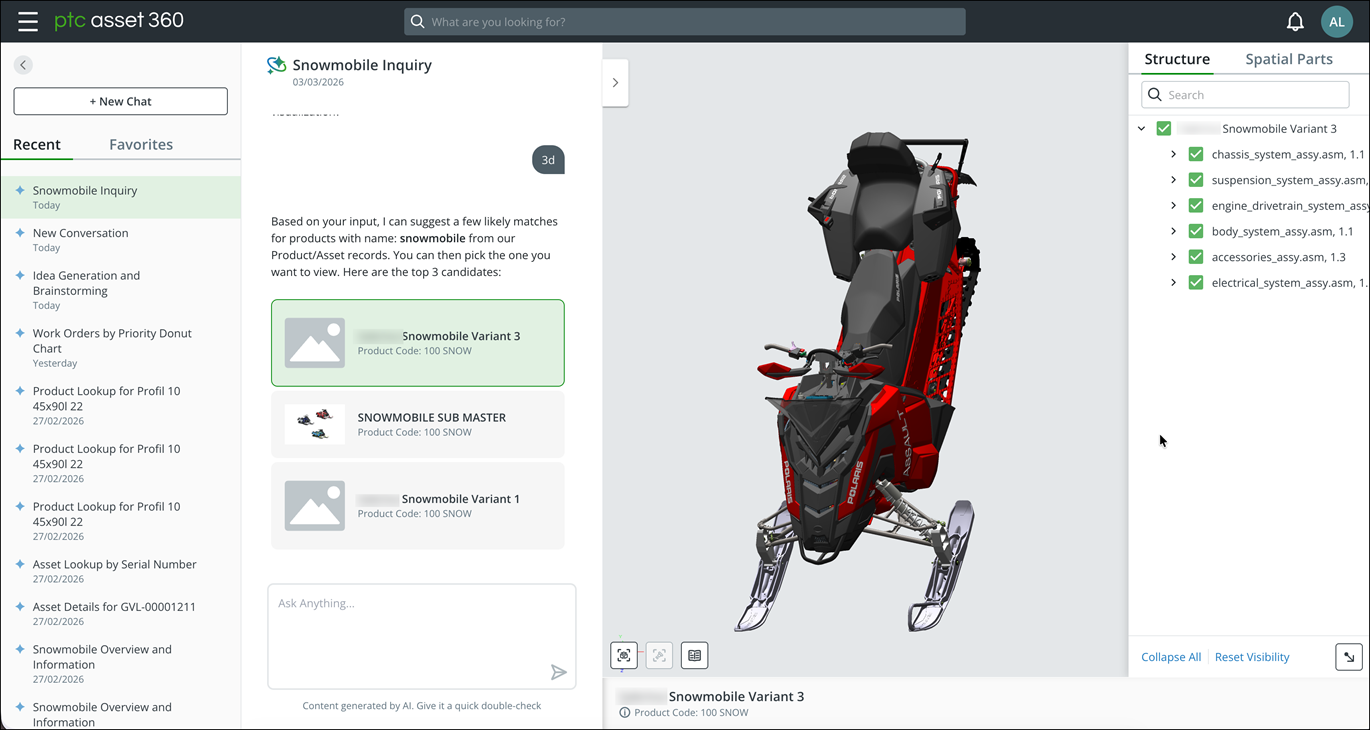
6. Open a product in the 3D Product Explorer from the AI Hub chat.
The 3D model renders on the canvas with the parts panel on the right.
7. Click and drag on the 3D canvas to rotate the model and view it from different angles.
8. Use the scroll wheel to zoom in or out on the 3D model.
9. Right-click and drag to pan the view across the canvas.
10. Click directly on a component in the 3D model to select it. The selected part is highlighted in green on the canvas.
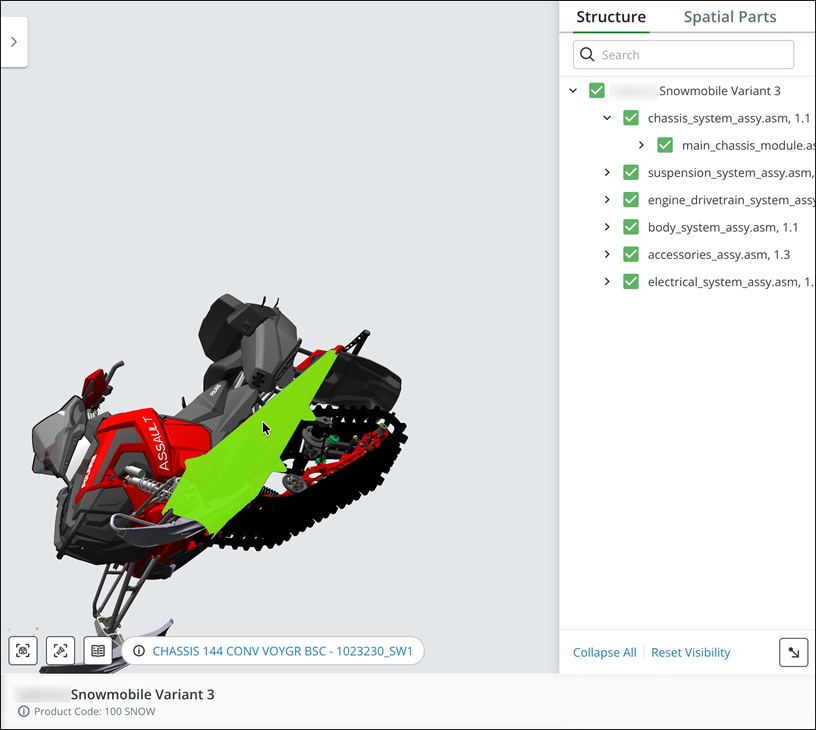
11. To zoom the camera to a selected part, click the Zoom to part  button in the bottom-left toolbar of the 3D canvas.
button in the bottom-left toolbar of the 3D canvas.The 3D camera automatically zooms in and centers the selected part in the canvas view, enabling detailed visual inspection.
12. To restore the default zoom level, click the Reset zoom  button in the bottom-left toolbar of the 3D canvas.
button in the bottom-left toolbar of the 3D canvas.The camera zoom level and view position are reset, displaying the entire product model centered in the canvas. You can also click the brochure icon to get details.
 |
You can also double-click the part to zoom in and then click anywhere outside in the grey space to zoom out.
|
The selected part is highlighted on the 3D canvas and synchronized with the Structure or Spatial Parts panel on the right, enabling cross-referencing between the 3D visualization and the parts hierarchy.
What To Do Next