Creating a Service Campaign
Create a Service Campaign to assign standardized service tasks, such as preventive maintenance or inspections, across multiple assets.
You can create a Service Campaign to manage scale field service operations efficiently. A Service Campaign allows you to initiate and assign standardized service tasks, such as preventive maintenance, inspections, or asset upgrades, across multiple customer sites or assets. By defining key details like the purpose of the visit, work order type, priority, and estimated duration, you can ensure consistent service delivery while optimizing technician workload and resource planning.
This campaign-based model eliminates the need for creating individual work orders manually, significantly reducing administrative overhead. Service Campaigns are especially valuable in scenarios where recurring tasks must be executed across a large asset base, ensuring compliance, operational continuity, and customer satisfaction. For field teams, it offers clear guidance and structured tasks, enabling them to focus on execution rather than planning. Overall, Service Campaigns drive operational efficiency, reduce downtime, and help maintain high service standards at scale.
Perform the following steps to create a Service Campaign.
1. Log in to PTC Orbit and click the  icon to launch the navigation pane.
icon to launch the navigation pane.2. Click Campaigns. The default list of campaigns is displayed.
3. Click New Campaign. The New Campaign page is displayed with Service selected by default.
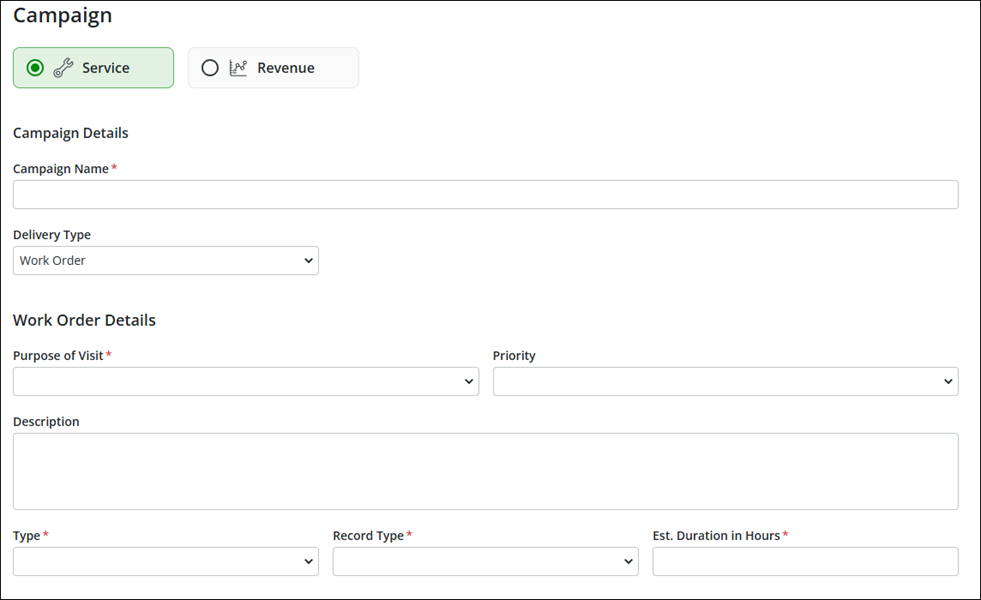
4. In the Campaign Details section, enter a name for the campaign and select the delivery type as Work Order.
5. In the Work Order Details section, provide the details for the fields as explained in the following table:
|
Field
|
Description
|
|---|---|
|
Purpose of Visit
|
Define the objective and context of the technician's on-site activity. This field categorizes the nature of service being performed that directly influences planning, technician skill allocation, required tools, and customer communication.
|
|
Priority
|
Set a delivery priority as high, medium, or low. This field directly impacts how work orders are scheduled, routed, and executed, ensuring that the most critical tasks receive attention first. It serves as a ranking mechanism to indicate the urgency and importance of each work order.
• Low Priority work orders are usually non-urgent tasks such as routine checkups or courtesy visits. These can be scheduled flexibly, often during periods of lower workload or as filler jobs in technician schedules.
• Medium Priority tasks may involve time-sensitive maintenance or installations that are important but not yet business-critical. These are scheduled sooner than low-priority tasks and may require moderate planning to ensure timely execution.
• High Priority work orders, such as urgent repairs or critical system installations, are escalated for immediate attention. These impact SLAs (Service Level Agreements), customer satisfaction, and asset uptime. High-priority jobs often influence technician dispatching, shift planning, and resource allocation to avoid downtime or revenue loss.
|
|
Description
|
Enter a brief description about the campaign.
|
|
Type
|
Select a work order type for the campaign. This field determines the location and mode of service delivery, which significantly impacts how the campaign is executed and resourced.
• Depot Repair indicates that the service task requires the asset to be shipped or brought to a repair facility (the depot) for servicing. This type typically involves more advanced diagnostics, specialized tools, or controlled environments. Campaigns with this type triggers workflows around logistics coordination, asset intake, bench repair scheduling, and customer communication regarding turnaround times.
• Field Service, on the other hand, involves sending a technician directly to the customer site to perform the repair, maintenance, or installation. This impacts technician dispatch, travel time planning, and mobile access to work order data. It’s ideal for time-sensitive tasks or when asset removal is impractical.
|
|
Record Type
|
Select Service as the record type for the campaign. This field serves as a classification mechanism that defines the structure, behavior, and applicable fields of the resulting work orders. When this value is set to Service, it ensures that the generated work orders inherit a predefined template and workflow that aligns with service-oriented operations.
|
|
Est. Duration in Hours
|
Set a duration to complete the work order. This field plays a key role in planning, scheduling, and resource optimization for the work orders that are generated from the campaign. This value sets the expected time required to complete each individual work order task created as part of the campaign.
|
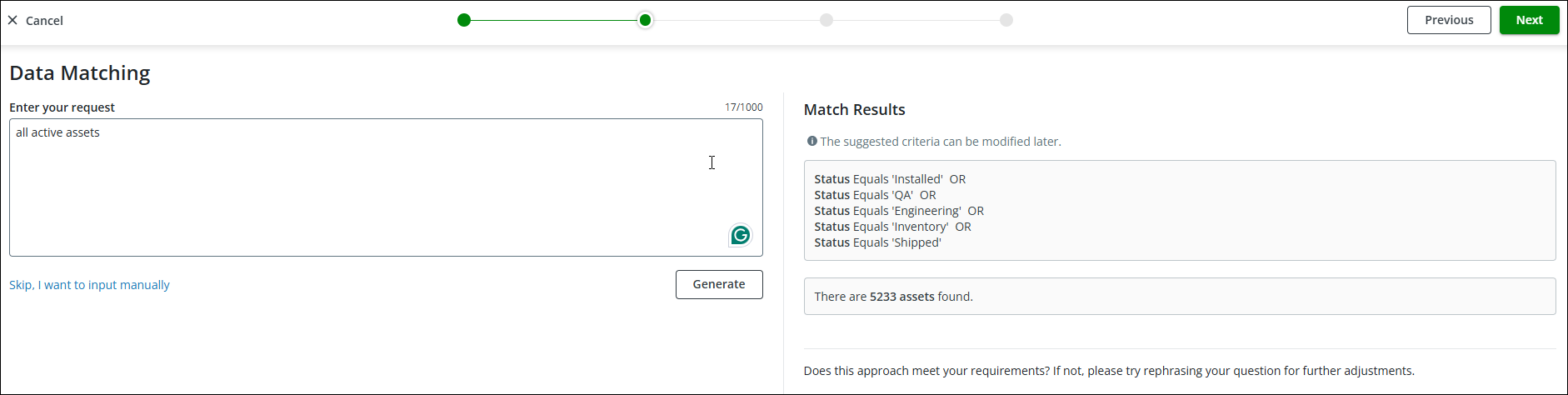
6. Click Next. The Data Matching screen is displayed.
7. In the Request box, enter your request and click Generate. This is an LLM-powered search capability that creates criteria based on the input. The suggested criteria are displayed on the right-side pane of the page with the number of assets qualified for the request. You can modify the suggested criteria on the next screen, if required.
 |
You can click the Skip, I want to input manually link to create criteria option manually.
|
8. Click Next. The list of assets from the suggested criteria is displayed with the list of criteria on the left-side pane.
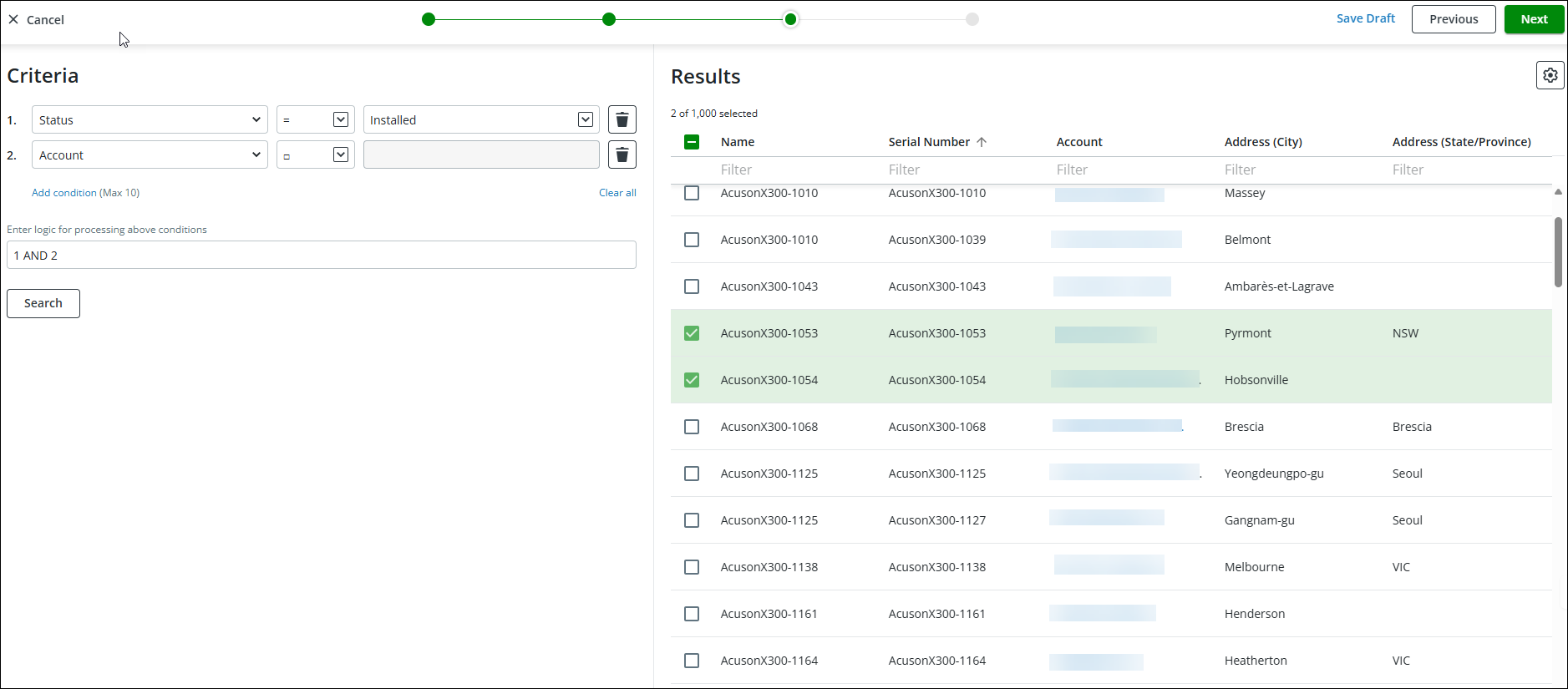
9. Modify the criteria on the left-side pane, if required, and click Search to update the search result on the right-side pane.
10. On the Results pane on the right-side, select the assets from the list.
|
|
• You can click the checkbox on the header row to select all on the current page or select all assets on the result.
• You can filter each column with keywords to refine the search result.
• You can click the account name to see the details and the number of associated assets.
• You can click the gear icon to filter columns.
• You can select the number of rows displayed on a page from the Rows per page drop-down at the lower-left of the list.
• You can navigate through pages using the next and previous arrows at the lower-right of the list.
• You can click the up or down arrow on the column header to sort the list based on the column values.
|
11. To save the campaign as draft, click Save Draft.
12. To start the campaign, click Next. The Campaign Delivery page is displayed with a campaign summary.
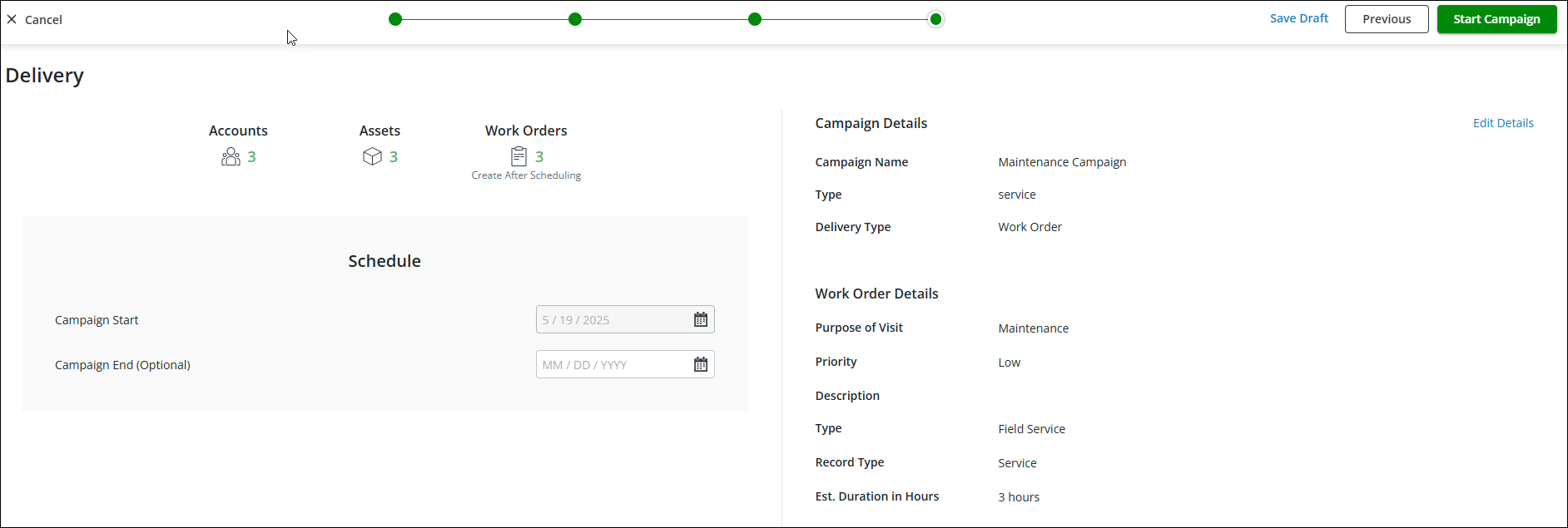
13. Select an end date for the campaign. No new work orders are generated after the campaign end date.
14. Click Start Campaign. The campaign status is updated to In Progress, and you are redirected to the campaign list page.
What To Do Next