Creating a Demand Forecast Manually
Create a demand forecast by manually configuring the forecast period, historical date range, and filter criteria without using the AI-assisted builder.
You can create a forecast without using the AI-assisted builder by skipping the Demand Forecast Builder and configuring the forecast parameters manually.
|
Prerequisites
|
|---|
|
• You must have access to the Demand Forecasting module in PTC Orbit.
• Your system must contain at least 500 historical work orders for the selected criteria to generate a forecast.
|
Perform the following steps to create a demand forecast manually.
1. Navigate to Demand Forecasting from the left navigation menu.
The Demand Forecasting list page is displayed.
2. Click New Demand Forecast.
The Demand Forecast Builder wizard opens at Step 1.
3. Click Skip, I don't need help to bypass the AI-assisted builder.
The Demand Forecast Generator page opens with empty fields for manual configuration.
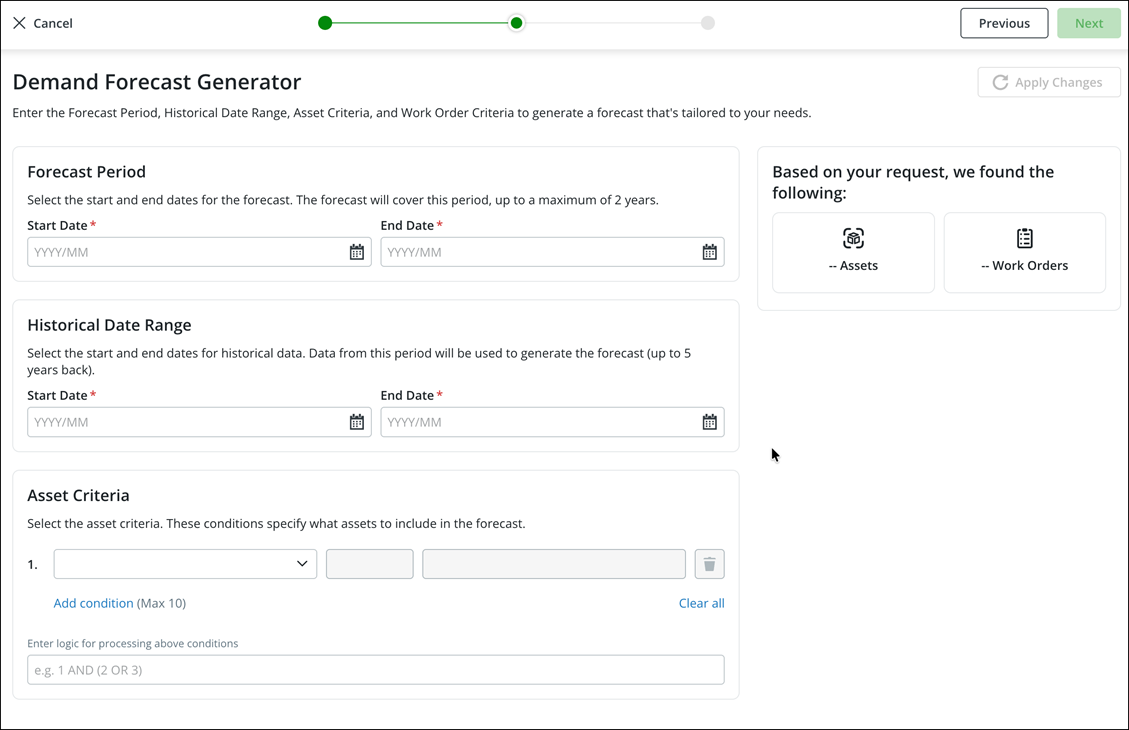
4. Configure the Forecast Period by entering the Start Date and End Date.
The forecast period can cover up to a maximum of 2 years. The Start Date must be at least the next month from the current date.
5. Configure the Historical Date Range by entering the Start Date and End Date.
Data from this period is used to generate the forecast. The historical range is limited to the past 5 years.
6. Optionally, configure the Asset Criteria to specify which assets to include in the forecast.
See Configuring the Demand Forecast Generator for detailed instructions on setting up asset criteria and condition logic.
7. Click Apply Changes to validate your inputs and find matching records.
The system displays the count of matching Assets and Work Orders. You need at least 500 work orders to proceed to the next step.
8. Click Next to proceed.
9. Review the forecast summary and click Save to create the demand forecast.
The demand forecast is saved with a Draft status.
The demand forecast is created and listed on the Demand Forecasting page with a Draft status.
What To Do Next