Configuring the Demand Forecast Generator
Configure the Forecast Period, Historical Date Range, Asset Criteria, and Work Order Criteria in the Demand Forecast Generator to define the scope and parameters of your demand forecast.
The Demand Forecast Generator allows you to define four key configuration sections: Forecast Period, Historical Date Range, and Asset Criteria. After configuring these settings, you must apply changes to validate that sufficient data exists to generate the forecast.
|
Prerequisite
|
|---|
|
You must be on the Demand Forecast Generator page, either after using the AI-assisted builder or after skipping it.
|
Perform the following steps to configure the Demand Forecast Generator.
1. In the Forecast Period section, enter the Start Date and End Date.
◦ The forecast period covers up to a maximum of 2 years.
◦ The Start Date must be at least next month from the current date.
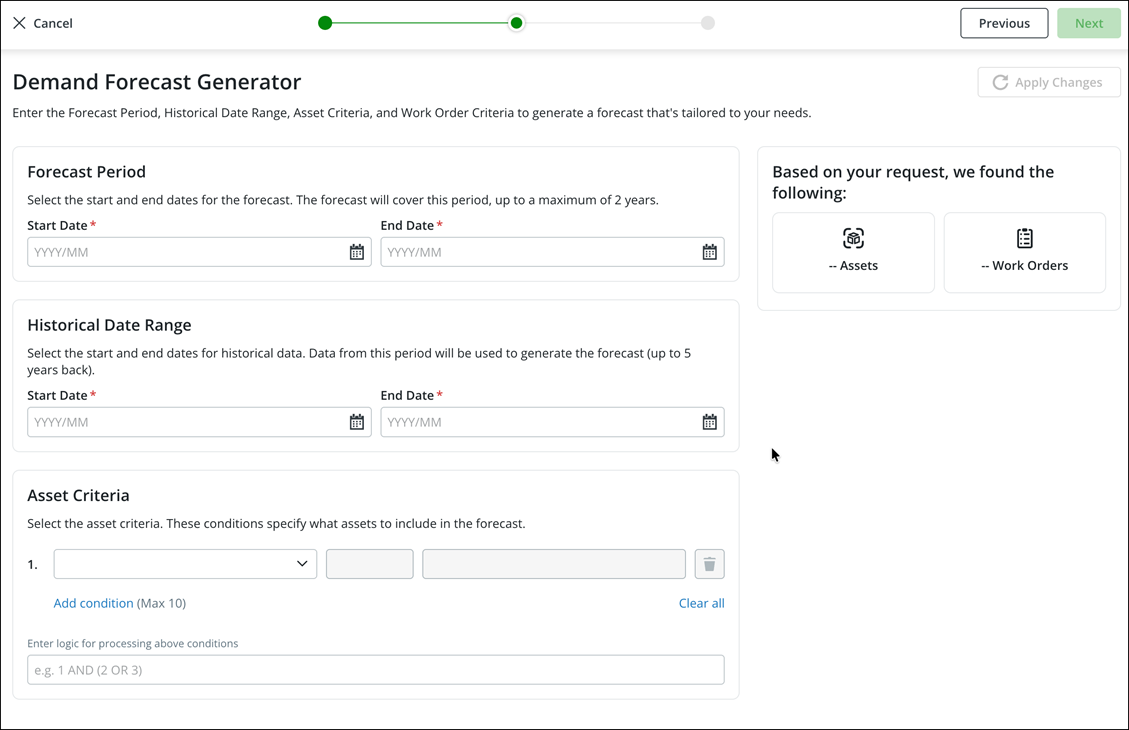
2. In the Historical Date Range section, enter the Start Date and End Date.
◦ Data from this period is used to generate the forecast.
◦ The historical date range can go up to 5 years back. The Start Date cannot be more than 5 years ago.
3. In the Asset Criteria section, select conditions to specify which assets to include in the forecast.
a. Select a field from the dropdown list in the first condition row. Available fields include asset properties such as: Account, Account External ID, Address (City), Address (Country), Address (Postal Code), Address (State/Province), and various other fields.
b. Select an operator for the condition.
c. Enter or select a value for the condition.
d. To add more conditions, click Add condition. You can add up to a maximum of 10 conditions.
e. In the Enter logic for processing above conditions field, enter the logical expression to combine conditions. Use AND and OR operators with parentheses to define logic. For example: 1 AND (2 OR 3).
4. To remove a condition, click the delete icon next to the condition row. To remove all conditions, click Clear all.
5. Click Apply Changes to validate your inputs and find matching records.
The Based on your request, we found the following panel updates to display the number of matching Assets and Work Orders. You need at least 500 work orders to forecast demand. If the count is insufficient, revise your inputs and click Apply Changes again.
When the configuration is valid and sufficient records are found, you can proceed to the next step by clicking Next.
What To Do Next