Creating a Demand Forecast Using the AI-Assisted Builder
Use the AI-assisted Demand Forecast Builder to generate a demand forecast by describing your forecasting needs in natural language. The LLM analyzes your data and develops forecasts tailored to your use case.
The Demand Forecast Builder provides an AI-assisted workflow that interprets your natural-language description and automatically configures the forecast parameters, including the forecast criteria (Account, Location, and/or Product), forecast period, and historical date range.
 |
Before you begin, ensure the following prerequisites are met:
• You must have access to the Demand Forecasting module in PTC Orbit.
• Your system must contain at least 500 historical work orders for the selected criteria to generate a forecast.
|
Perform the following steps to create a demand forecast using the AI-assisted builder.
1. Navigate to Demand Forecasting from the left navigation menu.
The Demand Forecasting list page displays all existing forecasts with their Name, Description, Status, and Created On date.
2. Click New Demand Forecast.
The Demand Forecast Builder wizard opens, displaying an AI-assisted prompt area.
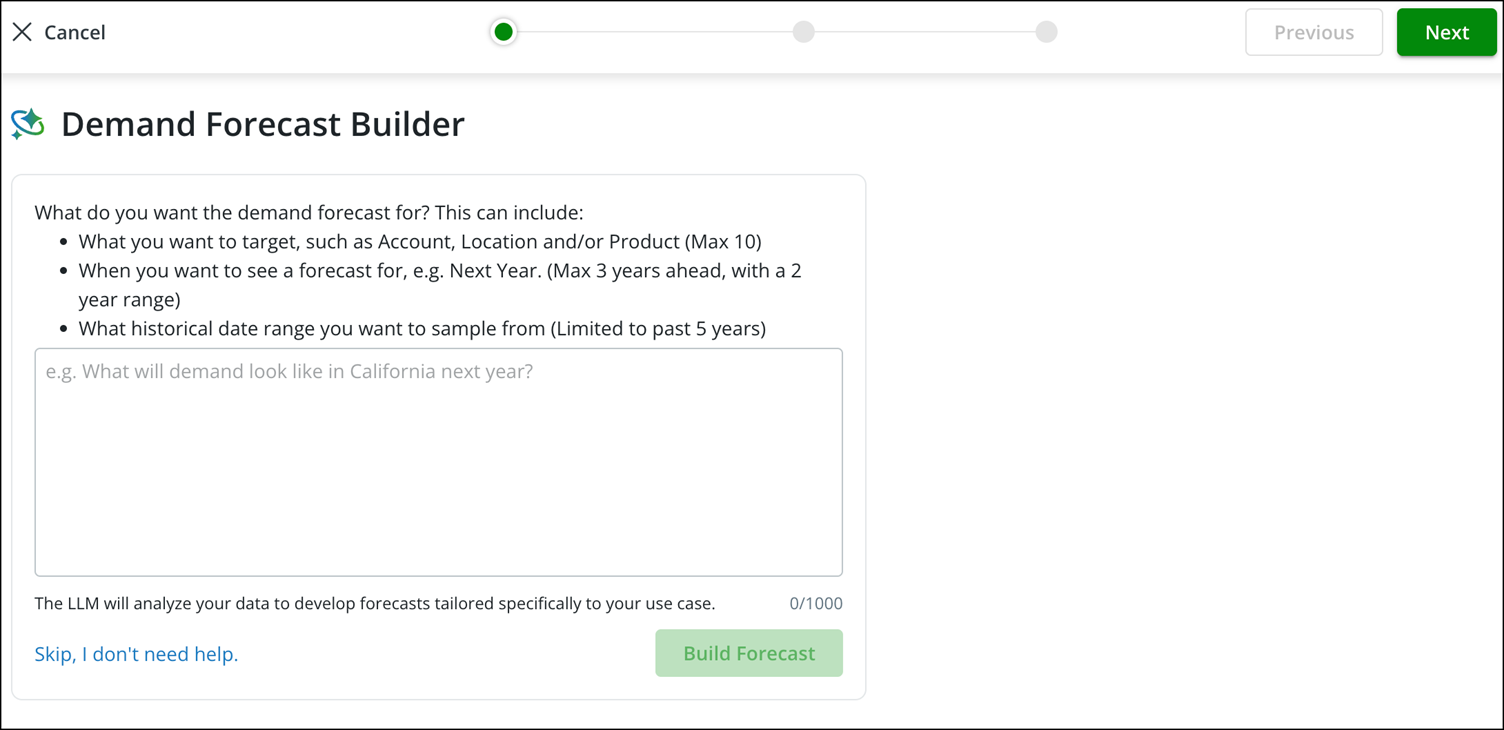
3. In the text area, enter a description of the demand forecast you want to create. Your description can include:
◦ What you want to target: Account, Location, and/or Product (maximum 10 targets).
◦ When you want to see a forecast for: for example, next year (maximum 3 years ahead, with a 2-year range).
◦ What historical date range you want to sample from: limited to the past 5 years.
Example: What will demand look like in California next year?
4. Click Build Forecast.
The LLM analyzes your data and populates the Demand Forecast Generator with the recommended Forecast Period, Historical Date Range, and Asset Criteria based on your description.
5. On the Demand Forecast Generator page, review the auto-populated parameters and adjust them if necessary.
See Configuring the Demand Forecast Generator for detailed information about each configuration section.
6. Click Apply Changes to validate your inputs and find matching records.
The system displays the number of matching Assets and Work Orders in the Based on your request, we found the following panel. You need at least 500 work orders to proceed.
7. Click Next to proceed to the review and save step.
8. Review the forecast summary and click Save to create the demand forecast.
The demand forecast is created with a Draft status and appears in the Demand Forecasting list.
The demand forecast is created and listed on the Demand Forecasting page with a Draft status. You can edit or delete it from the list using the actions menu.
What To Do Next