Create a Package of Business Administrative Changes
This topic describes how to create a package of business administrative changes, configure preview limits, review object dependencies, and work with dependent objects.
Create a package
The Export Changes tab in the Business Administrative Change utility provides the ability to create a package containing business administrative changes for exporting them to a production Windchill system.
To create a package, perform the following steps:
1. On the Export Changes tab, specify the date range and the object types of the changes you want to export, and click Search.
To export an object type on the creation or modification date, in the Show Changes From: box you must specify the creation or modification date and in the To: box specify the next following day.
For an object type that is to be exported on the same date as it was created or last modified, you must put the start date as date of creation or modification and the end date as the next day.
For example, consider the object type called Rule Sets that was created and last modified on 19-09-2025. To export this object on the same date (19-09-2025) as it was created, you must specify the start date as 19-09-2025 and end date as 20-09-2025.
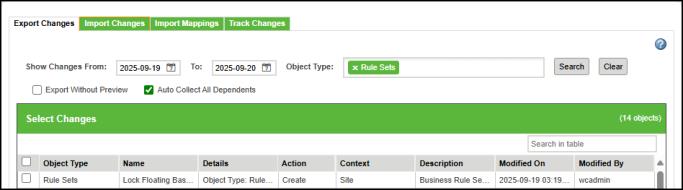
The Select Changes section lists the changes based on the specified criteria. If you do not specify an object type, the changes for all object types are listed.
 | • A system administrator can set preferences for displaying a maximum number of objects on the preview. For more information, see Set several objects to display
on the preview. • The Description column displays information only for the Life Cycle Template and Workflow Template objects. • The Modified By column displays the name of the container owner. • The object information in the columns Object Type, Name, and Modified On is sorted alphabetically or by the modification date. |
2. In the Select Changes section, select the required changes and click Create Package. The Review and Create Package dialog box is displayed.
In the table header row, you can select the Select All checkbox to export all objects simultaneously.
To create and export a package without a preview, select the Export Without Preview checkbox, and then click Create Package Without Preview.
| | • The Export Without Preview option enables you to export all objects, including seed objects and their dependent objects, in a cascade operation, in a single action without any pagination limitations. For example, consider a seed admin object O1 with a dependent D1, which in turn has its own dependent, D2. When exporting with preview mode, the system will export only O1 and D1. Conversely, exporting without preview mode will result in the system exporting O1, D1, and D2. • When creating a new iteration or revision, any comment or note you add, will not be promoted to the target. • The Auto Collect All Dependents option enables you to collect seed objects and dependent objects recursively. This action is selected by default. For more information, see Use case: auto collect all dependents. • In the source system, after deleting a type definition object, you should select the deleted type definition object along with the related updated type definition objects during export. For example: a. In a source system, create the following sample type definition objects under Documents: Documents └Agenda └SampleObject1 └SampleObject2 └SampleObject3 b. From the Business Administrative Change UI, export the above objects from the source and then import them into a target system. The import succeeds. c. Delete SampleObject2 and SampleObject3, and create the sample objects as: Documents └Agenda └SampleObject1 └SampleObject3 └SampleObject2 d. From the source system, export the above objects by selecting the deleted objects and the created objects, and then import them into the target system. The import succeeds. |
3. In the Review and Create Package dialog box, specify a name for the package and optionally, a description.
4. Review the changes that will be included in the package. If any object has a dependency on another object, include that object as well. To edit the selection, close this dialog box and update the selection on the Export Changes tab. Then, relaunch the Review and Create Package dialog box.
Certain business administrative objects have dependencies on artifacts that are not managed by the business administrative change framework or artifacts that are code or files managed within WT_HOME, such as StateRBInfo resource bundles. Following is a list of business objects and possible dependencies that may be required to be applied to the target system to successfully import a package of business administrative changes.
Business Administrative Object | External Dependencies | ||
|---|---|---|---|
Access control rule | Life cycle state | ||
Life cycle template | • Life cycle state • Team template • Actor or role • Series | ||
Object initialization rule | Versioning sequence | ||
Workflow process template | • Custom classes for workflow expressions • Team template • Actor or role | ||
Share Table Views | • Owner of the view • Context | ||
Report | Report template (if report is created from report template) | ||
Client tab | • Owner • Context | ||
Rule Sets | Independent (Rule Set has no dependencies because it is a primary object.)
|
5. Click Create.
A success message is displayed after the package is created. A zip of the package is downloaded locally.
Set several objects to display on the preview
The Maximum Number of Objects to Display on Preview preference enables you to set a maximum limit for the number of objects displayed in the Select Changes section before creating a package.
To set the maximum limit (preference value), go to Utilities and, under Business Administration, select Preference Management. Then expand Business Administrative Change Promotion, right-click Maximum Number of Objects to Display on Preview, and select Set Preference. Enter the required value to set the preference.
For instructions to set preferences, see Setting a Preference.
The default value for this preference is 1000, with a minimum of 100 and a maximum of 5000. You can define this value at the site level and the organization level.
| | An organization-level value always overwrites the site-level value. |
While exporting all the objects, the system first considers all the seed objects and then calculates the dependents of each seed object, one by one, until it reaches the threshold. Hence, while exporting a package, all dependents may not be included. The filter criteria, namely date, is always considered while displaying all the objects on the preview.
An alert message appears when fetching records that exceeds the value set by the preference.
Use case: auto collect all dependents
The Auto Collect All Dependents option enables you to collect seed objects and dependent objects recursively. This action is selected by default.
When using the Export Changes tab, the system collects and displays only the first-level dependents of the selected seed object. However, all dependent objects are still included in the exported BAC package.
Consider the following use case:
• The Document Template is the seed object. The Document Template has a first-level dependent object: Life Cycle Template.
• WF1 is the dependent object of the Life Cycle Template. This object is considered a dependent object of another dependent object, Life Cycle Template.
• WF2 is the dependent object of the WF1. It is considered a dependent object of another dependent object, WF1.
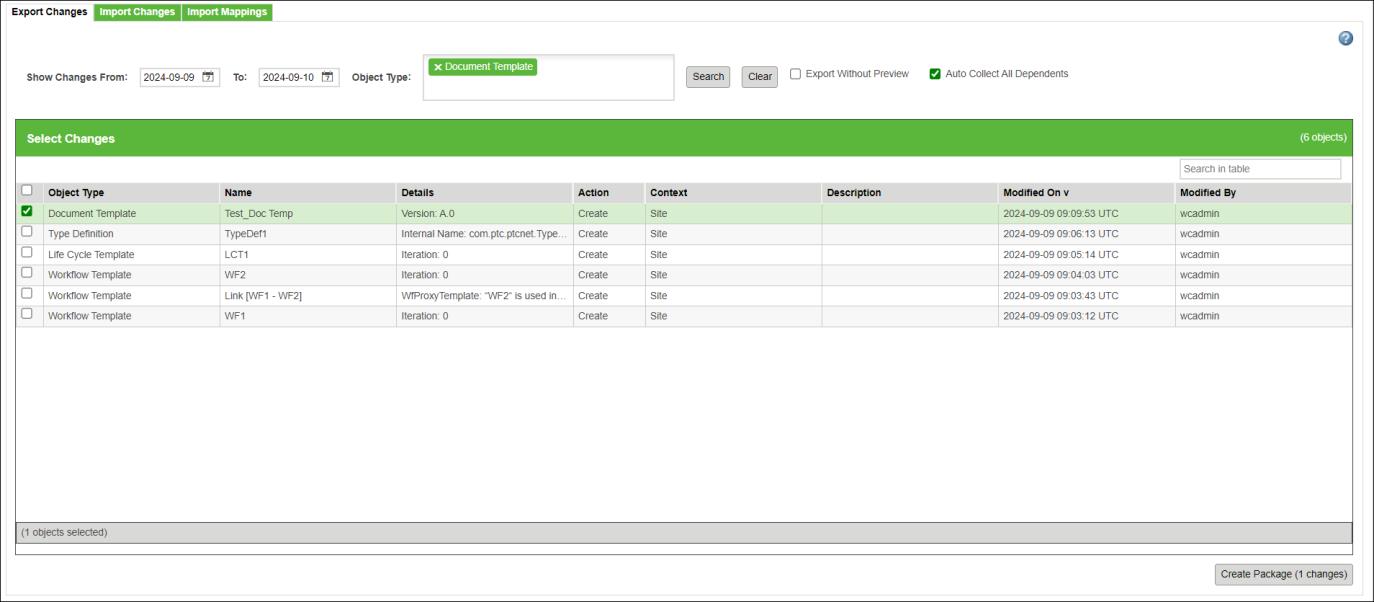
On the Export Changes tab, select the seed object Document Template and click Create Package.
Once the process is complete:
• On the Export Changes page, the system displays:
◦ Seed object — Document Template
◦ First-level dependent — Life Cycle Template
• In the exported BAC package, the system includes:
◦ Seed object — Document Template
◦ All dependent objects — Life Cycle Template, WF1, and WF2.
The following report displays the objects collected by the system:
