Bulk Data Loading Utility
Use the Bulk Data Loading utility to load business data from a ZIP archive. You can access this utility under Organization Utilities or from Business Administration Utilities.

Access requires Business Administrator or Organization Administrator privileges.
This utility supports loading multiple Windchill+ load files at one time. You must bundle the load files into a ZIP archive before uploading. This feature enables structured and consistent import of data into Windchill environments.
For more information, see the following topics:
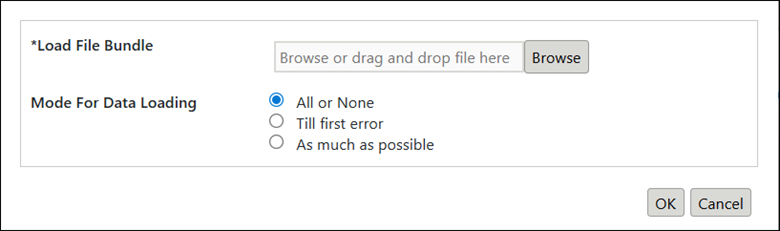
The system displays the following view when you click Bulk Data Loading.
Managing Access and Permissions
• Open the utility in an organizational context (this utility does not appear in the site utilities).
• Ensure that you have the required access permissions before you run the Bulk Data Loading Utility to load data in Windchill.
• You cannot load data within the site context if you do not have site-level access control privileges as an Organization Administrator.
• If no container path is specified in a load file, the data is loaded at the site level. For more information, see About the Load Files.
Structuring the ZIP Package
The structure of the .zip package is as follows:
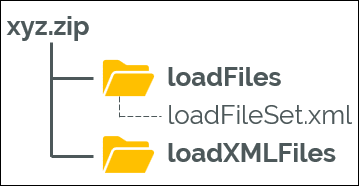
The loadFiles folder contains individual load files. The loadXMLFiles folder stores reusable templates and supporting definitions for the loading process.
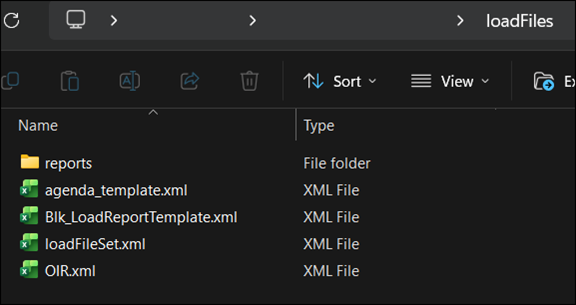
An example of the contents of the load file folder is as follows:
An example of the loadFileSet.xml file is as follows:
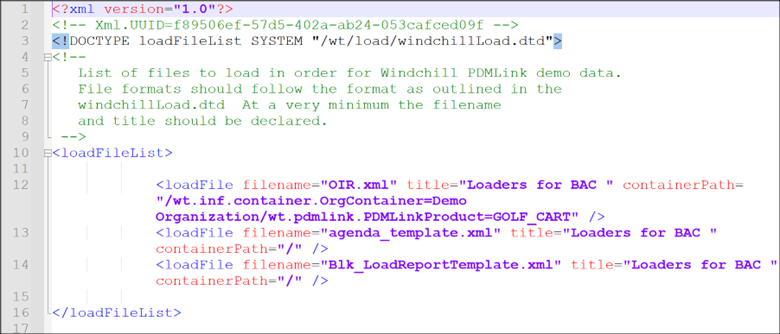
Verify that the load files referenced in the load file set are present in the ZIP package. For example, the load file set lists OIR.xml and BulkLoadReportTemplate.xml. Verify that these files are included in the ZIP package.
 | The file loadFileSet.xml must always be present in your loadFiles folder. |
Load File Execution Options
When you execute load files, you can select one of the following execution options available in the Mode for Data Loading field:
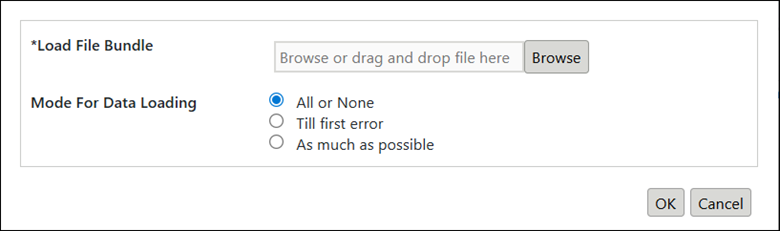
• All or None
◦ The system executes all load files successfully or rolls back all changes.
◦ If any load file fails, the entire execution fails.
◦ For example, consider a load file set that contains four load files. If the first two files succeed and the third file fails, the system rolls back all data loaded from the first two files. The fourth file is not executed. The system then reports the entire load operation as failed.
| | When a load operation fails in All or None mode, the system performs a rollback and displays a generic error message. The detailed cause of the failure is captured in the method server logs, located in the Attachments section on the job monitor page. The logs show the execution status of each load file and help you confirm that the correct files were processed. These details help with troubleshooting. |
• Till First Error
◦ The system stops execution when it encounters the first error.
◦ The load files executed before the error was encountered remain loaded
For example, consider a load file set that contains four load files. If the first two files succeed and the third file fails, the data from the first two load files remains loaded. The system does not process the fourth load file. The system then reports the load operation as failed.
• As Much as Possible
◦ The system continues execution despite errors.
◦ It logs errors but does not stop the process.
For example, consider a load file set with four load files. The first two load files succeed. The third load file fails. The fourth load file succeeds. The data from the first two files and the fourth file remains in the system. Only the data from the third file is not loaded.
Prerequisites
• Prepare a valid .zip or .jar package. Other files types are not supported.
• Confirm that your ZIP contains the exact load files referenced by the load set.
• Arrange the load files in the correct order based on their dependencies in the loadFileSet.xml.
• Ensure that the package contains all required files. Include all files referenced by the loaders inside the package. Do not reference any load file or any content that is located outside the zip package.
Uploading the ZIP
Perform the following steps:
1. Navigate to > > .
2. Click Bulk Data Loading. The following entities appear:
3. Use the Load File Bundle field to browse or drag and drop the ZIP file.
4. Use the Mode for Data Loading field to select the execution mode. All or None is the default execution mode.
5. Click OK. After the upload is completed, the page displays a link to open the monitoring user interface.
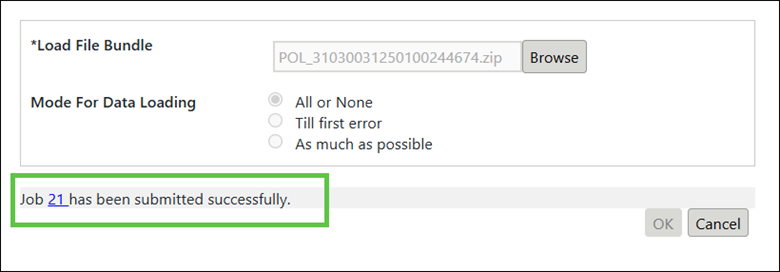
Click the link to open the job monitor information page.
| | Use the job log in the job monitor information page to verify which load files are executed successfully. For example, review the files in the Attachments section. These files show the execution status of each load file and help you confirm that the correct files were processed. The Attachments section also contains the method server logs. |
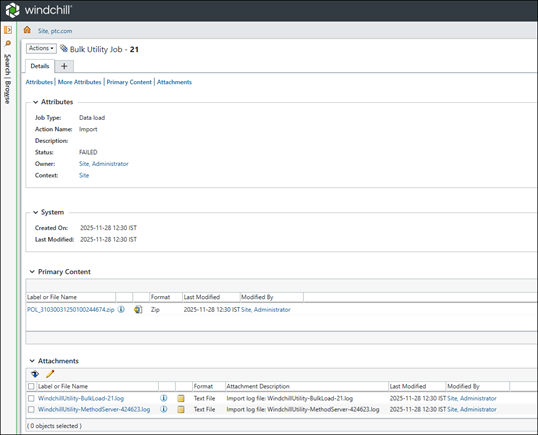
◦ The Attachments section contains the log files. These log files contain all the information required to diagnose and resolve failures. Click the log files to view the logs.
◦ The Status field displays the job status.
◦ The Primary Content section contains the load file .zip.
| | You can also click the Bulk Utility Job Monitor action available in the Quick Links list to view the job monitor page. 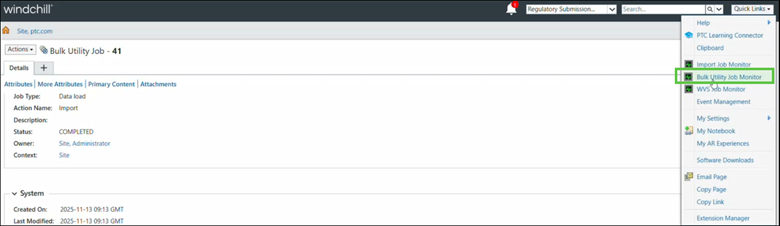 |
Monitoring Progress and Results
• Open the monitoring user interface from the post-upload link or click > .
• Review the job status: Running, Completed, or Failed. The job type appears as Data Load.
• Open the log from job details to view processed load files and errors.
• Refer to the attached method server log for detailed execution flow and issue analysis.
| | • In All or None mode, the progress log is created at commit time. Other modes update after each load file. • Download the original ZIP from job details if required. |
Validating the Load
• Confirm that objects appear in the correct context. If the load set specifies a container, such as GolfCart, the utility places objects inside it. If no container is specified, objects appear at the Site level.
• Use the job log to verify which load files are executed successfully.
Handling Errors
• Review concise exceptions in the job log.
• Check method server logs for detailed failure reasons. Review the files in the Attachments section of the job monitor information page.
• Search the method server logs to find specific job failures. Review the failure details in the method server log that is attached to the job.
Troubleshooting Issues
• Wrong file type— The system prompts you to select a valid ZIP or JAR.
• Duplicate data—Loads fail when an identity is not unique. Adjust the data and retry.
• Insufficient access—Jobs fail if your role lacks permissions in the target site or container. Align permissions or use an account with sufficient privileges.
| | When a load operation fails in All or None mode, the system performs a rollback and displays a generic error message. The detailed cause of the failure is captured in the method server logs, located in the Attachments section on the job monitor page. The logs show the execution status of each load file and help you confirm that the correct files were processed. |